Multi-Match Scenarios and Multi-Match Selection Required
This feature gives admins the option to make Multi-Match scenarios a required step in Revenue.io call cadence. This prompts the Select a Caller drop-down which gives you the option to associate the phone number to a specific SFDC object.
A Multi-Match selection is when the same phone number calling in is matched with multiple Salesforce objects (Lead, Contacts).
This setting functions similarly to the Call Disposition Required setting by disabling reps to make an outbound call until they’ve selected a caller when a Multi-Match option appears. To require reps to assign a Salesforce record in Multi-Match scenarios:
Configuring Account-Level Multi-Match settings
Log in to Admin Console
Navigate to RingDNA in the left-hand navigation, and select RingDNA Settings
Select account-level multi-match setting. The selected option will apply to all users on the account.
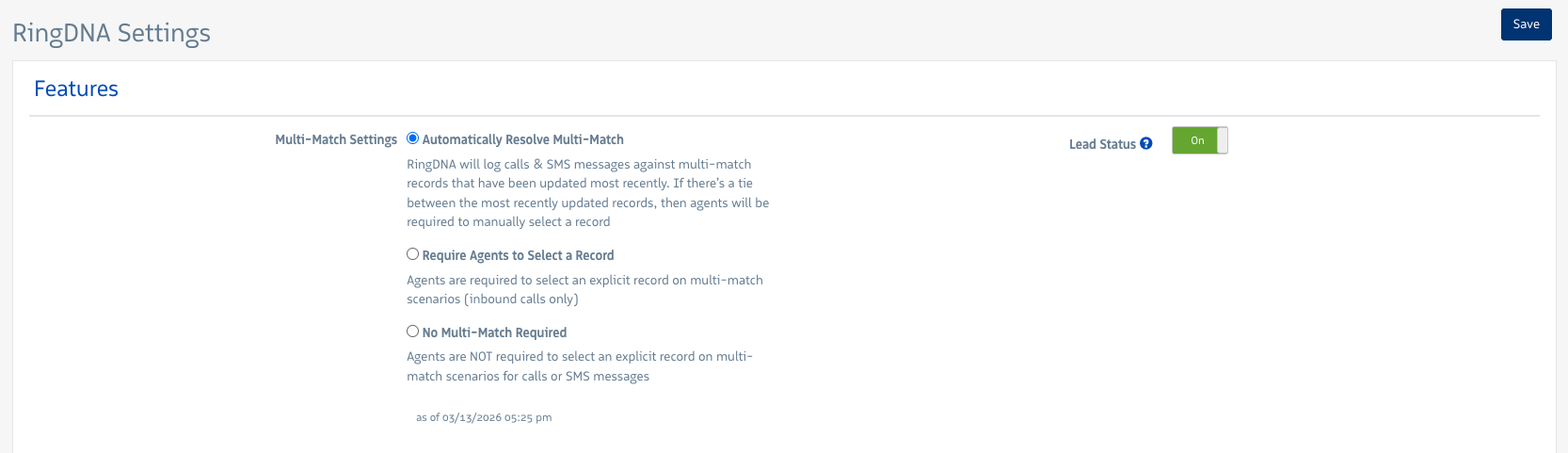
Multi-match account settings
Configuring User-Level Multi-Match settings
You can configure user-level multi-match settings that when enabled, will override the account-level multi-match setting.
Log in to Admin Console
Navigate to Users in the left-hand navigation, and select the user you want to change settings for
Click the Products tab, then RingDNA Communication Hub
Select Multimatch Settings in the Salesforce section
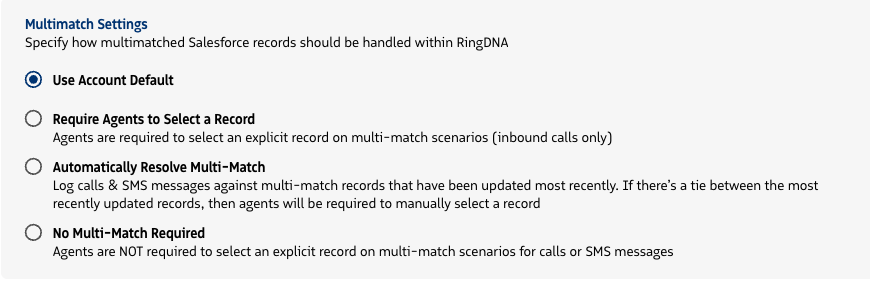
Multi-match user settings
Multi-Match in RingDNA
Here’s how an incoming call appears when a Multi-Match selection event occurs – notice the Select a Caller drop-down menu.
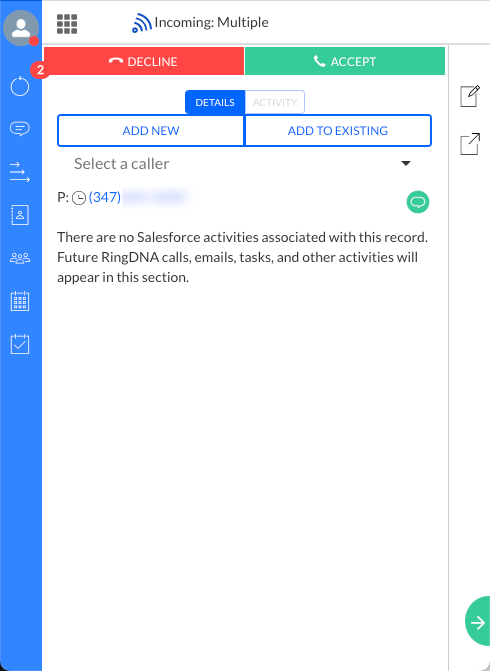
Multi-match in Dialer with incoming call
User has opened the “Select a caller” dropdown.
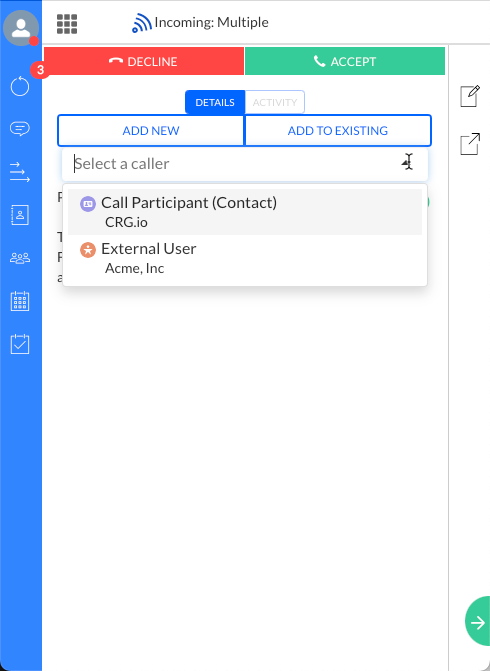
Multi-match in Dialer - select a caller
If the agent does NOT make a selection in the “Select a caller” dropdown, then after the call is completed, the Alerts tab will be illuminated – notifying the user of any Multi-Match selections that must be actioned.
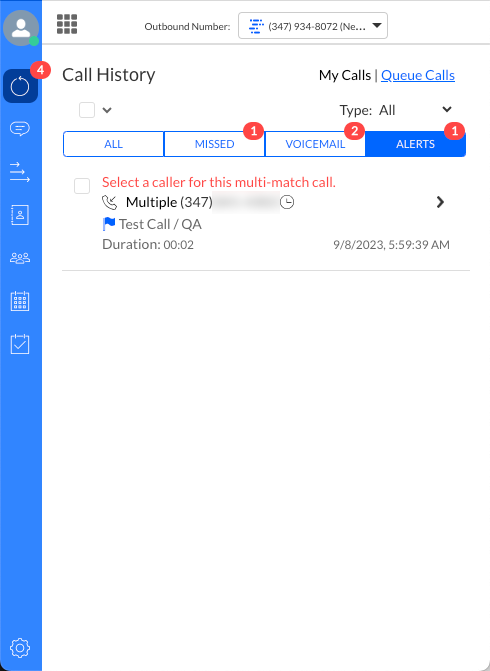
Multi-match post call
Clicking into that call will take the user back to the call in their Activity History where they can make a Multi-Match selection.
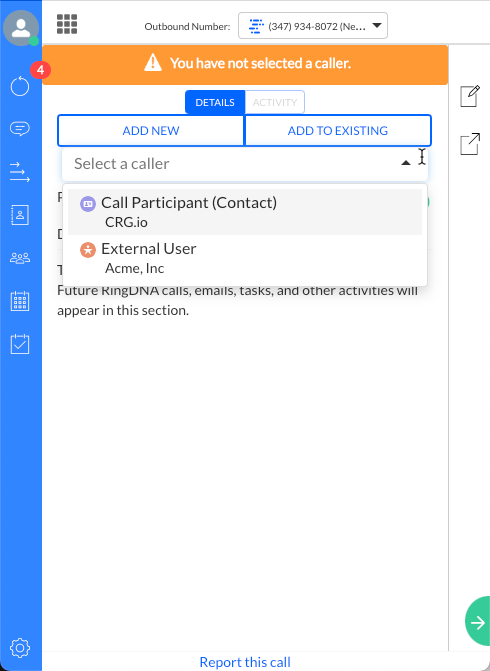
Multi-match select post call