Route by Business Hours
Use the Time step to route inbound calls based on your business schedule. Calls arriving during configured hours go to the Open path; all other calls go to the Closed path. Time steps can be nested to create shift-based routing within a single flow.
Route calls by business hours
Goal: Send calls to your team during business hours, and to voicemail outside of them.
- Drag a Time step to the beginning of your call flow.
- Set the Time Zone to match your team’s location.
- Configure open and close times for each day of the week.
- Connect the Open path to a Dial step that rings your queue.
- Connect the Closed path to a Voicemail or Greeting + Hangup step.
To factor in company holidays, check Use Holiday Schedule. During holiday dates, calls are routed to the Closed path and play a default voicemail. Configure holidays at Account > Overview > Holiday Schedule.
Route calls by shift
Goal: Route calls to Shift 1 agents in the morning and Shift 2 agents in the afternoon, with voicemail overnight.
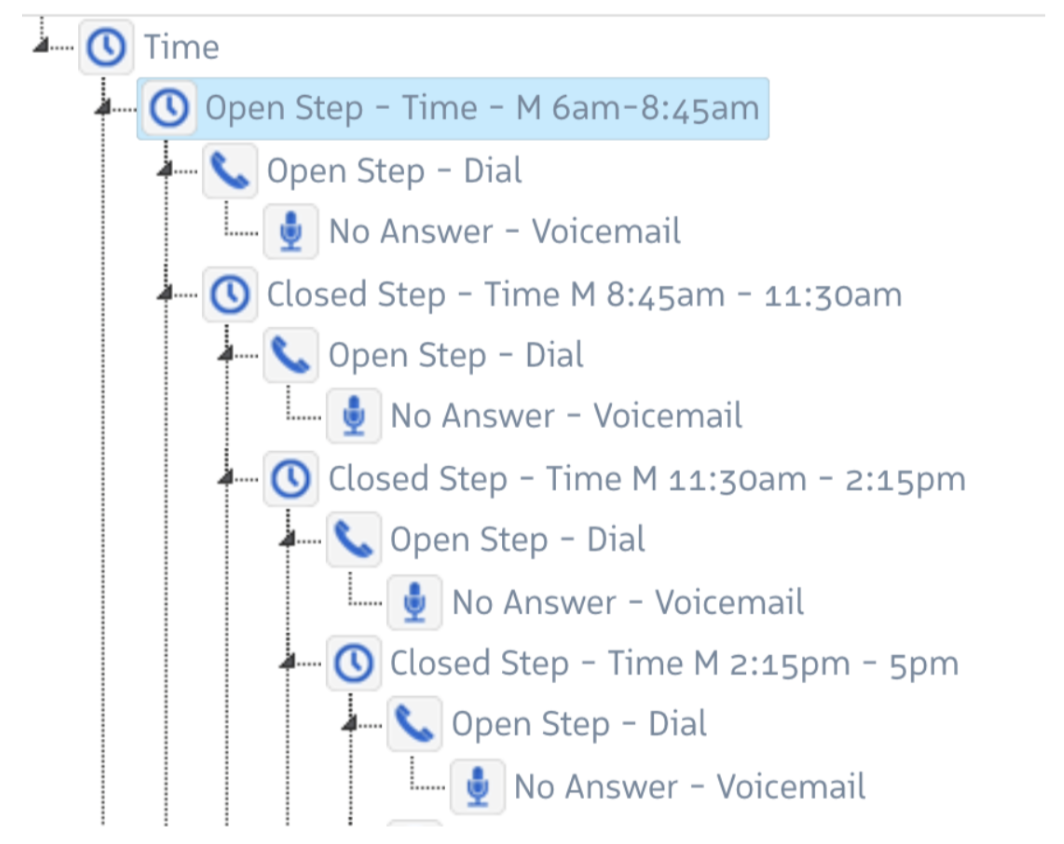
- Drag a Time step to the start of the flow. Set it to your overall business hours (e.g., 8 AM–8 PM). This separates business hours from overnight.
- Inside the Open path, drag a second Time step. Set it to Shift 1 hours (e.g., 8 AM–1 PM).
- Open path → Dial step to the Shift 1 queue
- Closed path → a third Time step for Shift 2 hours (e.g., 1 PM–8 PM)
- Continue nesting Time steps for each additional shift.
- Connect the Closed path of the outermost Time step to a Voicemail step for overnight calls.
Repeat this pattern for as many shifts as needed. Each nested Time step inherits the time zone from the parent step unless you explicitly set it.
Tips
- Multiple Time steps in a single flow are all evaluated against the same real-time clock — the flow does not “remember” previous Time step decisions.
- Use descriptive step names (e.g., “Morning Shift”, “Evening Shift”) to make the flow diagram easier to read.
- Test your flow against different times of day using a test phone number before assigning it to a production Smart Number.