Extension-Based Routing
Use the Prompt step to let callers dial an extension and connect directly to a rep or queue — bypassing the main IVR menu.
The Prompt step accepts up to 20 digits, making it well suited for extension-style input.
Set up extension routing
Goal: Let callers dial a 3-digit extension (e.g., 101 for Sales, 102 for Support) instead of navigating a voice menu.
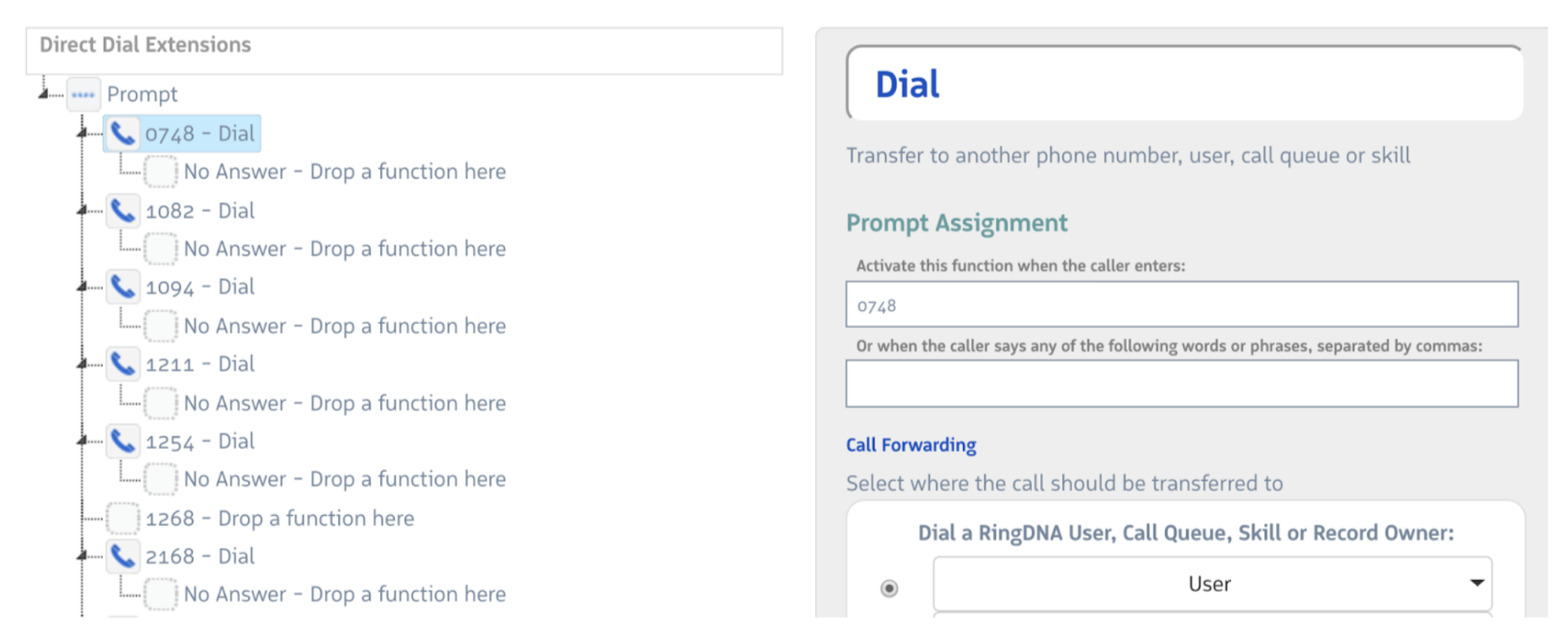
- Add a Greeting step as the first step in your flow. Play a message that explains the extension system (e.g., “Thank you for calling. If you know your party’s extension, please dial it now.”).
- Drag a Prompt step onto the flow after the Greeting.
- For each extension, add an entry in Activate this function when the caller enters and connect a Dial step to it:
101→ Dial > Sales Queue102→ Dial > Support Queue103→ Dial > Billing Queue
- Add a No Response path for callers who do not enter an extension within the timeout — route them to a default Dial step or a Menu for standard IVR navigation.
- Add an Any Response path for unrecognized extensions — play a “that extension is not valid” Greeting and loop back to the Prompt, or route to an operator.
Tips
- Extensions can be any length up to 20 digits. 3- and 4-digit extensions are the most common.
- Combine with a Menu step if you want to offer callers the choice of dialing an extension or selecting from a standard menu. Place a Menu step first, with one option leading to the Prompt step for extensions and the others leading to specific queues.
- Use clear Greeting audio. Callers will not know extensions are available unless you tell them. Consider mentioning the extension format in your main greeting.
- Name each Dial step with the extension it handles — this makes the flow diagram readable and makes Salesforce activity reports more useful.