Enable SMS/MMS and SMS Templates for RingDNA
- To send SMS/MMS messages in the United States, businesses must complete both their Business Profile and A2P Campaign Registration to comply with A2P10DLC messaging requirements. See: Application-to-Person (A2P) SMS Registration Requirements.
Enable SMS/MMS for RingDNA, then create and manage SMS templates with merge fields for use in the RingDNA Communications Hub.
Enabling SMS
To enable SMS in your account:
- Log into the Admin Console. Select RingDNA in the left-hand navigation, then click SMS.
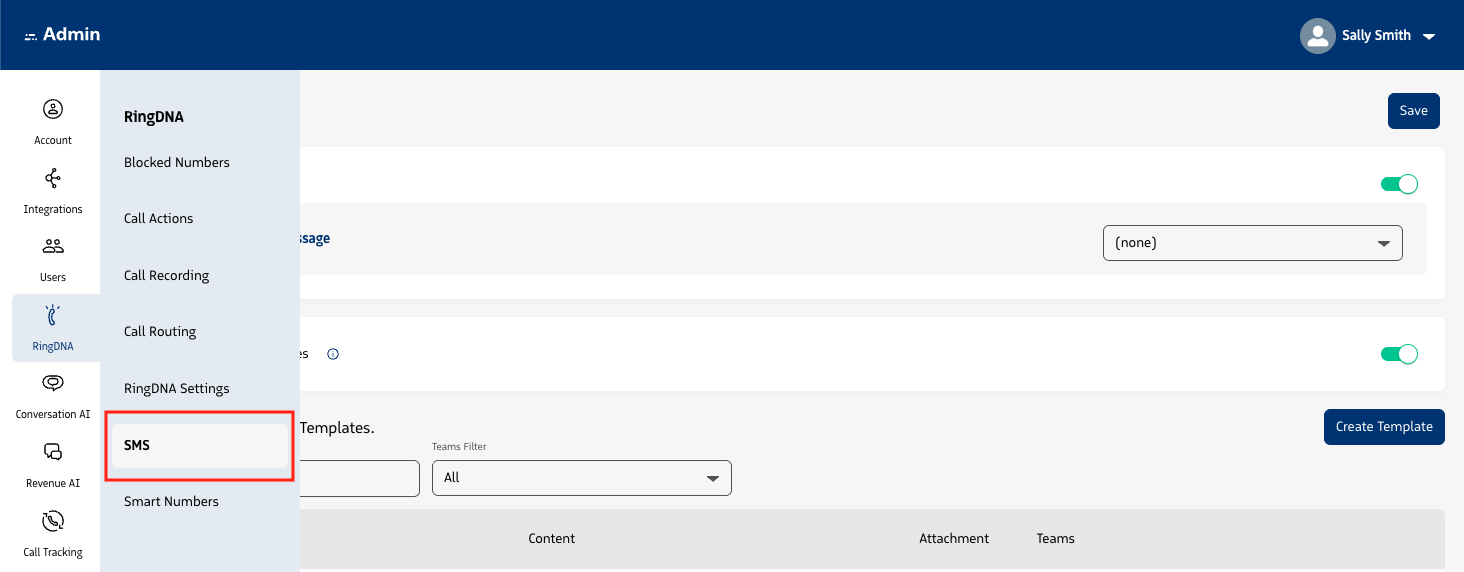
Locate the SMS toggle and click it On.
Note: If the SMS toggle is disabled (you’re unable to turn it on), then reach out to Revenue.io’s Support team to request activation of SMS in your account.
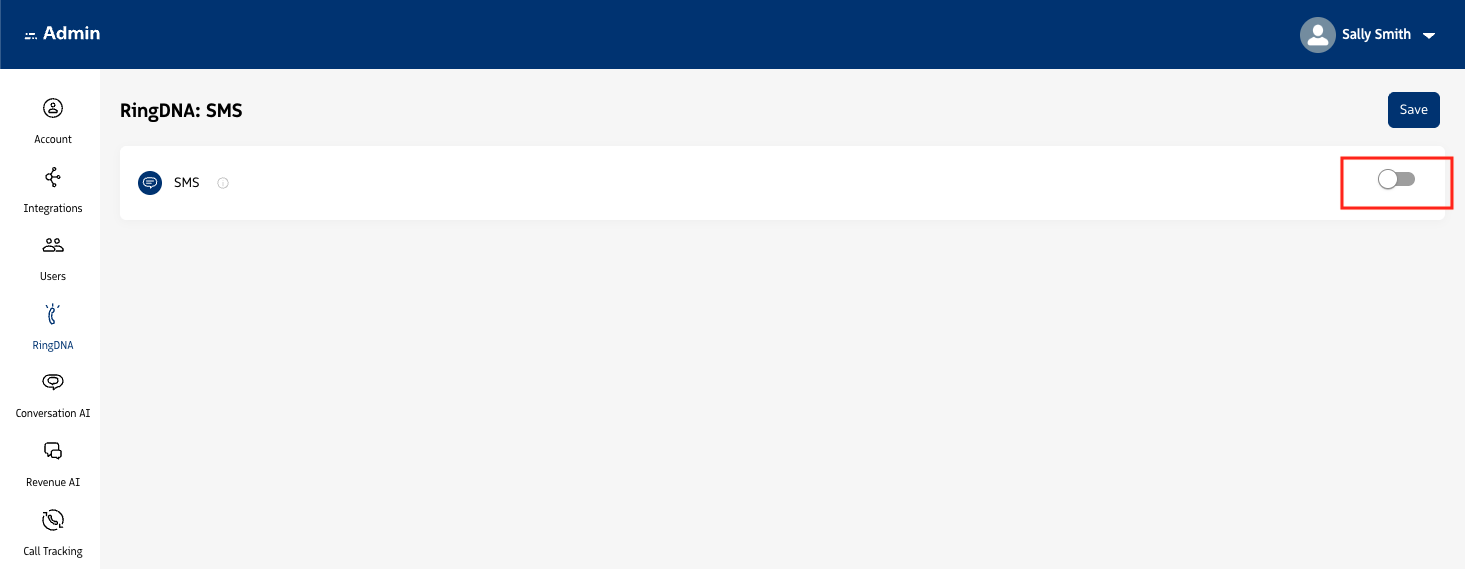
- Accept the SMS Agreement to proceed with enabling SMS for RingDNA Communications Hub users in your account.
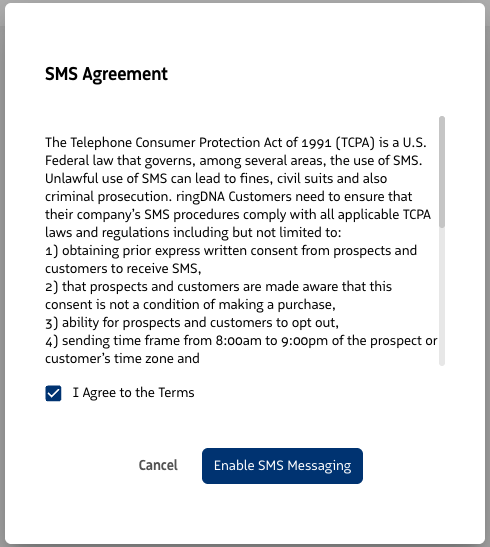
- SMS is now enabled in your account. Click Save at the top of the page.
Creating and managing SMS templates
Revenue.io admins can configure SMS Templates for teams to use. To create new SMS templates, follow the below steps:
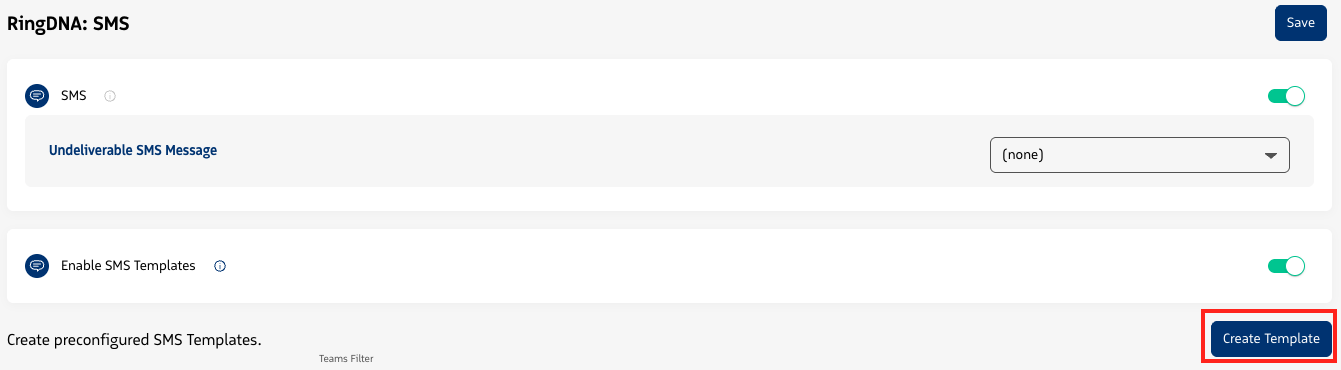
- Log into the Admin Console. Select RingDNA in the left-hand navigation, then click SMS. Ensure the SMS toggle is turned On.
- Toggle the Enable SMS Templates toggle On, then click the Save button at the top right of the screen.
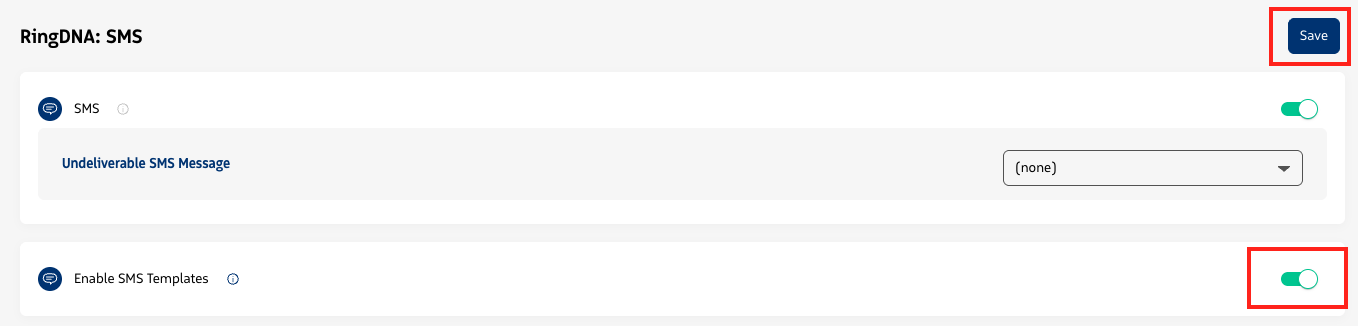
- In the SMS Templates section, click the Create Template button.
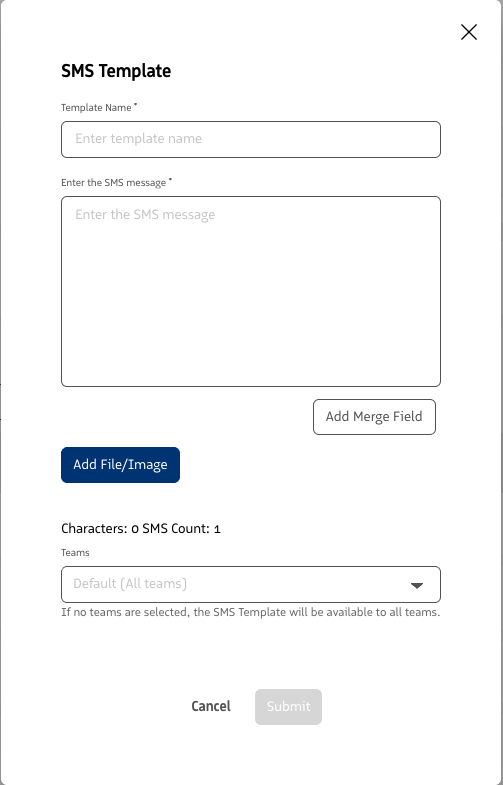
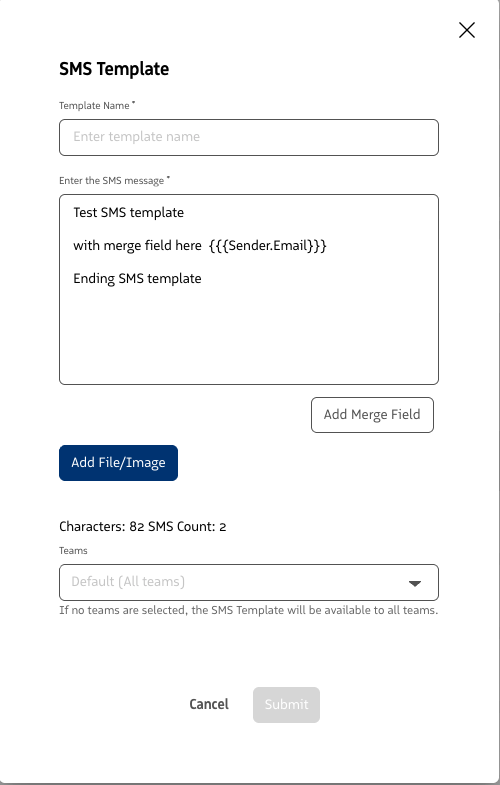
- On the SMS Template modal:
- Enter a Template Name
- Enter the Template’s SMS Message
- Optionally, Add Merge Fields
- Optionally, attach a file (such as a PDF or image file) to be sent via MMS.
- Limit the visibility of the SMS template to a particular team by selecting team(s) in the Teams field
- Click Submit to create the SMS Template
Merge fields
Merge fields let you insert dynamic, personalized content into SMS templates. When a template is used, whether sent manually by a rep from the RingDNA dialer or automatically via a Guided Selling sequence, merge fields are resolved in real time using data from the associated Salesforce records.
Adding merge fields to a template
Merge fields can be added when creating, editing, or duplicating a template.
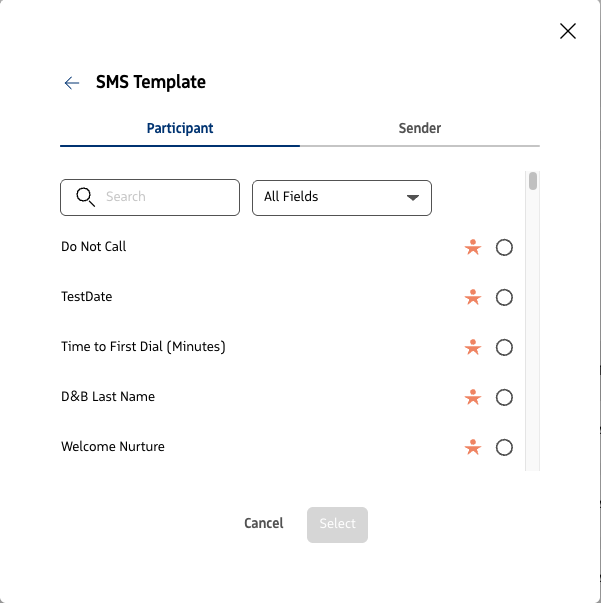
- In the Create or Edit Template modal, click the Add Merge Field button.
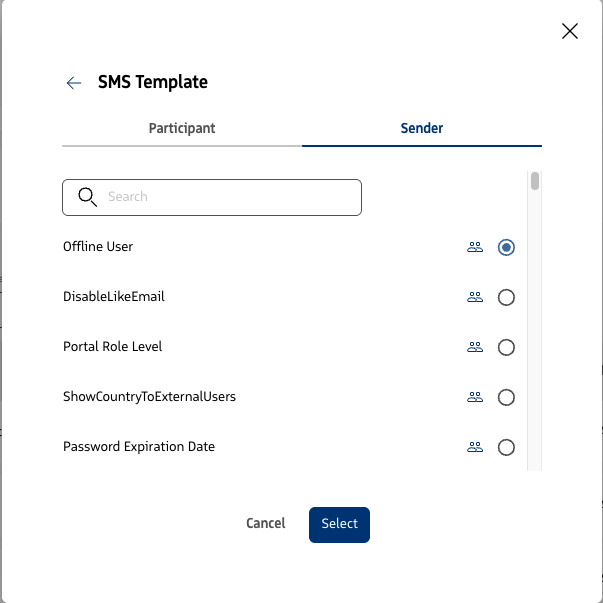
- Use the To or From tab to browse fields:
- Participant: Fields from the recipient’s Salesforce record (Lead, Contact, or fields shared across both)
- Sender: Fields from the sender’s Salesforce User record
Optionally search by field name or use the filter dropdown to narrow results.
- Select a field using the radio button, then click Select to insert it at your cursor’s position in the message body. If no cursor position is active, the field is appended to the end.
Utilizing SMS templates in RingDNA
Follow the below steps to begin using SMS Templates in the RingDNA Communications Hub:
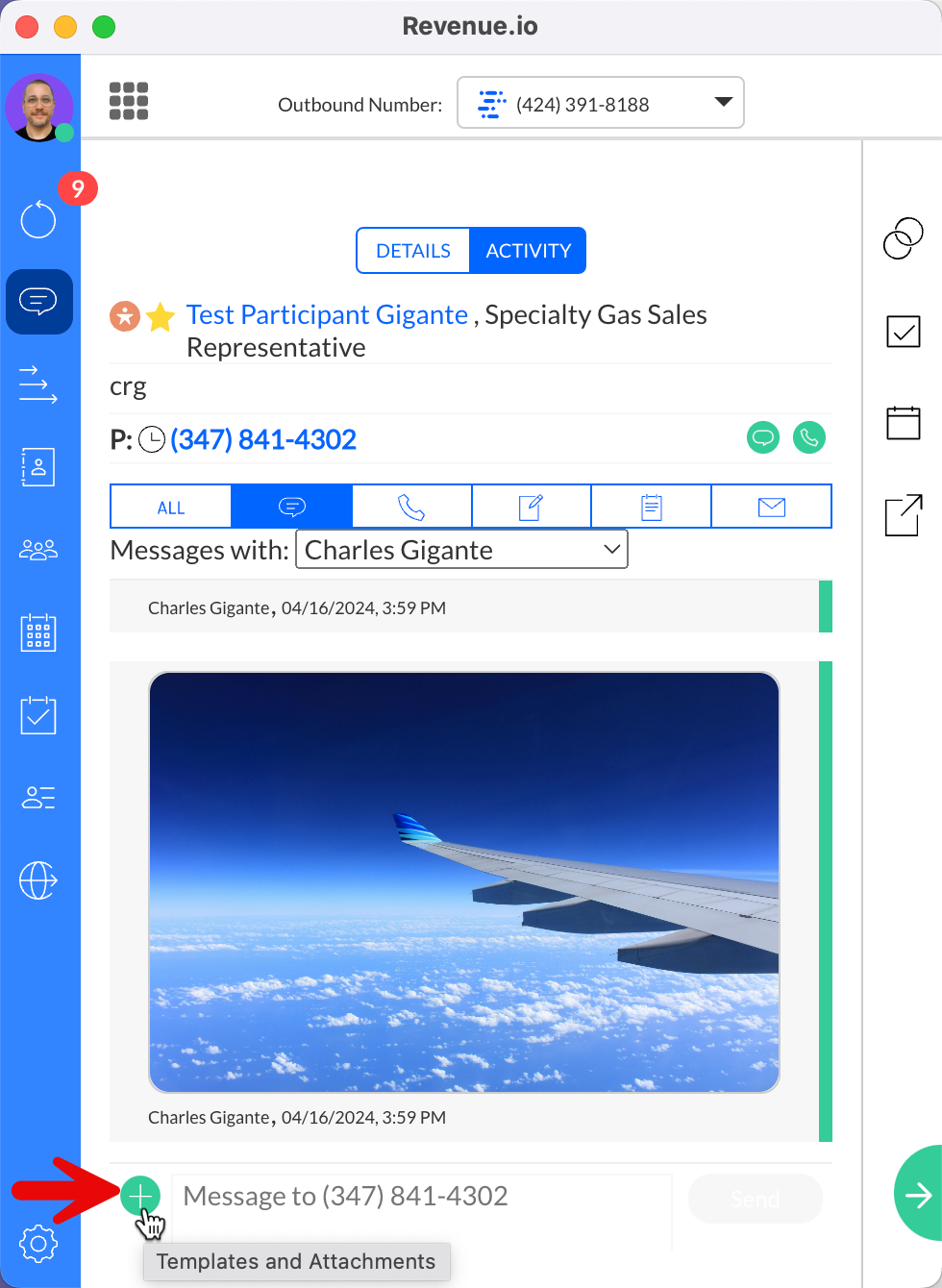
- Once the SMS Template is created in the Admin Console and is available to an agent, the agent can access the SMS Templates via any message thread. To get started, click the icon.
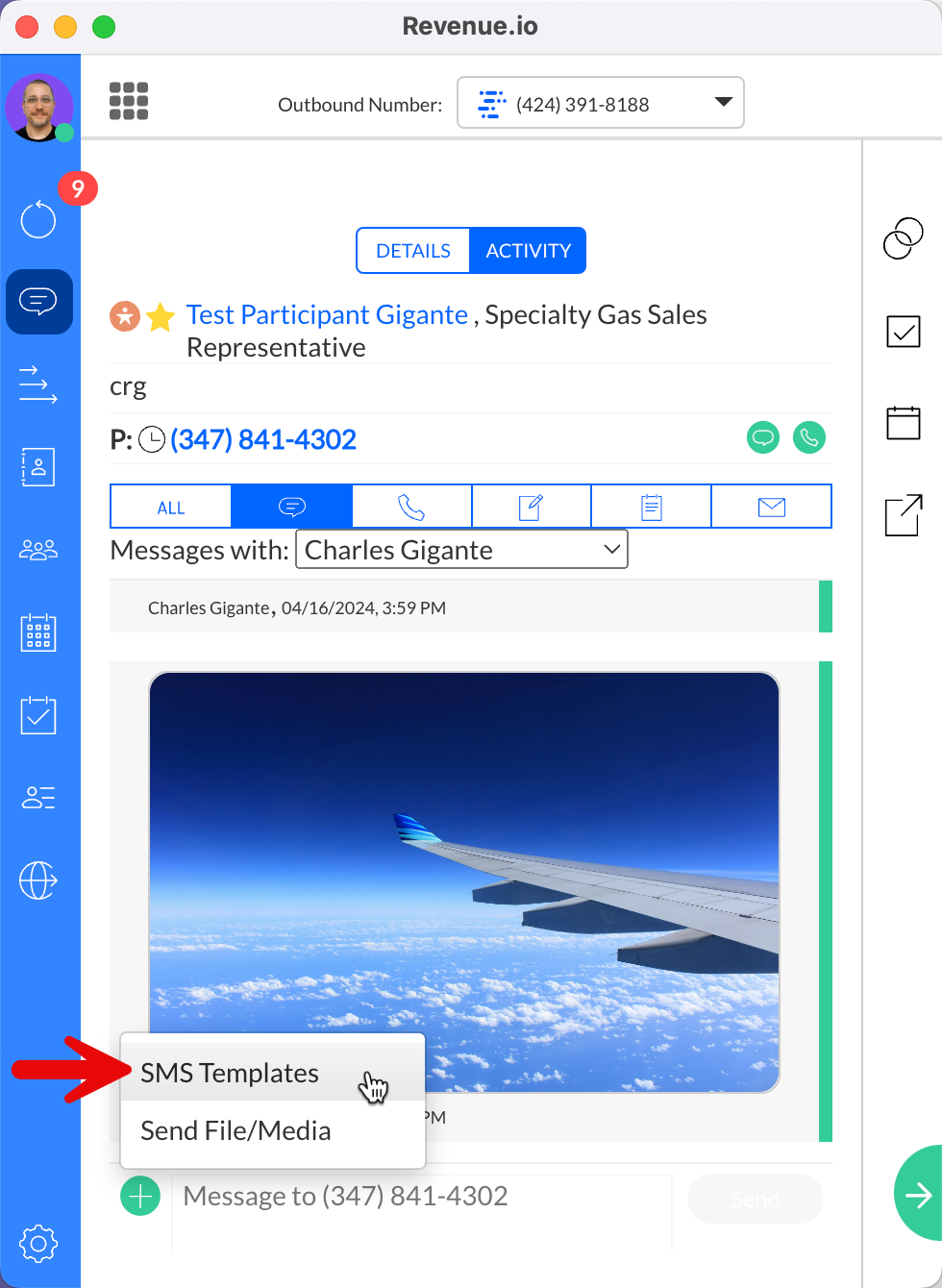
In the menu, select SMS Templates.
Note: For information about the Send File/Media menu option, see Sending files/media via MMS in RingDNA Communications Hub.
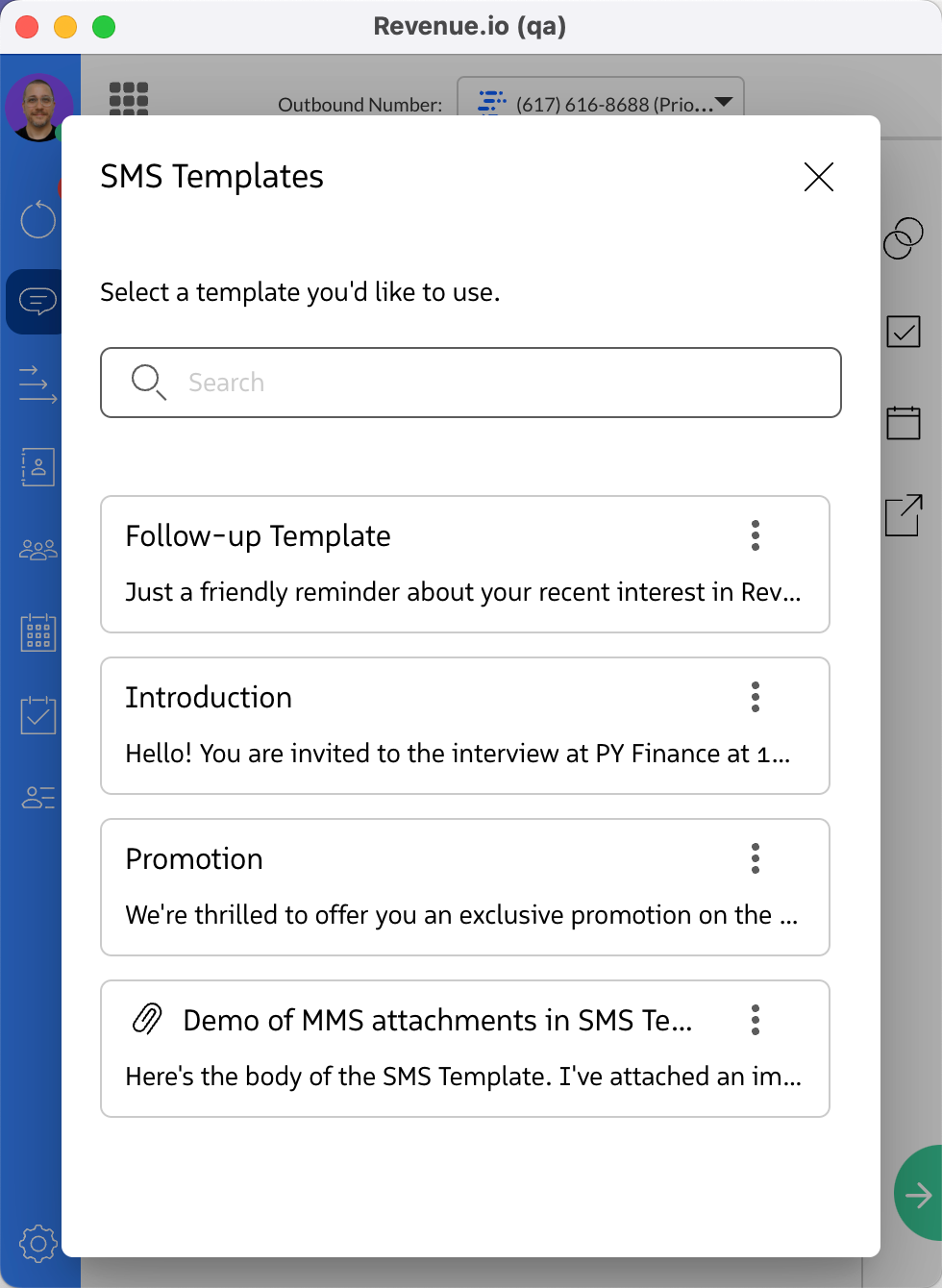
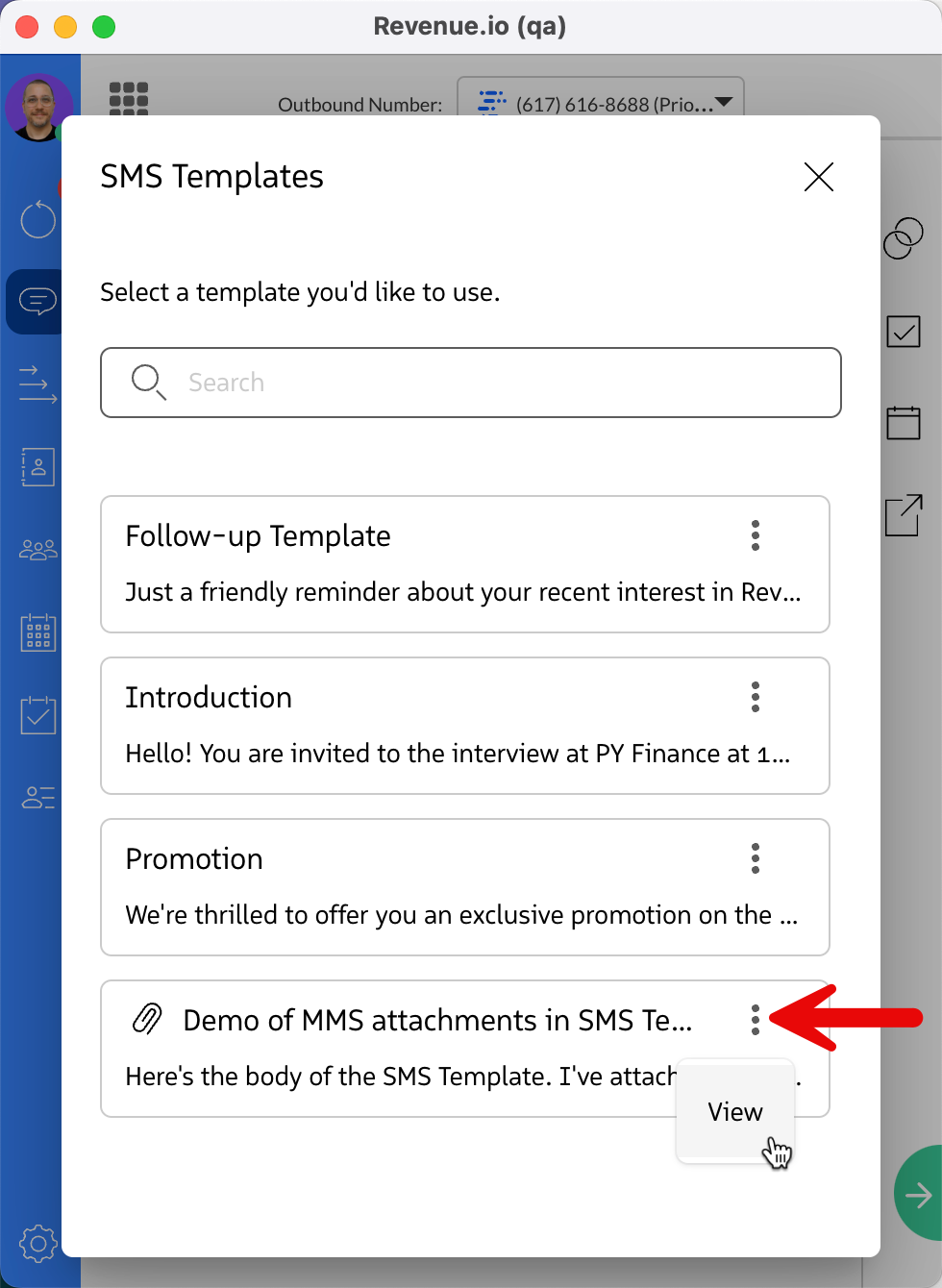
Available SMS Templates appear.
Note: The Name of each template appears on the first line of each card. Preview text of the SMS Template is visible immediately below it.
- To preview a template before using it, select the menu and click View.
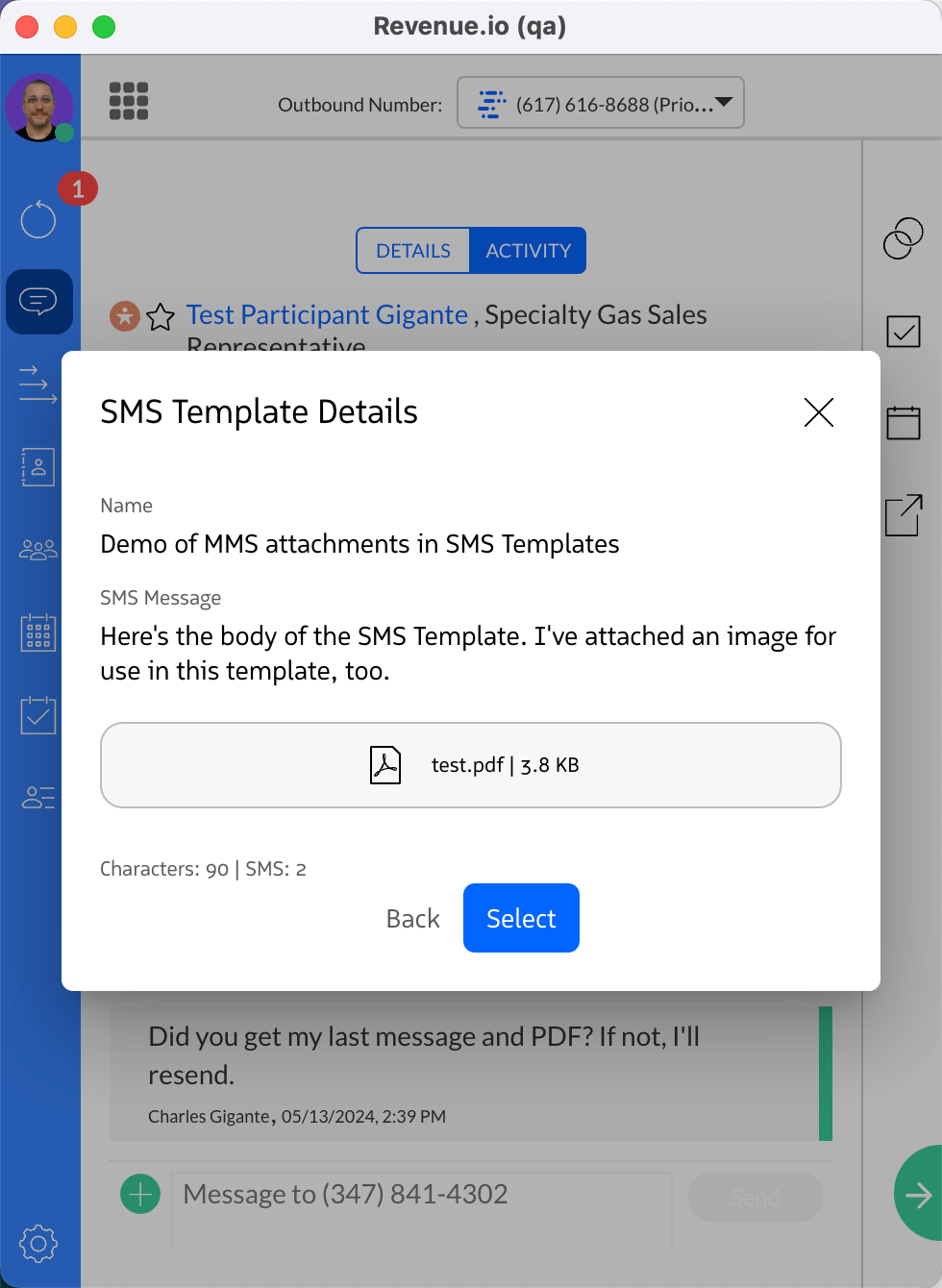
A preview of the template’s Name, SMS Message body, and any optionally attached file appears:
- To return to the full list of templates, click Back.
- To close the modal window and return to the message thread, click the “X” icon at the top right.
- To add the template and optional attachment to the SMS input field, click Select.
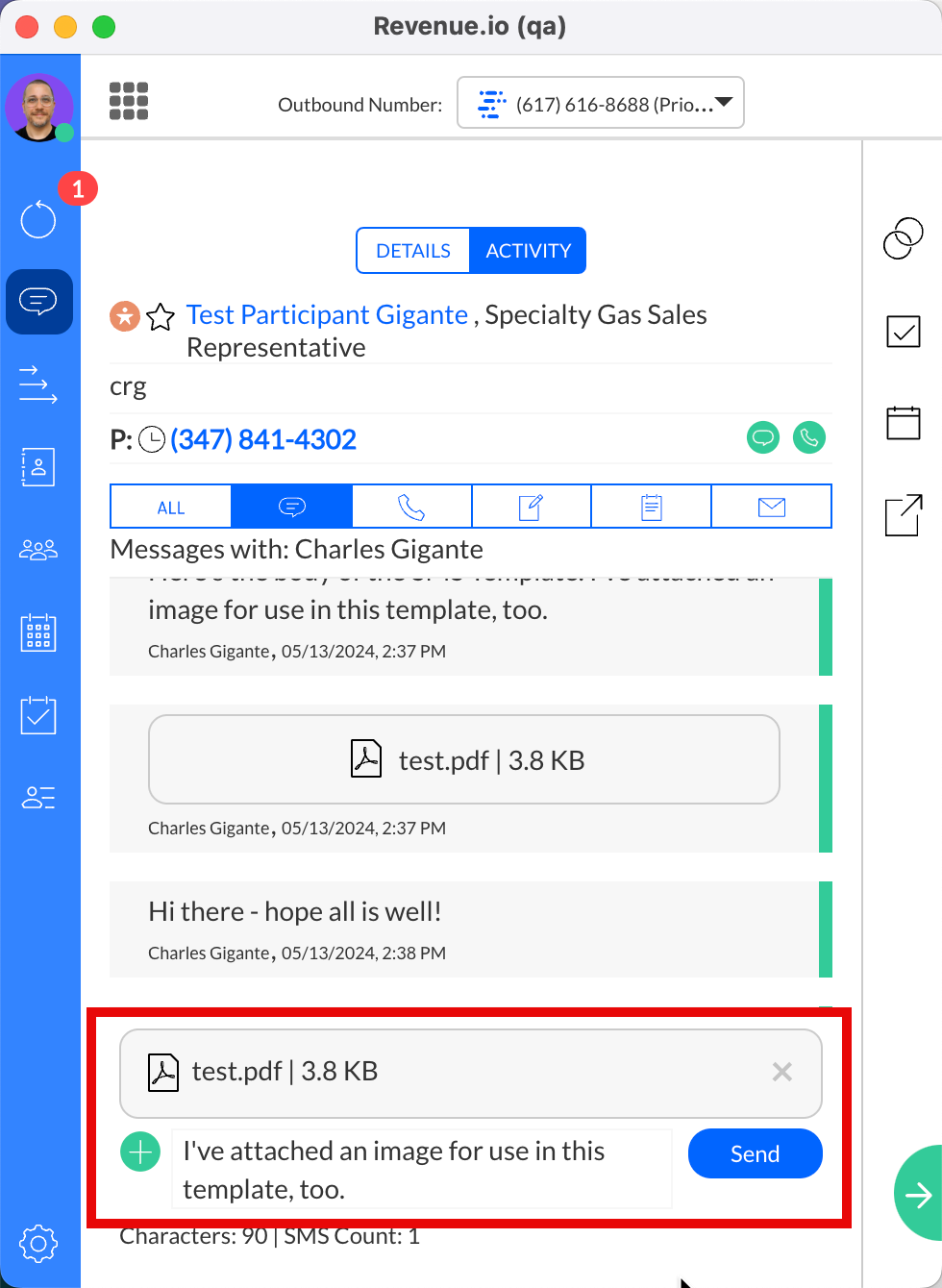
- After clicking Select, the SMS Template and optional attachment are added and ready to be sent. Click Send to send the message.
Alternatively, you can apply an SMS template by clicking it directly in the list of templates.