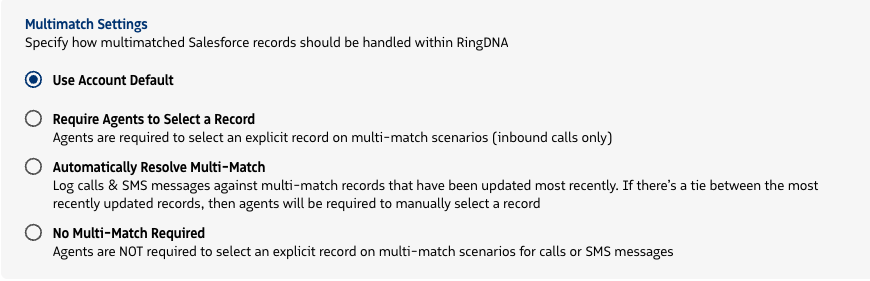
Automatically Resolve Multi-Matches
Admins have the option to automatically assign Multi-Matched calls to the most recently updated Lead or Contact, so that Multi-Match calls aren’t orphaned and Agents are not required to manually select a record.
This can be set at the account-level (applies to all users) or the user-level (applies to individual users)
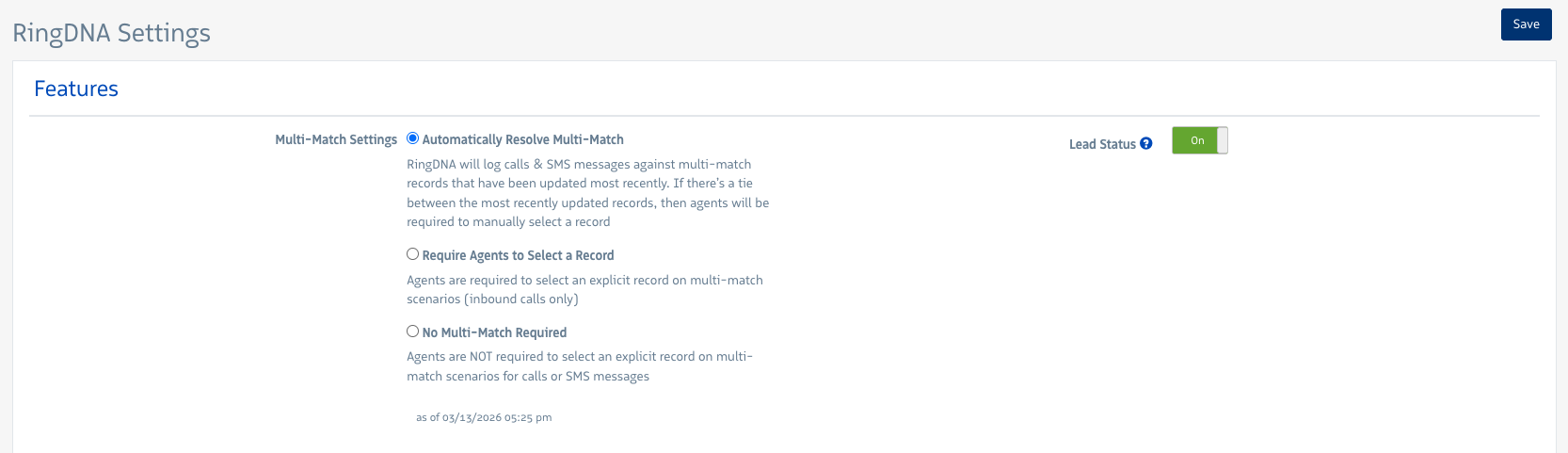
Account-level setting
Log in to Admin Console
Navigate to RingDNA in the left-hand navigation, and select RingDNA Settings
Click the bullet next to Automatically Resolve Multi-Match, or the Multi-Match setting of your choosing, then click Save to apply the selected Multi-Match logic to your account. The selected option will apply to all users on the account.
User-level setting
You can configure user-level multi-match settings that when enabled, will override the account-level multi-match setting.
Log in to Admin Console
Navigate to Users in the left-hand navigation, and select the user you want to change settings for
Click the Products tab, then RingDNA Communication Hub
Select Multimatch Settings in the Salesforce section