Enabling Revenue Intelligence Features
- Enhanced Analytics must be enabled for your account.
How to Enable Revenue Intelligence for Your Account
The Revenue.io X-Ray page requires enabling our Enhanced Salesforce Analytics integration for your account. To enable this functionality You can either let your assigned Customer Success Manager know that this is something you are interested in or email support@revenue.io asking to have this enabled.
How to Enable Revenue Intelligence for a User
Once you have enabled Enhanced Analytics for your account, enable X-Ray for each user who should see it. Users can view opportunity and account pages without turning on Revenue Intelligence for them. If Enhanced Analytics isn’t enabled, the Revenue Intelligence settings are unavailable.
Open the user
In the Admin Console, go to Users and search for the user by name, or select the user from the list.
Open the Revenue Intelligence settings
Select the Products tab. Turn on the Revenue Intelligence toggle for the user, and then select the arrow (>) icon next to Revenue Intelligence. The arrow is unavailable until the toggle is on.
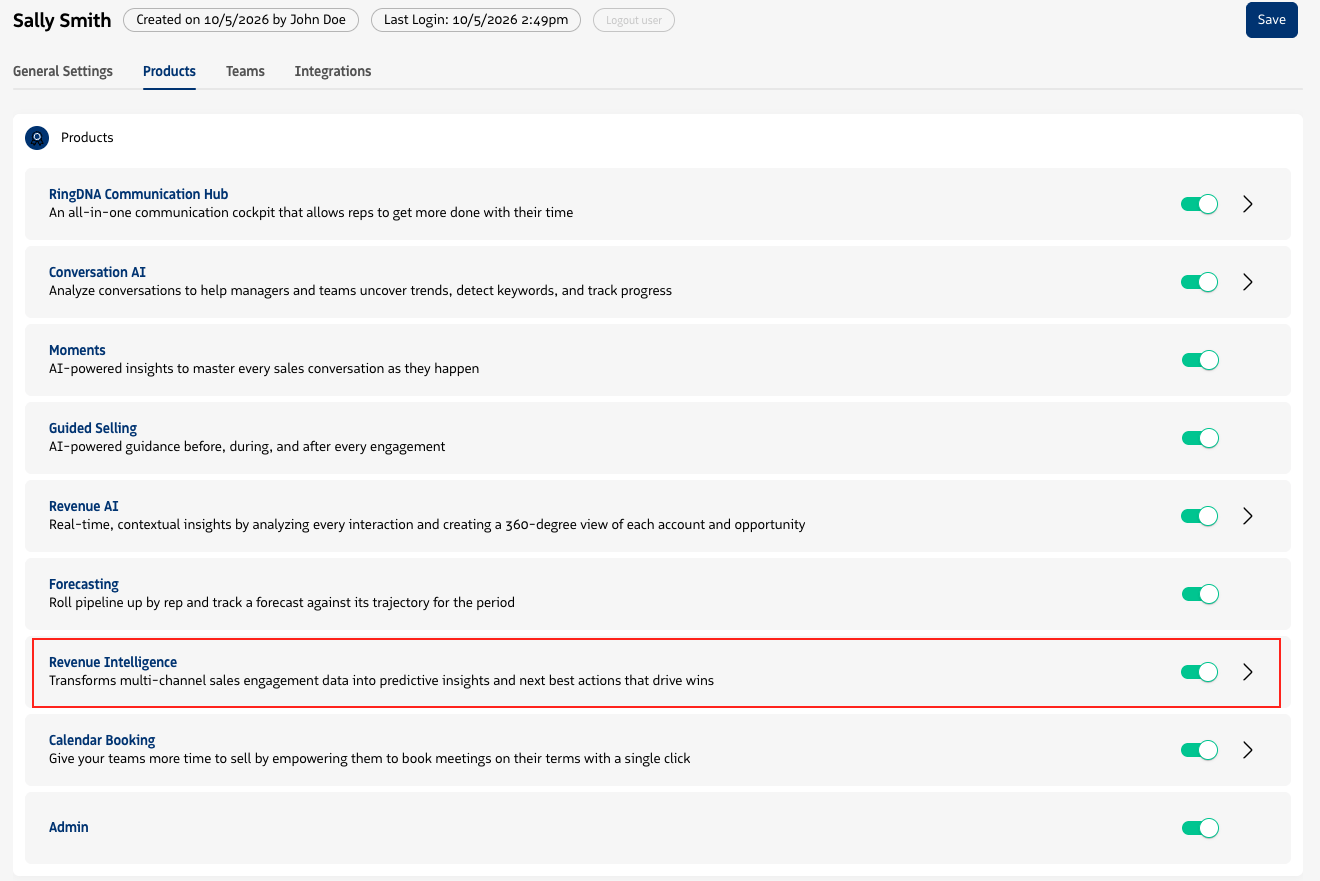
Enable X-Ray
Turn on X-Ray. The user can then access X-Ray in the Revenue application.
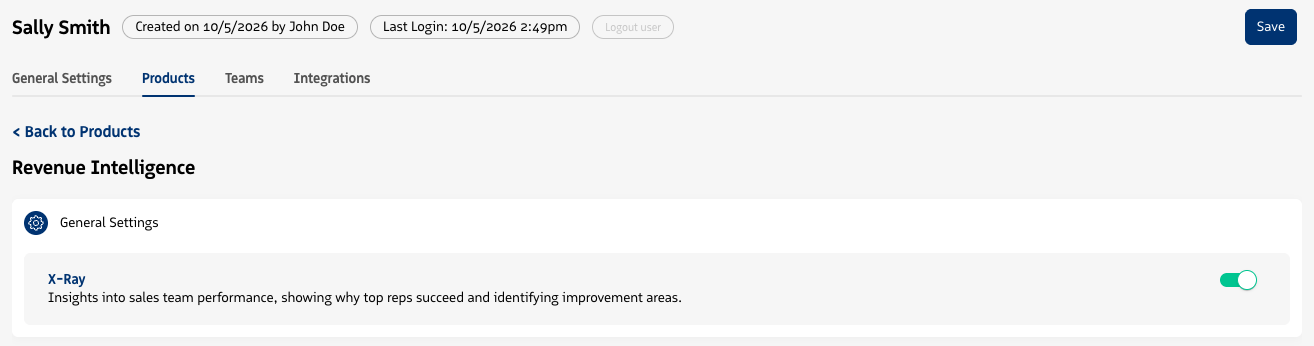
Save your changes
Select Save to apply the changes.
Update many users at once
To enable X-Ray for many users, go to the Users page and select Bulk Management > User Settings > Revenue Intelligence. See Bulk manage user settings.