Conversation Agents
- Conversation agents must be enabled at the account level before they run on conversations
- If your account does not have a Revenue AI license, all agents appear as disabled and cannot be turned on.
- Conversations must be over 4 minutes long and contain more than 100 spoken words for Conversation Agents to run.
Learn how to access, enable, and use out-of-the-box conversation agents. After each conversation ends, agents analyze the transcript in the background and make extracted insights available on the conversation record, in reporting views, and in mapped Salesforce fields.
Roles and permissions
- Admin / Support: View all agents; enable, disable, or edit any agent; configure Salesforce field mapping
- Supervisor: View all agents; enable, disable, or edit agents scoped to their team
- Agent: View agents they are targeted to; see extracted insights on conversations they own; view their agent insights under My Profile > Agents tab. Access to conversation agents varies by targeted roles. Learn more about managing roles and methodologies.
How to access Conversation Agents
- Log in to the Revenue app.
- Select Conversation Agents from the left navigation.
This opens the Conversation Agents list page, which displays all available agents with their name, description, current status (enabled/disabled), and Salesforce field mapping status. You can search agents by name or description using the search bar at the top of the list.
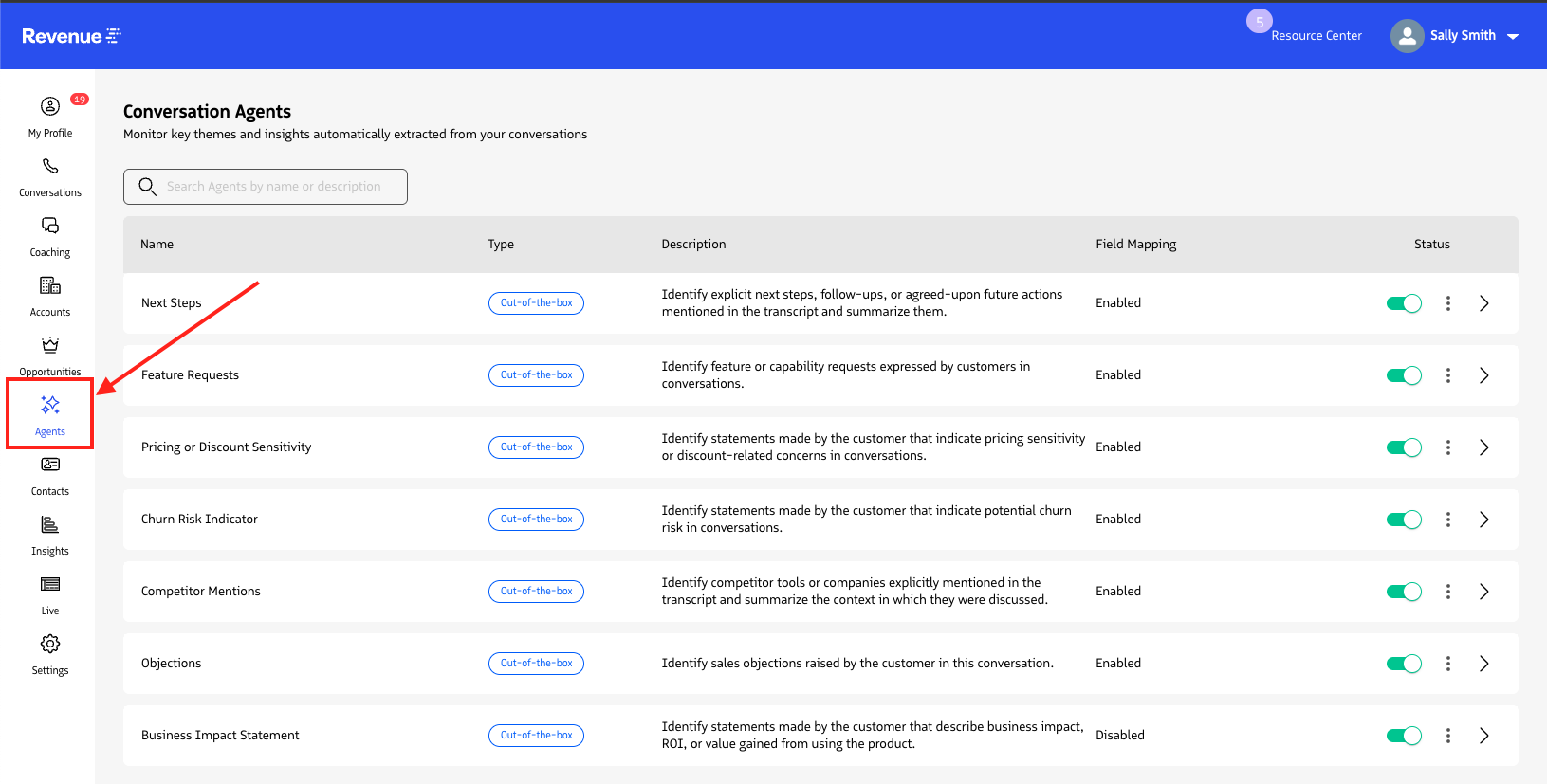
How to configure Conversation Agents
From the Conversation Agents list page, click the kebab menu (⋮) and select Edit.
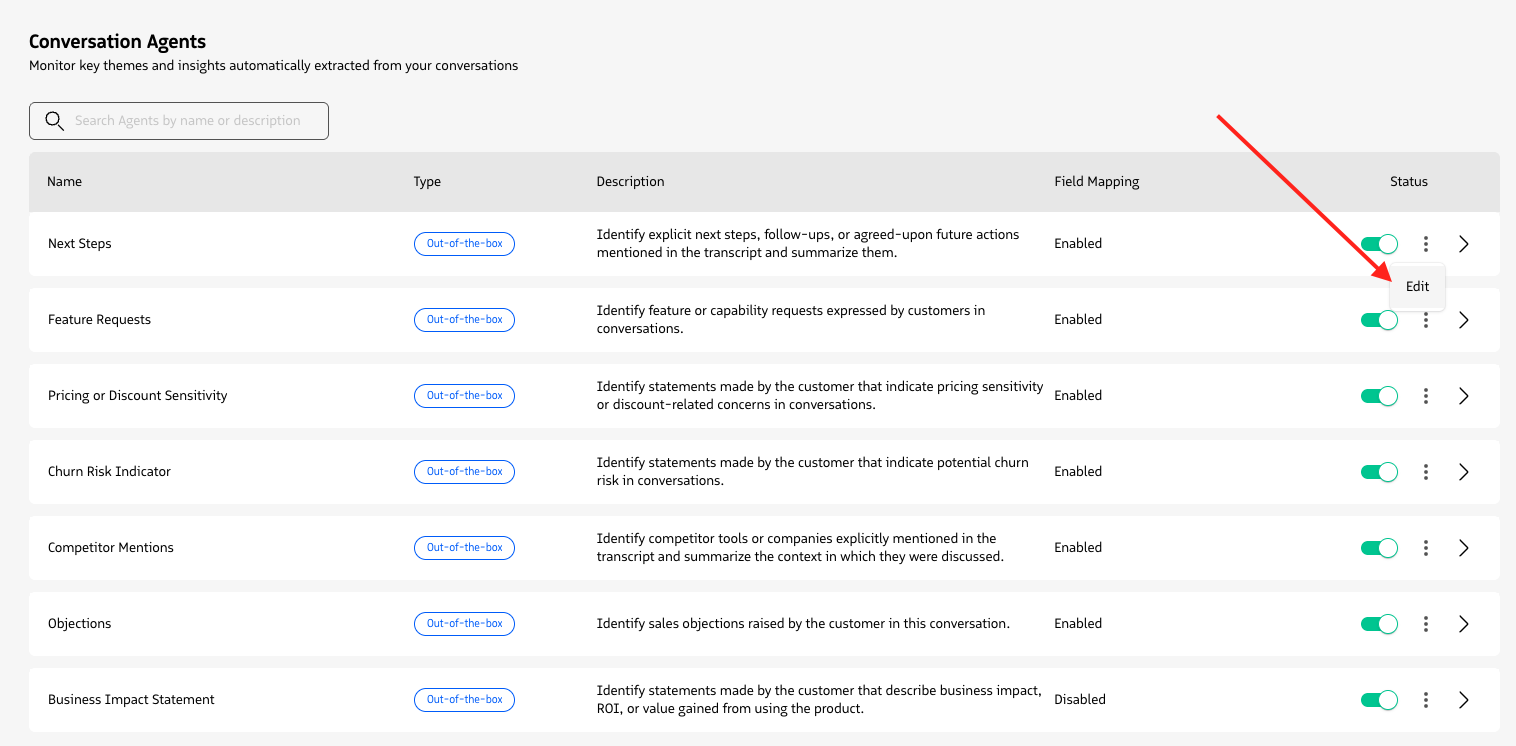
On the Edit Agent page, you can configure:
- Conversation scope: Define which conversations this agent should analyze.
First choose the Conversation type by selecting Video Meetings, Calls, and/or In-Person Meetings (if it’s available on your account).
Next select the Conversation context where you can apply the agent to all conversations, or limit it to specific opportunities, campaigns, cases, individuals, or events.
- You can apply multiple criteria using AND or OR logic to fine-tune the conversations the agent analyzes.
- If you only have Calls for Conversation Type selected, you can’t select Event as the Conversation Context.*
Then select the Conversation Outcome by leaving All Dispositions, or selecting specific conversation dispositions from the activity and conversation objects.
Targeting: Run the agent for all users, or target specific teams, roles, or individual users (with optional user exclusions)
Salesforce field mapping: Map the agent’s extracted output to a Salesforce text field, and choose the field update behavior: append to existing content, override existing content, or do nothing if the field already has data
Once enabled, the agent will run automatically on all new conversations that match its configured scope and targeting.
How to enable Conversation Agents
Out-of-the-box agents are available in your account by default but must be enabled before they will run on conversations. An Admin or Support user must complete this step.
- From the Conversation Agents list, locate the agent you want to enable.
- Use the toggle in the agent row to turn it on.
How Conversation Agents work
Agent execution
Agents run automatically after setup. No manual action is required per conversation. Once a conversation ends and transcription is complete, the system checks which agents apply to that conversation, processes each one using the transcript and the agent’s predefined prompt, and stores the results.
The full extracted output is always stored in Revenue and is available on the conversation record and agent report page. When Salesforce field mapping is enabled, a separate Salesforce-optimized version of the output is written to the configured field, sized to fit within that field’s character limit.
Available out-of-the-box agents
The following agents are available and ready to use without any prompt configuration:
- Next Steps: Action items and follow-up commitments discussed in the conversation
- Competitor Mentions: References to competitors, including context and tone (comparison, objection, preference)
- Business Impact Statement: Customer expressions of value, ROI, or product impact, useful for Customer Success and expansion
- Objections: Sales objections or blockers raised, including concerns about features, integrations, or pricing
- Pricing or Discount Sensitivity: Mentions of pricing concerns, discount requests, or negotiation signals
- Churn Risk Indicator: Signs of dissatisfaction, lack of perceived value, or intent to switch
- Feature Requests: Feature asks or desired capabilities expressed by the customer
Agent names and descriptions are fixed and cannot be edited for out-of-the-box agents.
Viewing extracted insights
Extracted insights appear in three places:
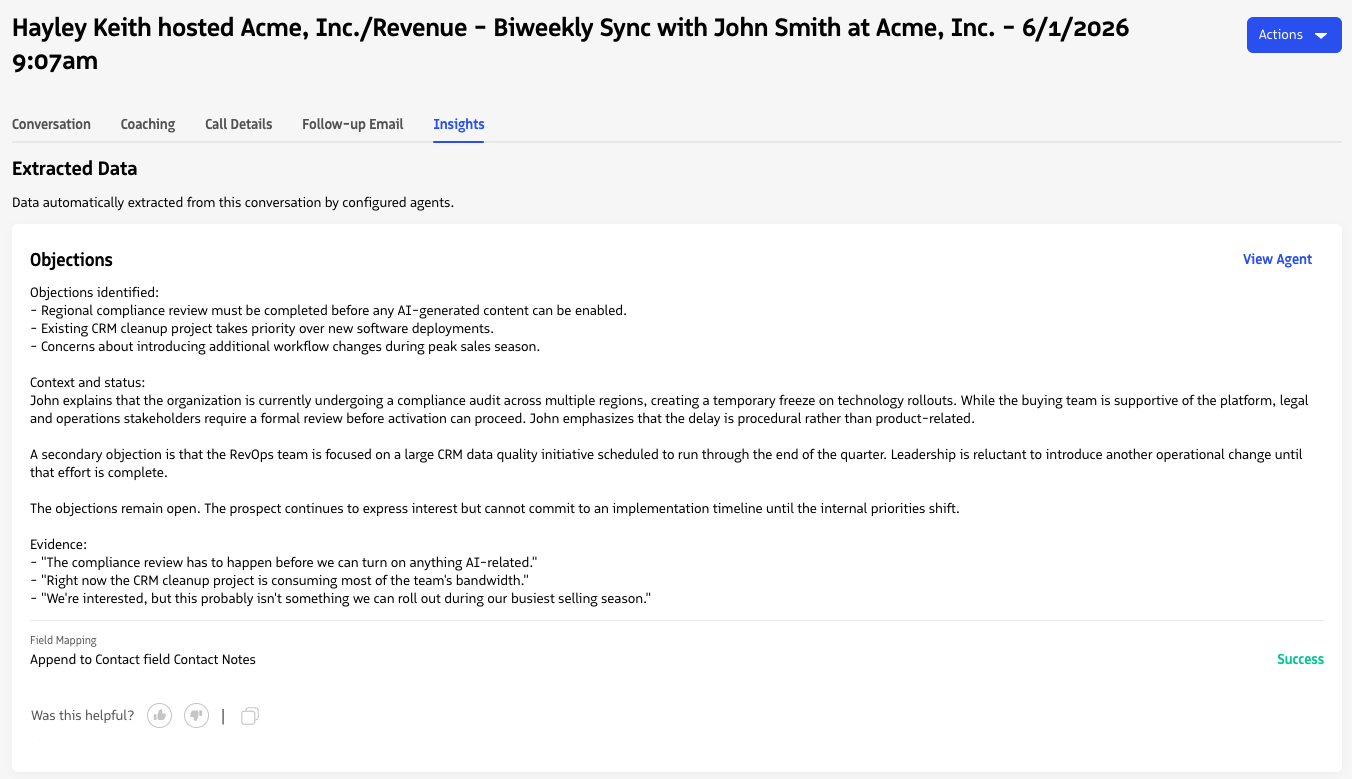
On the conversation record: Under the Insights tab on the conversation record page. Conversation owners, including agents who do not have broader Insights access, can see what agents extracted from their conversations. You can copy extracted text directly from this view.
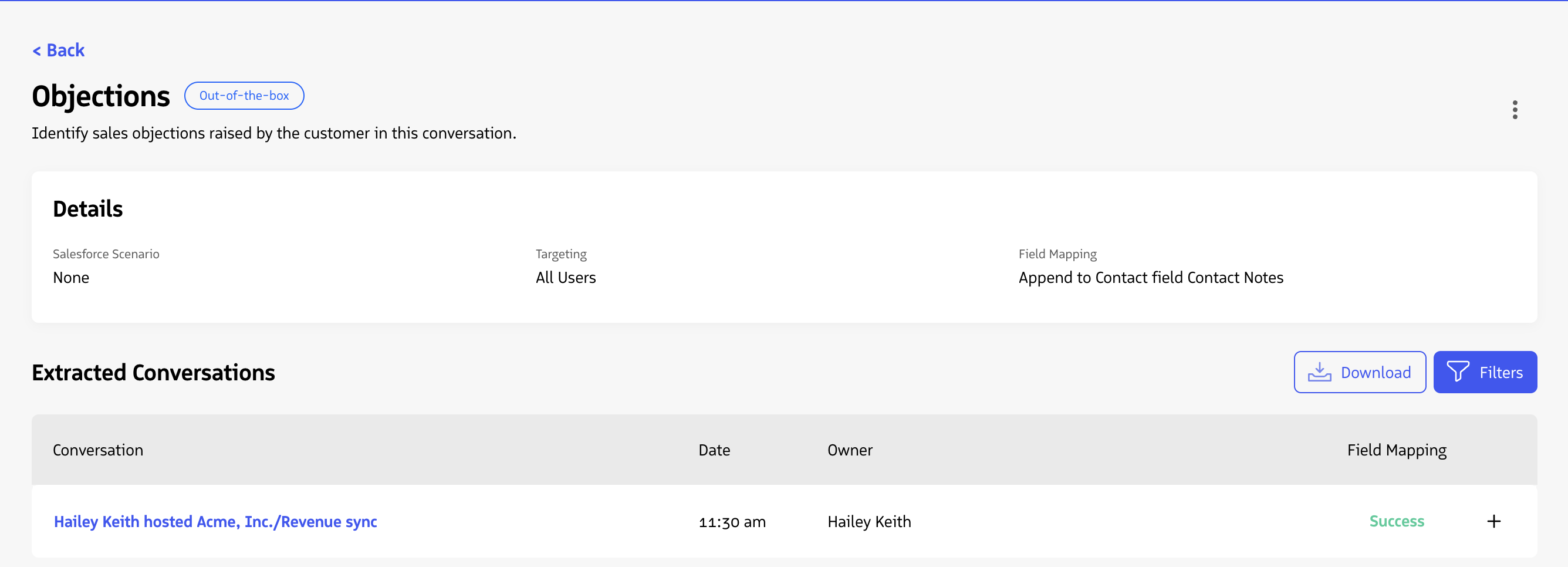
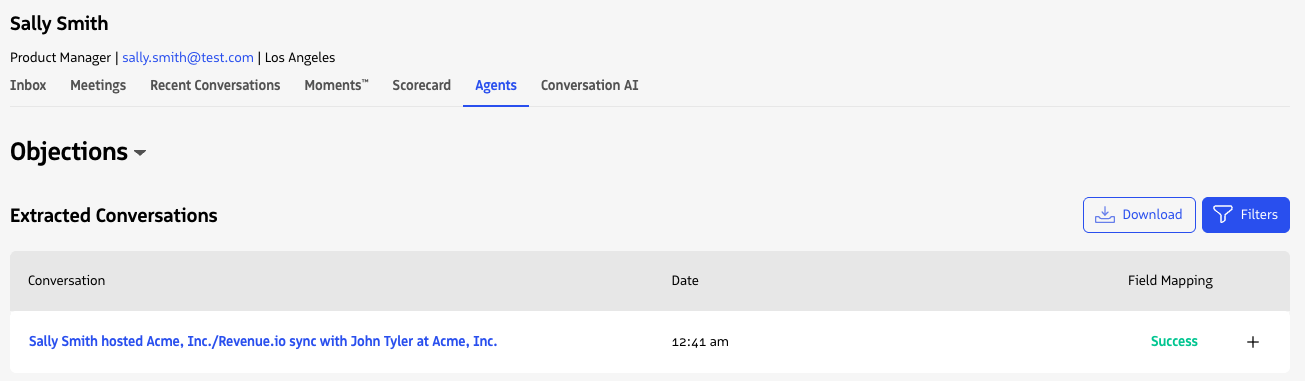
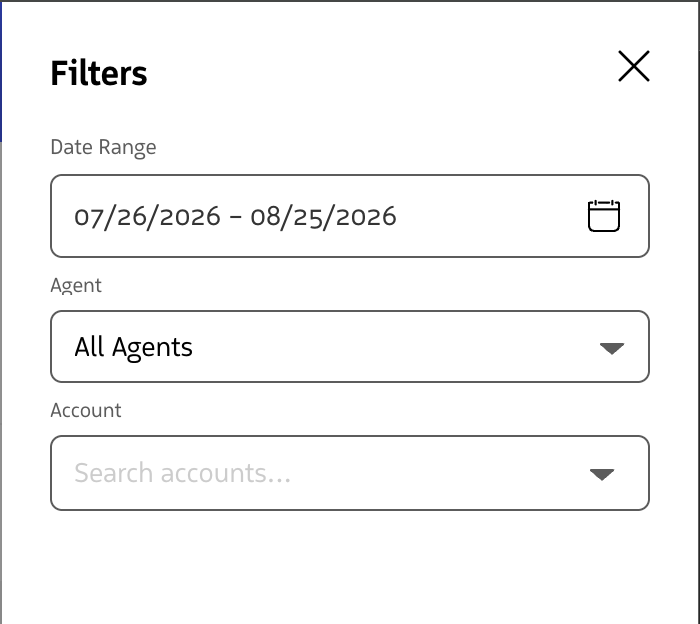
On the agent report page: Each agent has a dedicated report page with an Extracted Conversations list that shows each conversation that agent ran on. The list shows a link to the conversation, date, owner, and Salesforce field mapping status. You can filter in the conversation list by date range, user, team, and account.
In My Profile: Agents can view their own agent insights under My Profile > Agents tab. Data is scoped to conversations the user owns. All extracted conversations from all Conversation Agents for the last 30 days show by default. You can use filters to filter down the list of extracted conversations.
Salesforce field mapping
Admins can enable field mapping per agent to sync extracted data back to Salesforce fields. Each Conversation Agent must map to a unique Salesforce field. You cannot have multiple agents mapped to the same Salesforce field on the same object.
When field mapping is configured, the system writes a Salesforce-optimized version of the extracted output to the specified field after each conversation is processed. The full extraction is always available in Revenue regardless of field mapping configuration.
Choosing a field
We recommend selecting a Long Text Area or Rich Text Area field for most agents. Short text fields can hold a compressed version of the extraction, but less detail will fit and some rule types are not available on short fields (see Rule types below).
The character limit of the selected field is shown during setup. If you select a short text field, a warning appears on save explaining how field mapping will behave for the rule type you selected.
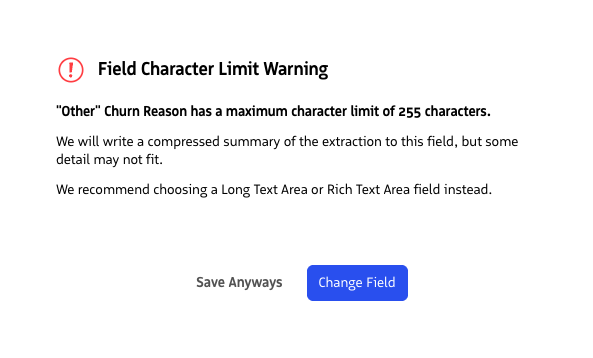
Example if you have Overwrite or Conditional rule type selected, and are trying to map to a short text field
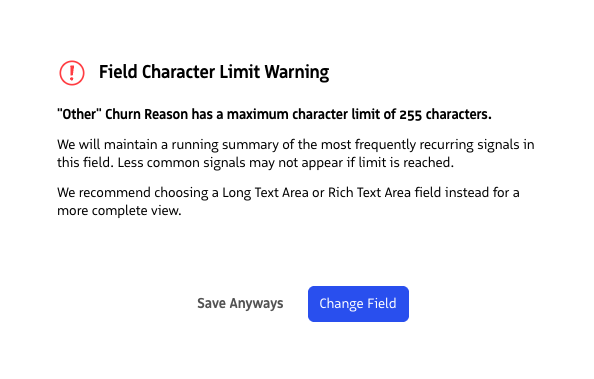
Example if you have Append - Running summary rule type selected, and are trying to map to a short text field
Rule types
When configuring field mapping, select one of the following rule types:
Conditional: Writes the extracted output to the field only if the field is currently empty. If the field already has data, it is not updated. Available on all field types.
Overwrite: Replaces the existing field value with the extracted output from the latest conversation. Available on all field types.
Append — Running Summary (default selected when field mapping is enabled): After each conversation, the new extraction is combined with all previous extractions into a single updated summary, always kept within the field’s character limit. The field reflects a continuously updated synthesis of all conversations to date. This is the recommended option for most use cases. Available on all field types.
Append — Chronological: Adds each new extraction as a separate entry below previous ones, building a running log. When the field reaches its character limit, new entries stop being written and the error is logged on the Agent and to Admin account logs. Not available on short text fields.
Note on short text fields and running summary: On short text fields, running summary mode surfaces the most frequently recurring signals rather than every signal ever extracted. Each signal includes an occurrence count (for example, “Competitor X mentioned (3x)”). Signals that appear less frequently may not appear in the field if higher-frequency signals have filled the available space. For a more complete view, use a Long Text Area field. Note on workflow triggers: If you plan to use field mapping to trigger Salesforce workflows based on new extracted data, Overwrite is the recommended rule type. It ensures the field always reflects the latest extraction and the workflow fires reliably on every new conversation.
Field mapping status
Field mapping status is visible on both the conversation record page, the agent report page, and in the user Agent’s profile. If a field mapping write fails for any reason, it will show with an info icon next to the status. You can click the icon to see a plain-language explanation from Salesforce of the failure reason. The failure is also logged to your account’s admin logs with the agent name, Salesforce object, field name, and reason for failure.

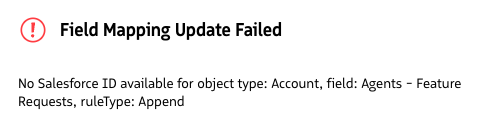
We will traverse the data we have and connect to the correct field whenever possible, but there are cases where that may fail. For example, if you have field mapping set to write to an Account field and an Opportunity is set as the conversation’s related record, we’ll attempt to write to the Account field via Opportunity.AccountId. But if you have field mapping set to write to an Account field and have a Campaign set as the conversation’s related record, there is no standard AccountId field for Campaigns, so there is no traversal path and the mapping will fail.
If field mapping is disabled on an agent, a banner on the agent report page will prompt you to navigate to the edit page to enable it.
Configuration changes
Any change to field mapping configuration — including changing the destination field or rule type — applies to future conversations only. There is no backfill of historical data. When you switch to a new destination field, the agent will start writing to it from that point forward. The previous field retains whatever data was written to it and is no longer updated.
Known limitations
- Custom agents are not yet supported. Only the seven out-of-the-box agents listed above are available.
- Salesforce field mapping supports text fields only. Boolean, numeric, and other field types are not currently supported.
- Agents only run on conversations after they are enabled. Existing historical conversations are not retroactively processed when an agent is enabled.