Managing Revenue AI Features
- If the user has no Revenue AI license, their settings are turned off and can’t be changed. Request a Revenue AI license from the Revenue.io team if none is available.
Admins manage which Revenue AI features each user can access from the user’s page in the Admin Console. To update many users at once, use bulk user settings.
Update Revenue AI settings for a user
Open the user
In the Admin Console, go to User Management and select the user.
Open the Revenue AI settings
Select the Products tab. Make sure the Revenue AI toggle is on for the user, and then select the arrow (>) icon next to Revenue AI.
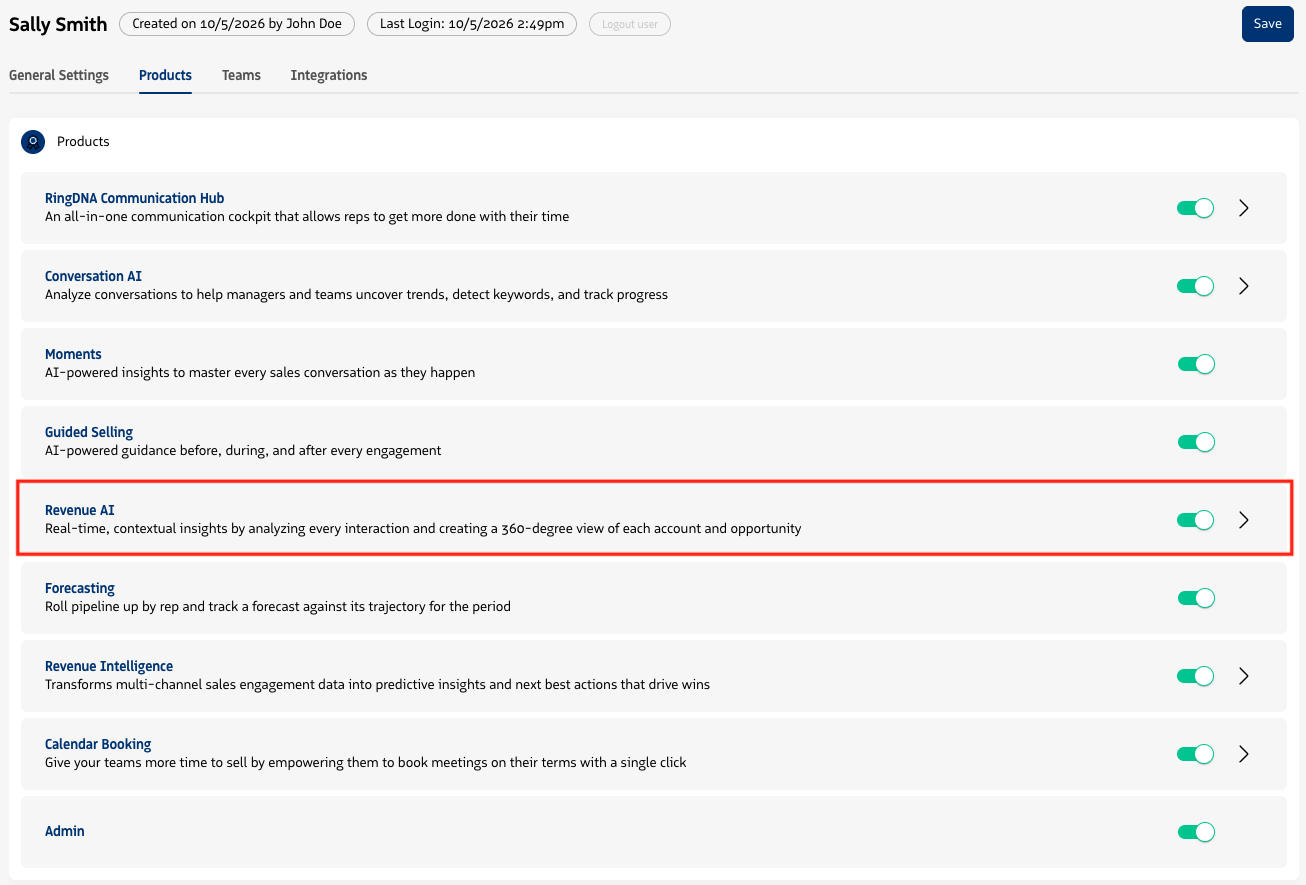
Turn features on or off
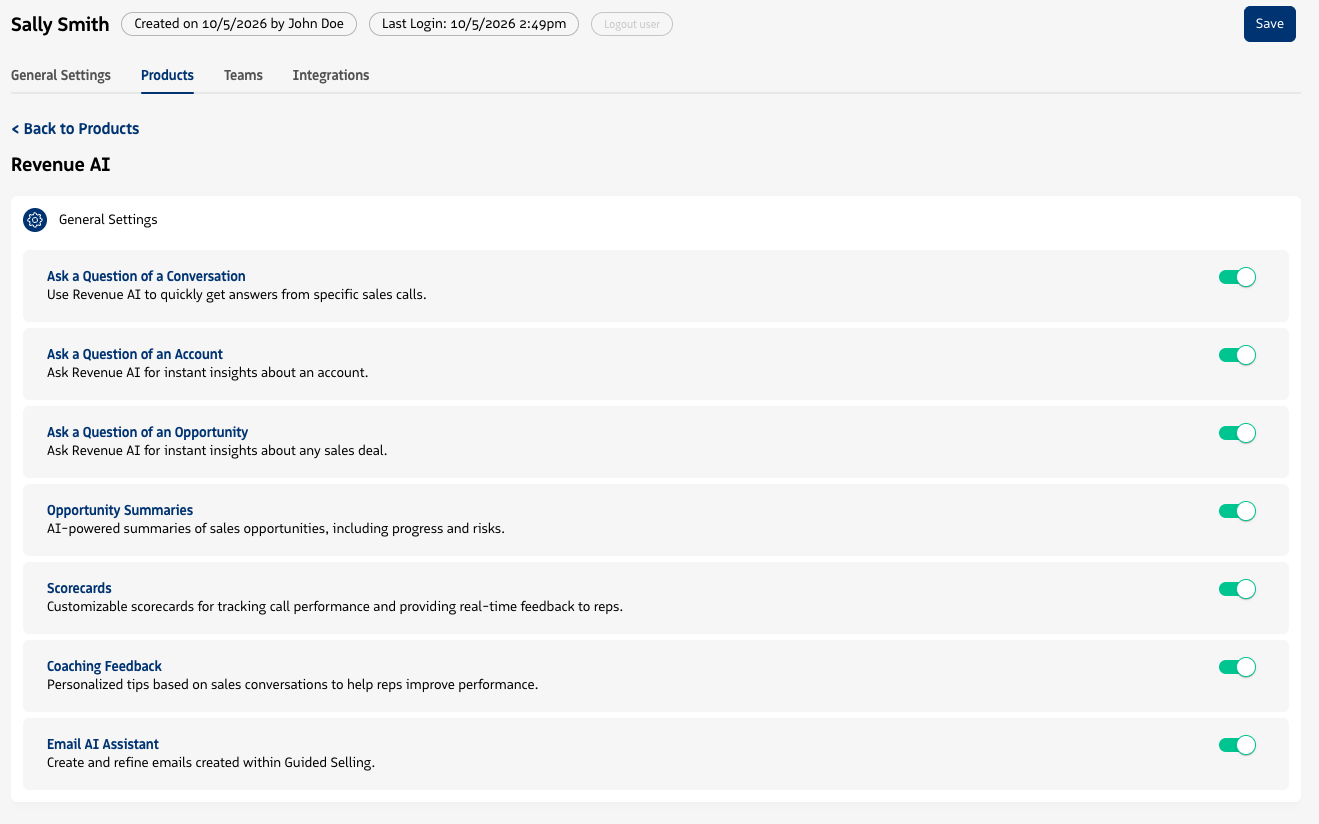
Use the toggles to enable or disable each feature for the user:
- Ask a Question of a Conversation
- Ask a Question of an Account
- Ask a Question of an Opportunity
- Opportunity Summaries
- Scorecards
- Coaching Feedback
- Email AI Assistant, which creates and refines emails in Guided Selling. The user must also have a Guided Selling license.
Save your changes
Select Save to apply the changes to the user’s account.
Update Revenue AI settings for many users
To enable Revenue AI features for a team or your whole organization, use Bulk Management on the Users page instead of updating users one by one. Revenue AI settings are split into two groups:
- Ask a Question: Ask a Question of a Conversation, Ask a Question of an Account, and Ask a Question of an Opportunity.
- Guided Experience: Scorecards, Coaching Feedback, and Opportunity Summaries.
Only users with a Revenue AI license can be changed. See Bulk manage user settings for the full steps.