Revenue.io Product Updates: November 2026
Role-Based Opportunity Automation
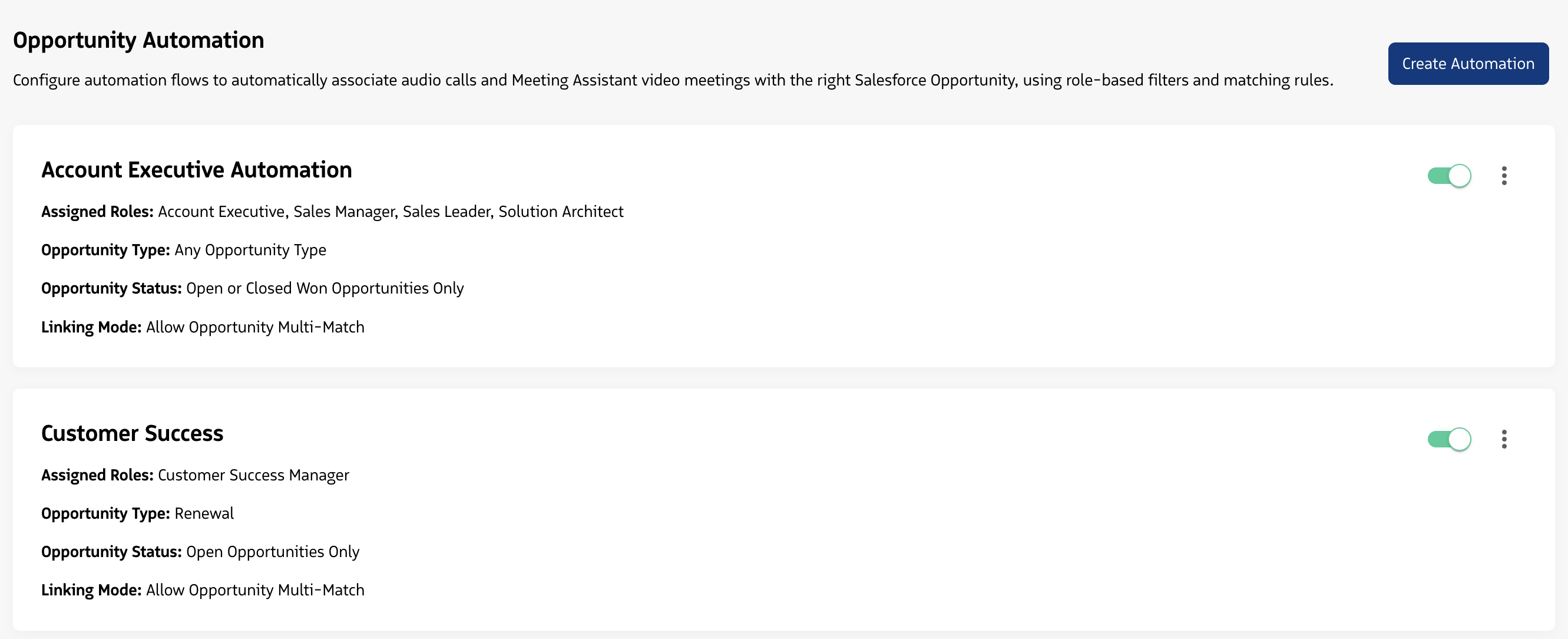
Conversations can now be automatically linked to the right Salesforce Opportunity based on the role of the rep hosting the call - no manual tagging required. This works for both Meeting Assistant video meetings and audio calls.
Admins can create multiple named automation rules, each with its own logic, so that AEs, CSMs, and other roles all get opportunity matching that fits how they work. Each rule can filter by opportunity type, status, and whether the rep must be the opportunity owner, with configurable tie-breakers to handle situations where multiple opportunities qualify. When Revenue can’t confidently choose a single opportunity, we show suggestions for the host to manually choose from. Rep choices are always protected - if a rep manually links or unlinks an opportunity, automation will never overwrite that decision.
Role-based opportunity automation is available to accounts using the Meeting Assistant. Accounts on the native Microsoft Teams or Zoom integrations stay on the previous opportunity automation, for both video meetings and audio calls, until they move to the Meeting Assistant. To enable the Meeting Assistant, reach out to our Support team.
Admins can create opportunity automation rules in Admin -> Integrations -> Automations. If your account uses the Meeting Assistant and had the legacy opportunity automation enabled, those settings have been automatically migrated to the new role-based format. Accounts that had “all users” selected in the legacy setting will see that mapped to “all roles” in the new system. No admin action is required.
Role-based opportunity automation will be enabled for accounts throughout the day.
Learn more about role-based opportunity automation
Bulk Manage User Product Settings
Admins can now update product settings for many users at once from the Users page. Previously, even after licenses were provisioned in bulk, product settings had to be changed user by user.
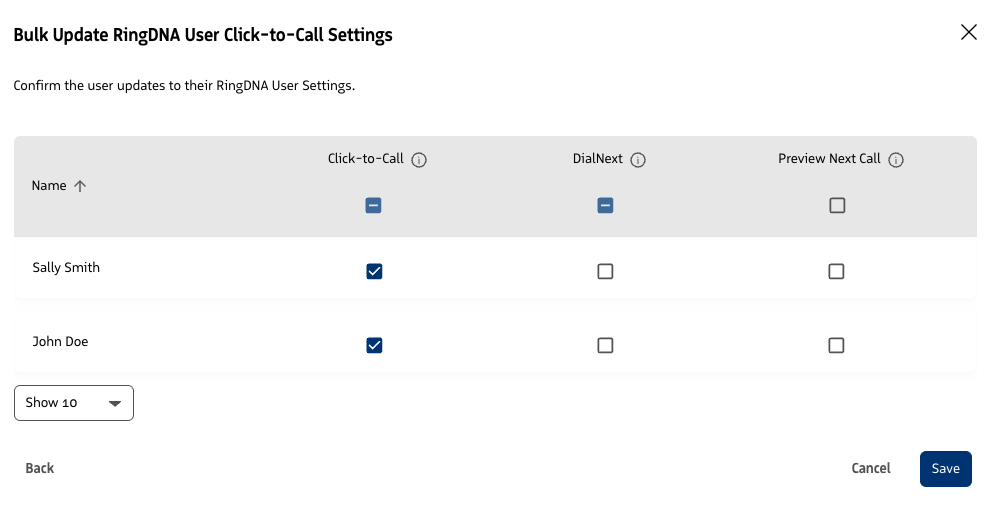
To get started, go to Users and select Bulk Management, then choose User Settings. (The former License Management button is now Bulk Management, and License Management is still available from the same menu.) Settings are grouped by product so each screen stays focused:
- Revenue AI: Ask a Question (of a Conversation, Account, or Opportunity) and Guided Experience (Scorecards, Coaching Feedback, and Opportunity Summaries)
- Conversation AI: Conversation Summaries, Follow-Up Emails, External Sharing, and Visibility
- RingDNA: Click-to-Call (Click-to-Call, Dial Next, and Preview Next Call) and Notifications and Sounds
- Revenue Intelligence: X-Ray
Search by name, or filter by Team, Role, or Salesforce Profile to find the users you want. Use the select all checkbox to apply a setting to everyone in the filtered list, or toggle individual users. Before anything is saved, a review screen lists only the users whose settings will change.
Bulk Management is available to Admin, Super Admin, and Support roles.
Learn more about managing users and bulk settings
Revenue AI and Conversation AI Settings Now in the Admin Console
You can now manage Revenue AI and Conversation AI settings directly in the Admin Console, alongside the users and licenses you already manage there.
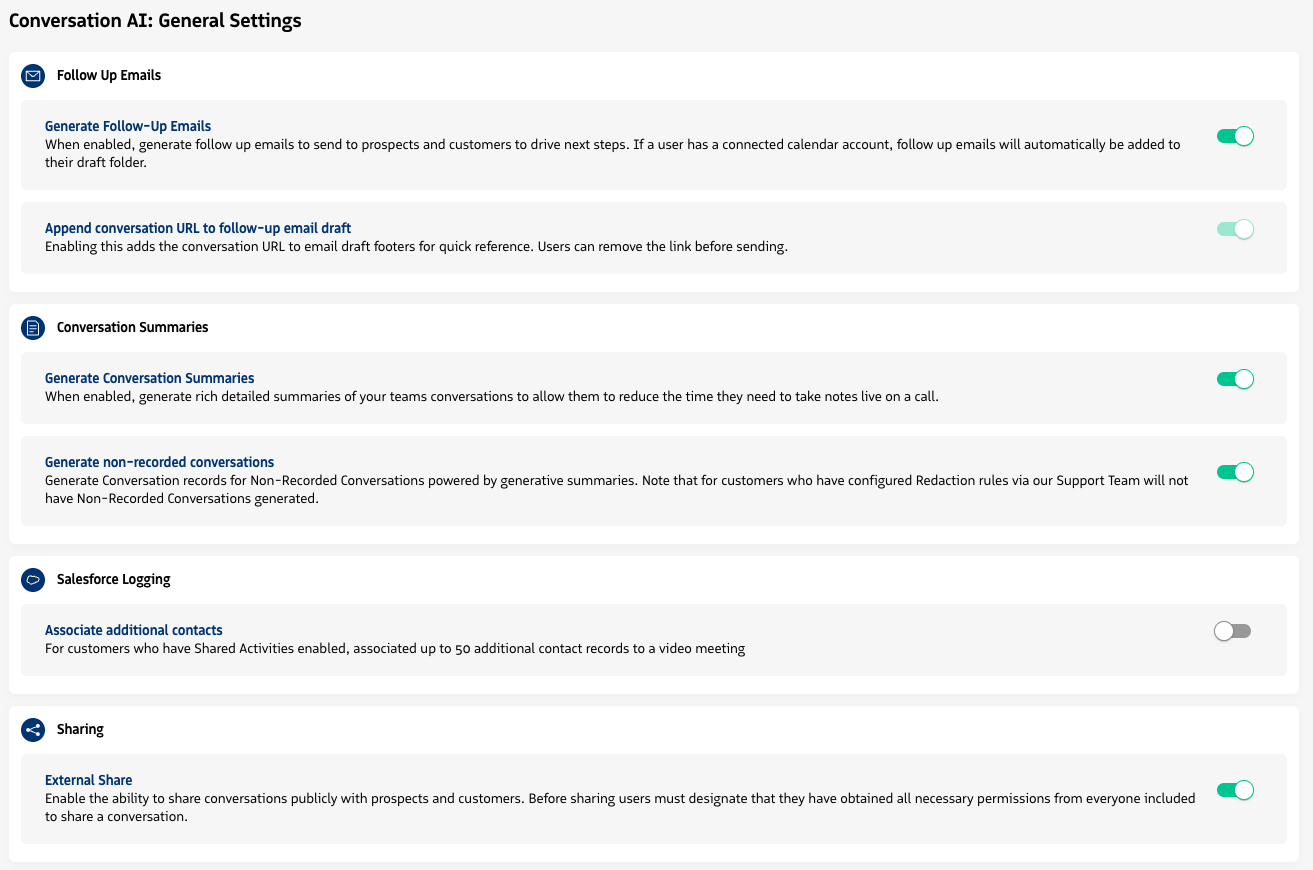
Account-level settings now live in a dedicated Conversation AI section in the left navigation:
- Custom Vocabulary
- Keyword Settings, including Keyword Groups
- Tag Management
- Settings, including account level follow-up emails, conversation summaries, and external sharing
- Support Settings
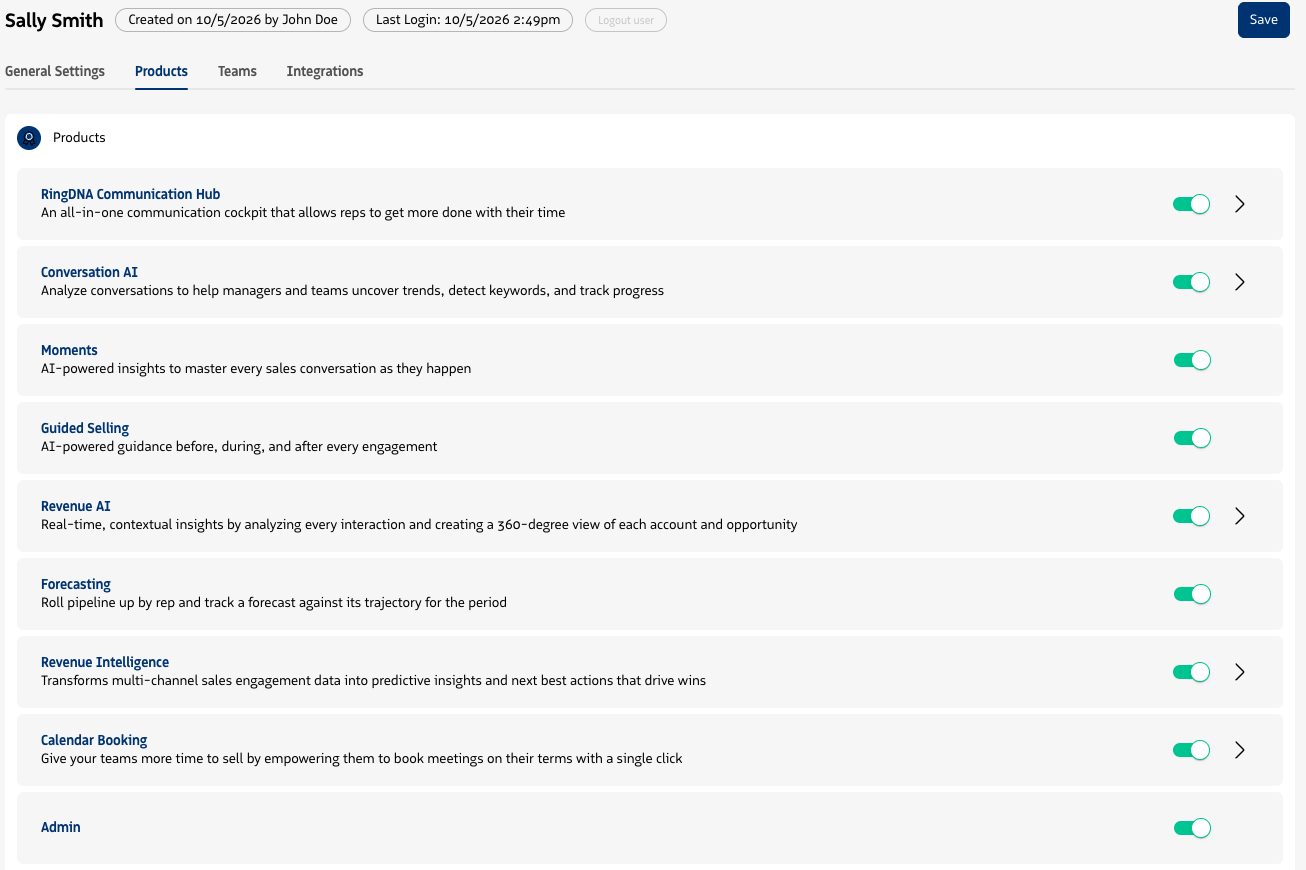
User-level settings are on each user’s record. Open a user and go to the Products tab, turn on a product, and select the arrow next to it to open its settings:
- Revenue AI: Ask a Question of a Conversation, Account, or Opportunity, Opportunity Summaries, Scorecards, Coaching Feedback, and Email AI Assistant
- Conversation AI: Conversation Summaries, Follow-Up Emails, and External Sharing, available once enabled in the account-level settings
- Revenue Intelligence: X-Ray
Learn more about managing Revenue AI features and Conversation AI settings