Role-based Opportunity Automation
- Admins create the opportunity automation rules
Overview
Role-Based Opportunity Automation allows Revenue to automatically link conversations (video meetings using the Meeting Assistant and audio calls) to the right Salesforce Opportunity - without requiring reps to do it manually. Admins can define multiple automation rules, each tailored to a specific Revenue role, so that AEs, CSMs, and other teams all get opportunity matching logic that fits how they work.
Revenue looks up Salesforce opportunities associated with external participants linked to Salesforce Contact records, and applies your configured automation rules to find and link the best match.
The result is more accurate Salesforce data, less manual work for reps, and better downstream insights from tools like Moments™, Scorecards, and Conversation AI.
Why It Matters
With Role-Based Opportunity Automation, you can:
- Automatically link conversations to the right Salesforce opportunity without rep action
- Apply different matching logic to different roles - AEs, CSMs, and other teams each get rules that fit their workflow
- Link the opportunity before the meeting starts for scheduled video meetings, so Moments™ notifications scoped to that opportunity fire from the first minute of the call
- Support teams that don’t maintain Opportunity Contact Roles in Salesforce. Account-level matching is the default for new rules, so no OCR data is required to get started
- Improve the quality of downstream analytics, coaching tools, and AI insights
- Protect rep choices - manual opportunity selections are never overwritten by automation
Pre-requisites
- For video meetings, the account must be using the Meeting Assistant. Accounts on the native MS Teams or native Zoom Cloud integrations can’t use role-based opportunity automation. They stay on the legacy opportunity automation, for both video meetings and audio calls, until they move to the Meeting Assistant.
- The conversation host must have a Revenue role assigned that matches an enabled automation rule. Alternatively, you can have a single rule that applies to all users (regardless of whether they have a role assigned).
- External participants must be linked to Salesforce Contact records. Participants linked only to Leads can’t be used to find an opportunity. Linking happens automatically through automatic participant linking or manually by the host.
- For pre-meeting linking on scheduled video meetings, the host’s calendar must be connected to the platform. Without a connected calendar, automation falls back to end-of-meeting. Learn how to connect your calendar here.
- If you turn on Require Opportunity Contact Role for a rule, Opportunity Contact Roles must be maintained in Salesforce. Revenue finds opportunities by looking up whether any external participant linked to a Salesforce Contact record on the conversation is listed as an Opportunity Contact Role (OCR) on a deal in Salesforce. If your team does not maintain OCR data, automation will not find any candidate opportunities. See Salesforce: Opportunity Contact Roles for more information on setting these up.
How to Enable
Opportunity automation does not run until you create and enable at least one rule.
- Go to Admin and navigate to Integrations -> Automations
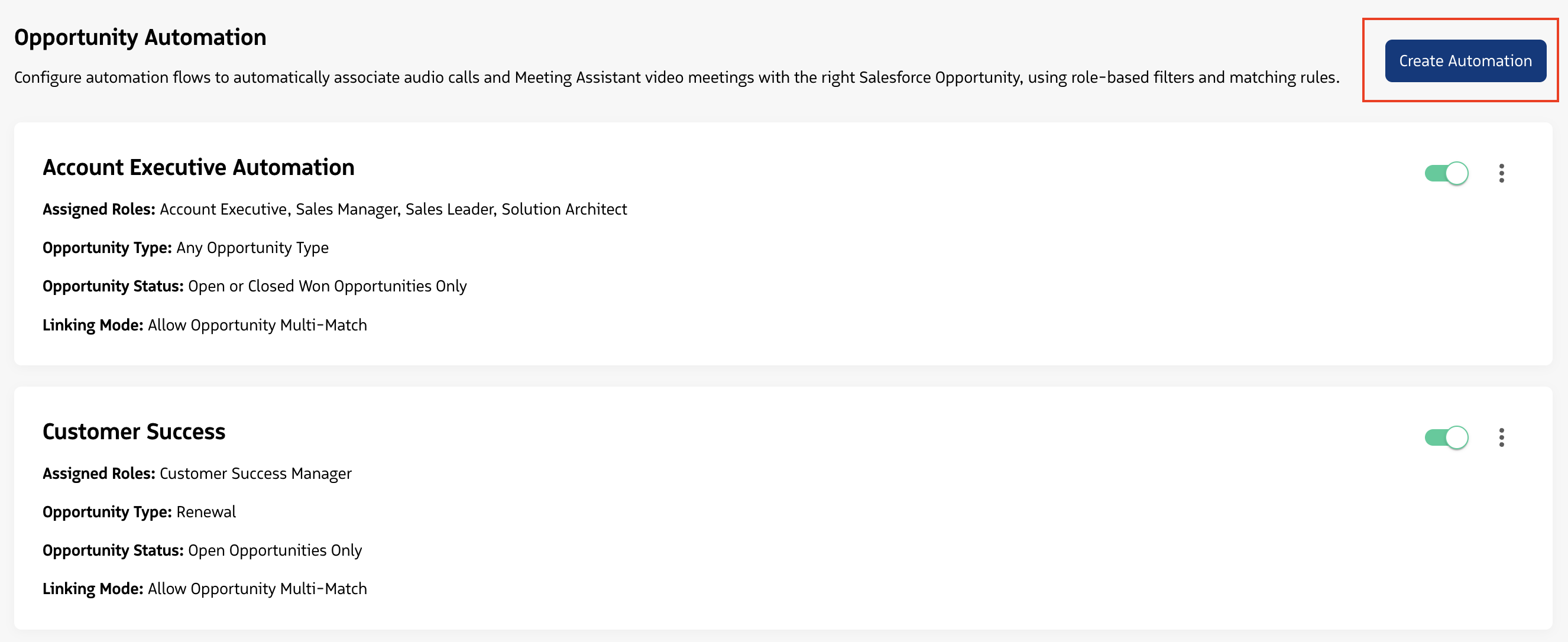
- Click Create Automation to set up a new automation rule
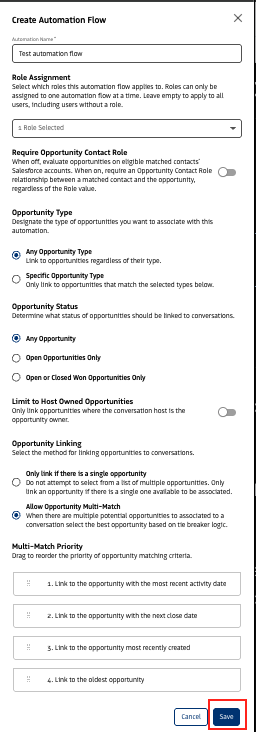
- Configure the rule settings (see below) and click Save
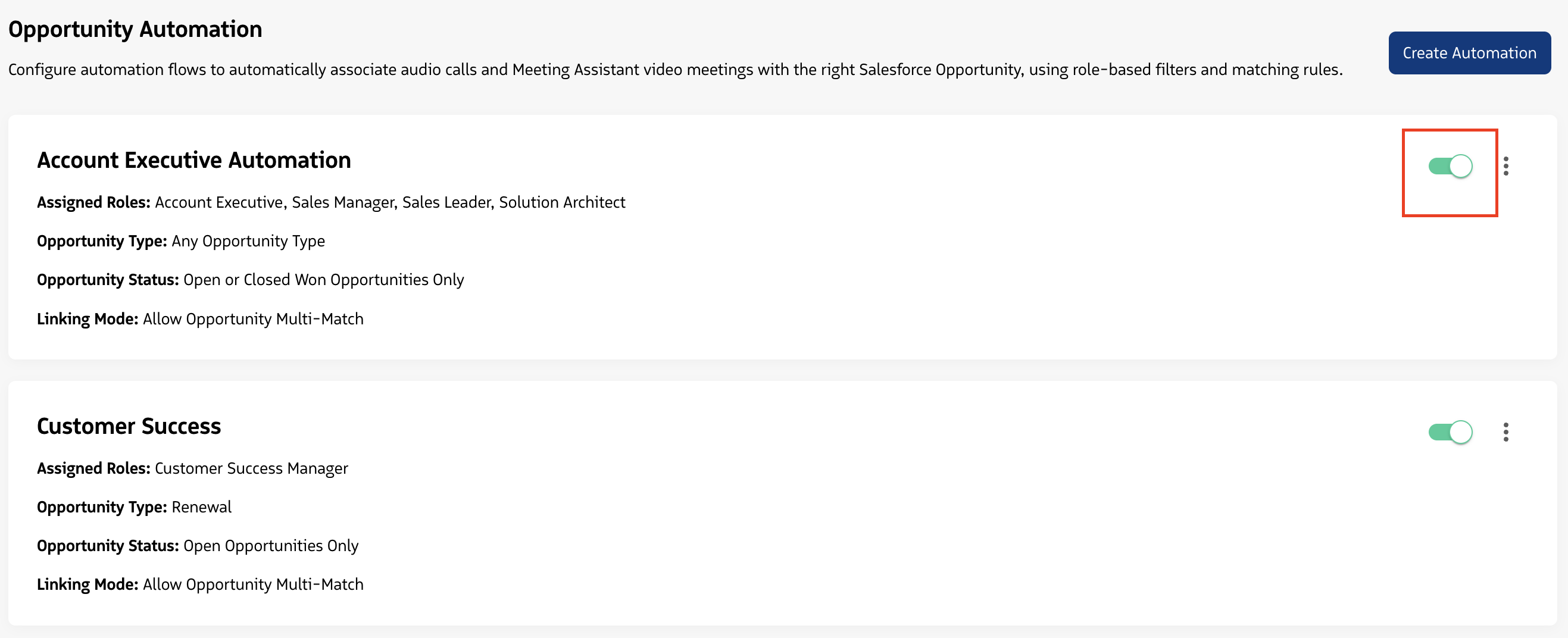
- Turn on the toggle on the rule’s card to enable it. New rules are created disabled until you switch them on.
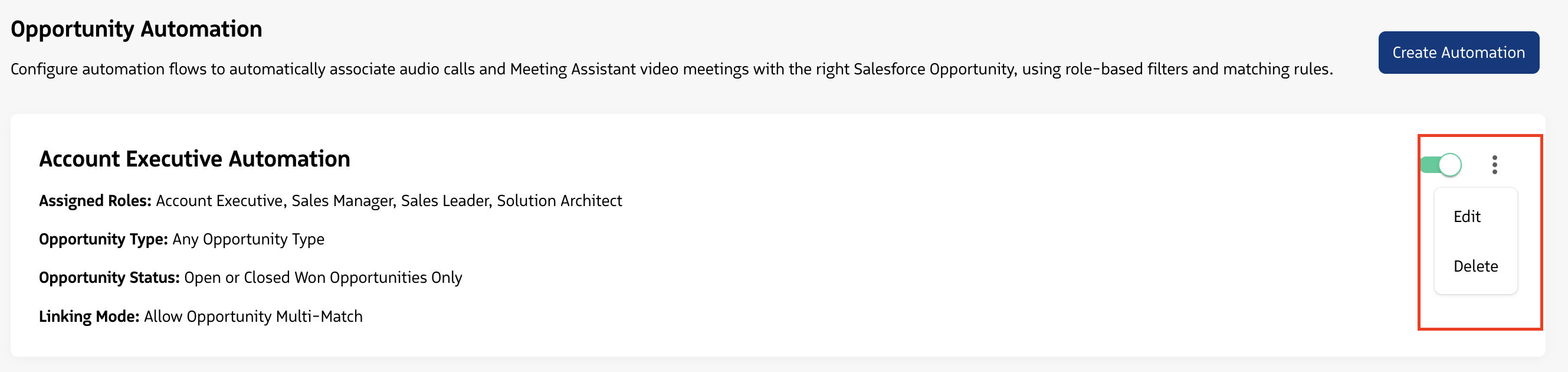
As an Admin, you can edit, disable, or delete a rule at any time. Changes apply going forward and do not retroactively change opportunities on past conversations.
Opportunity Automation Rule Settings
Admins can create multiple named automation rules, each with its own configuration. Only one rule can be active per role at a time.
Automation Name
Each rule requires a unique name (maximum 255 characters). The rule name appears in the Admin audit log to identify which rule linked an opportunity.
Role Assignment
Select which Revenue role(s) the rule applies to. When a conversation occurs, Revenue checks the role of the conversation host and applies the matching rule.
- A role can only be assigned to one enabled rule at a time. To move a role to a different rule, remove it from the current rule or disable that rule first.
- Leaving Assigned Roles empty makes the rule apply to All Users, including users who have no role. A rule for All Users can’t be enabled alongside any other enabled rule.
- If a user does not have a Revenue role assigned and there is no All Users rule, their conversations will not be eligible for opportunity automation.
Require Opportunity Contact Role
- Off (default): Revenue considers all opportunities on the Salesforce Accounts of the linked participants’ Contacts. A Contact with no associated Account can’t be matched this way. If a participant isn’t linked to a Contact, opportunities on their associated Account will not be considered.
- On: Revenue only considers opportunities where a linked Contact is listed as an Opportunity Contact Role in Salesforce. The Role value itself (for example Decision Maker or Champion) doesn’t matter - only that the relationship exists. Use this if your team maintains OCR data for more precise matching.
Opportunity Type
Narrows the candidate opportunity pool by type:
- Any Opportunity Type - considers all opportunity types, no filtering applied
- Specific Opportunity Types - only considers opportunities matching the selected type(s)
Opportunity Status
Further narrows the candidate pool by status:
- Any Opportunity - no status filter applied
- Open Opportunities Only - only considers opportunities that are not closed in Salesforce
- Open or Closed Won Opportunities Only - considers open opportunities and closed-won opportunities
Limit to Host Owned Opportunities
When enabled, only opportunities where the conversation host is the Salesforce opportunity owner are considered. If the host does not own any matching opportunities, no opportunity is linked.
Opportunity Linking
Determines how Revenue handles situations where multiple opportunities match your configured criteria:
- Only link if there is a single opportunity - if exactly one opportunity matches all filters, it is linked. If multiple matches exist, no opportunity is linked automatically and Revenue shows suggestions the conversation host to manually select from.
- Allow Opportunity Multi-Match - if multiple opportunities match, Revenue applies a tie-breaker priority list to select the best one.
Multi-Match Priority (Tie-Breakers)
When multi-match is enabled, drag the tie-breakers to set their priority. Revenue applies them in the order you set:
- Most recent activity date - the opportunity with the most recent logged activity in Salesforce
- Next close date - the opportunity with the soonest close date. Only opportunities with a close date of today or later are considered at this step; opportunities with a past close date are eliminated.
- Most recently created - the newest opportunity
- Oldest opportunity - the opportunity that was created first
Tie-breakers are applied sequentially. Revenue stops as soon as one opportunity remains and links it. If all tie-breakers are exhausted and multiple opportunities are still tied, no opportunity is linked automatically and the host can choose from suggestions or link manually.
How It Works
Step 1 - Is this conversation eligible?
When a conversation begins or ends, Revenue checks:
- Is an automation rule enabled for this account?
- Does the host have a Revenue role that matches an enabled rule (or is there an enabled All Users rule)?
- For video meetings: is this meeting using the Meeting Assistant, and are any external participants linked to Salesforce Contact records?
- For audio calls: is a primary contact set on the conversation, and is it a single Salesforce Contact?
- Does this conversation have an empty related record?
If any of these conditions are not met, automation does not run. The host can still manually link an opportunity at any time.
Example: John is an AE and there is an opportunity automation rule configured for AE roles. He has a scheduled video meeting with a prospect. Revenue email-matches the invited participants from the calendar invite before the meeting starts (if automatic participant linking is enabled) and checks that there is an automation rule for the AE role before the meeting begins.
Step 2 - Finding candidate opportunities
Revenue builds the candidate list in two parts: first it gathers the opportunities connected to the linked participants, then it applies the rule’s filters to narrow them down.
Step 2A - Gather opportunities
Revenue gathers opportunities based on the rule’s Require Opportunity Contact Role setting.
- Require Opportunity Contact Role Off (default behavior): Account-level matching - Revenue gathers all opportunities across the linked participants’ Accounts. Any linked Contact with no associated Salesforce Account cannot be matched this way.
- Require Opportunity Contact Role On - Revenue looks up Opportunity Contact Roles in Salesforce for all external participants linked to Salesforce Contact records on the conversation, and gathers the opportunities those Contacts are listed on.
Step 2B - Apply the rule’s filters
Revenue then takes the list of candidate opportunities and applies the filters configured on the rule, and only opportunities that pass all of them stay on the candidate list:
- Opportunity Type - if the rule is set to Specific Opportunity Types, opportunities of any other type are removed
- Opportunity Status - if the rule is set to Open Opportunities Only, closed opportunities are removed. If it is set to Open or Closed Won, closed-lost opportunities are removed.
- Limit to Host Owned Opportunities - if turned on, opportunities not owned by the conversation host are removed
Step 3 - Selecting the best match
Once the candidate list has been filtered, Revenue evaluates:
- One opportunity remains - it is automatically linked
- Multiple opportunities remain - tie-breaker rules are applied if multi-match is enabled. If a single opportunity is resolved, it is linked. If tie-breakers cannot resolve to a single match, no opportunity is automatically linked and the host can choose from suggestions or link manually.
- No opportunities remain - no opportunity is linked. The host can manually select one.
When a match is found, Revenue writes the opportunity to the Salesforce Event (for meetings) or the call activity (for audio calls) as the Related To record, shows it on the conversation in Moments™ and Conversation AI, and records the link in the Admin audit log.
An opportunity can only be linked automatically when the conversation’s primary contact is a Salesforce Contact. If the primary contact is a Lead, no opportunity is linked. This is a Salesforce restriction.
When Automation Runs
Scheduled video meetings
Revenue runs automation before the meeting starts using the calendar invite list. The system email-matches the invited external participants to their Salesforce Contact records (if automated participant linking is on), finds associated opportunities, and links the right deal before anyone joins. This requires the host’s calendar to be connected to the platform and the meeting to be scheduled at least 5 minutes before it begins. If no match is found from the invite list, automation runs again after the meeting completes, based on who joined and was linked.
Audio calls
Revenue starts checking when the call is answered and we link the participant to a Contact. If nothing has been linked by the time the call ends, Revenue checks again at call end and if the participant has been linked, the opportunity automation is run.
Ad-hoc video meetings
When there is no calendar invite, automation runs after the meeting completes based on who joined and was linked.
Opportunity Suggestions
When automation can’t choose a single opportunity, the host can pick from suggested opportunities in the Related Record section in Moments™, and in the dialer for audio calls. We show suggestions to help the conversation owner quickly pick the correct opportunity, but they can always search to manually link any opportunity. Which suggestions appear depends on your Related Records settings in Admin -> Integrations -> Salesforce -> Related Records:
- Related Records is off - Revenue shows its own opportunity suggestions, up to 10.
- Related Records is on, and an opportunity suggestion rule is set up - Revenue follows that rule and shows the opportunities it returns. Revenue’s own suggestions are not shown, even if the rule returns no opportunities.
- Related Records is on, and no opportunity suggestion rule is set up - Revenue shows its own opportunity suggestions, up to 10, along with suggestions for any other related records (such as Accounts or Cases) as you’ve configured them.
Suggestions for other related records are never changed by opportunity automation.
When Revenue shows its own suggestions, it lists up to 10 opportunities, ordered by most recent activity, based on the primary contact and the rule’s Require Opportunity Contact Role setting:
- Primary contact set, OCR on - opportunities where the primary contact is listed as an Opportunity Contact Role
- Primary contact set, OCR off - opportunities on the primary contact’s Account
- No primary contact, OCR off - opportunities across the Accounts of all linked participants
- No primary contact, OCR on - opportunities across the linked participants where those Contacts are listed as Opportunity Contact Roles
Revenue never links a suggestion automatically.
Platform Coverage and Match Rates
Opportunity automation runs for Meeting Assistant video meetings and audio calls only. It is not available to accounts using the native MS Teams or native Zoom Cloud integrations. Those accounts stay on the legacy opportunity automation for both their native video meetings and their audio calls, until they move to the Meeting Assistant. Contact Support to have the Meeting Assistant enabled for your account.
We strongly recommend using automated participant linking alongside the Meeting Assistant for video calls for the highest opportunity match rates. Automated participant linking allows Revenue to match participants to Salesforce Contacts with greater accuracy - including email-based pre-matching from the calendar invite before the meeting starts. This gives opportunity automation the strongest possible foundation to work from.
Manual Control and Overrides
Hosts always remain in control of opportunity linking.
- If you manually link an opportunity, automation will not run for that conversation and will not overwrite your selection
- If you manually unlink an opportunity, automation will not re-run to re-link it
- If the Salesforce Event already has a Related To record, Revenue keeps it and doesn’t replace it
- You can manually change the linked opportunity at any time during the conversation
Your manual selections are always respected.
Audit Logging
Whenever automation links an opportunity, an entry is added to the Admin account logs. The entry shows the opportunity, the name of the automation rule that ran, and where the opportunity was linked (Live Meeting for video meetings, or Audio Call for audio conversations).
Known Limitations
- Native MS Teams and native Zoom Cloud meetings - Opportunity automation does not run for these platforms. Video meeting opportunity automation requires the Meeting Assistant.
- No external participants linked to Salesforce Contact records - Opportunity automation depends on at least one external participant being linked to a Salesforce Contact record - either automatically through automated participant linking or manually by the host. Participants linked only to Leads can’t be used. If no Contacts are linked, automation cannot run.
- Lead primary contacts - If the conversation’s primary contact is a Lead, an opportunity is not linked automatically. This is a Salesforce limitation.
- Large opportunity pools without multi-match - When Require Opportunity Contact Role is off, an account with many open opportunities may produce multiple candidates. If Only link if there is a single opportunity is selected, Revenue will be less likely to automatically link an opportunity.
- Scheduled video meetings without a connected calendar - Pre-meeting opportunity linking requires the host’s calendar to be connected to the platform. Without it, automation falls back to end-of-meeting.
- Ad-hoc and instant meetings - Automation runs at the end of the meeting based on who joined. Match rates may be lower for ad-hoc meetings since participants cannot be pre-matched from a calendar invite, which affects whether a primary contact gets automatically set (if automated participant linking is on).
- Only one rule per role - A role can only be assigned to one enabled automation rule at a time. An All Users rule can’t be enabled alongside other enabled rules. To move a role to a different rule, you must first remove it from the current rule.
- Recurring meetings - Automation runs independently for every occurrence of a recurring meeting. Manual opportunity selections do not carry over between occurrences.