Actions
Sequence actions are the individual steps that make up a sequence. These are the phone calls, messages, emails, and tasks that your users are assigned as the participant moves through the sequence.
When you add actions to a sequence and define their order and timing, each enrolled participant receives corresponding Participant Action records as the sequence progresses. Those records track when each action is due, whether it is manual or automatic, and whether it has been completed, skipped, or deferred.
Action types
Guided Selling supports four action types:
| Type | Description |
|---|---|
| Call | A phone call the user makes to the participant, for example via the softphone. |
| SMS | A text message sent to the participant. SMS actions can be manual or automatic. |
| An email sent to the participant. Email actions can be manual or automatic. | |
| Task | A Salesforce Task assigned to the user. The participant action is completed when the task is completed. |
Call actions
Call actions represent phone calls to the participant. The user initiates a call using Call now on Engage. When the call is made, the system creates a Conversation record with call details, including start time, duration, status, and related metadata.
SMS actions
SMS actions define text messages to be sent to the participant. SMS content can use an SMS Template, configured in the Revenue.io Admin Console. You can personalize SMS templates using merge fields.
Activation:
- Manual: The user sends the SMS by clicking Message on Engage. A valid mobile number is required.
- Automatic: Guided Selling sends the SMS when the action is due. Automatic SMS must be enabled for your account before this activation type is available. For configuration details, see Enable Automatic SMS.
When an SMS is sent, the system creates a Conversation record with details such as sent time, status, and related metadata.
Email actions
Email actions define emails to be sent to the participant. Content can be composed for the action or use templates with merge fields.
Activation:
- Manual: The user must click Send. Use manual activation when the email should be personalized before sending. A valid email address is required.
- Automatic: Guided Selling sends the email when the action is due.
For manual emails, the user can set the subject, recipient, body, and optional Cc/Bcc. When an email is sent, the system creates a Conversation record with email details, including sent date, opened date, status, replies, and undeliverable status.
STOP, outbound SMS remains blocked until they text START, even if the SMS Opt Out field is later cleared in Salesforce.Order and timing
Actions are arranged in a defined order within the sequence. When a participant enters, their first action is scheduled based on the sequence configuration and, if enabled, subject to the Slow Drip settings. Each subsequent action is scheduled relative to the preceding action. Completing or skipping an action advances the participant to the next step in the sequence.
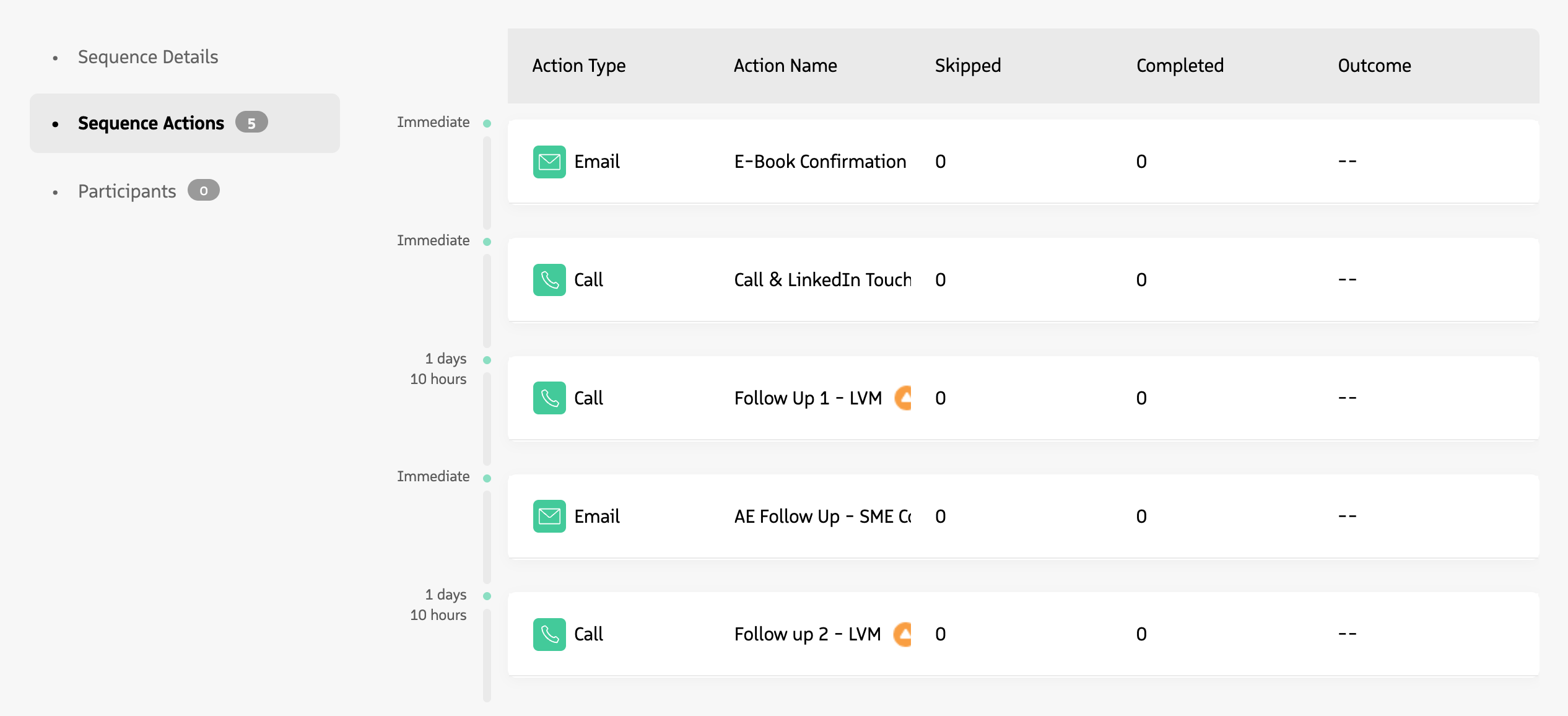
Sequence actions are arranged in order with specific timing between each step.
Business Timing options
Business Timing controls how Guided Selling calculates the due date and time for each sequence action. Timing is configured separately on each action.
Available timing options include:
- Immediate: Makes the action due without a day-based delay.
- Working Days, same time of day: Counts the configured delay using the action owner’s working days and preserves the relevant time of day.
- Working Days, start of day: Counts the configured delay using the action owner’s working days, then makes the action due at the owner’s configured start of day.
- Business Hours: Advances hour-based delays only through the action owner’s configured business hours.
- Calendar Days: Counts literal days without applying working-day logic. This option is retained for existing actions and can be enabled for new actions in GS Public Settings.
You can also enable Deliver within business hours on an action. If an action would otherwise become due outside the action owner’s business hours, Guided Selling moves it into an applicable business-hours window. This applies to automatic email and SMS actions as well as manual actions when the corresponding feature setting is enabled.
For complete configuration details and examples, see Configure Business Timing. To configure the schedules used by these calculations, see Configure Working Days and Business Hours.
Adding actions to an existing sequence
You can add new actions to an active sequence. Guided Selling appends the actions for participants who have not yet progressed past that point in the sequence.
If you remove an action from a sequence, completed participant actions for that step remain visible in the participant’s history.
Advanced settings
Each action has additional settings that can be configured to support more advanced sequencing. When editing an action, click Show Advanced Settings.
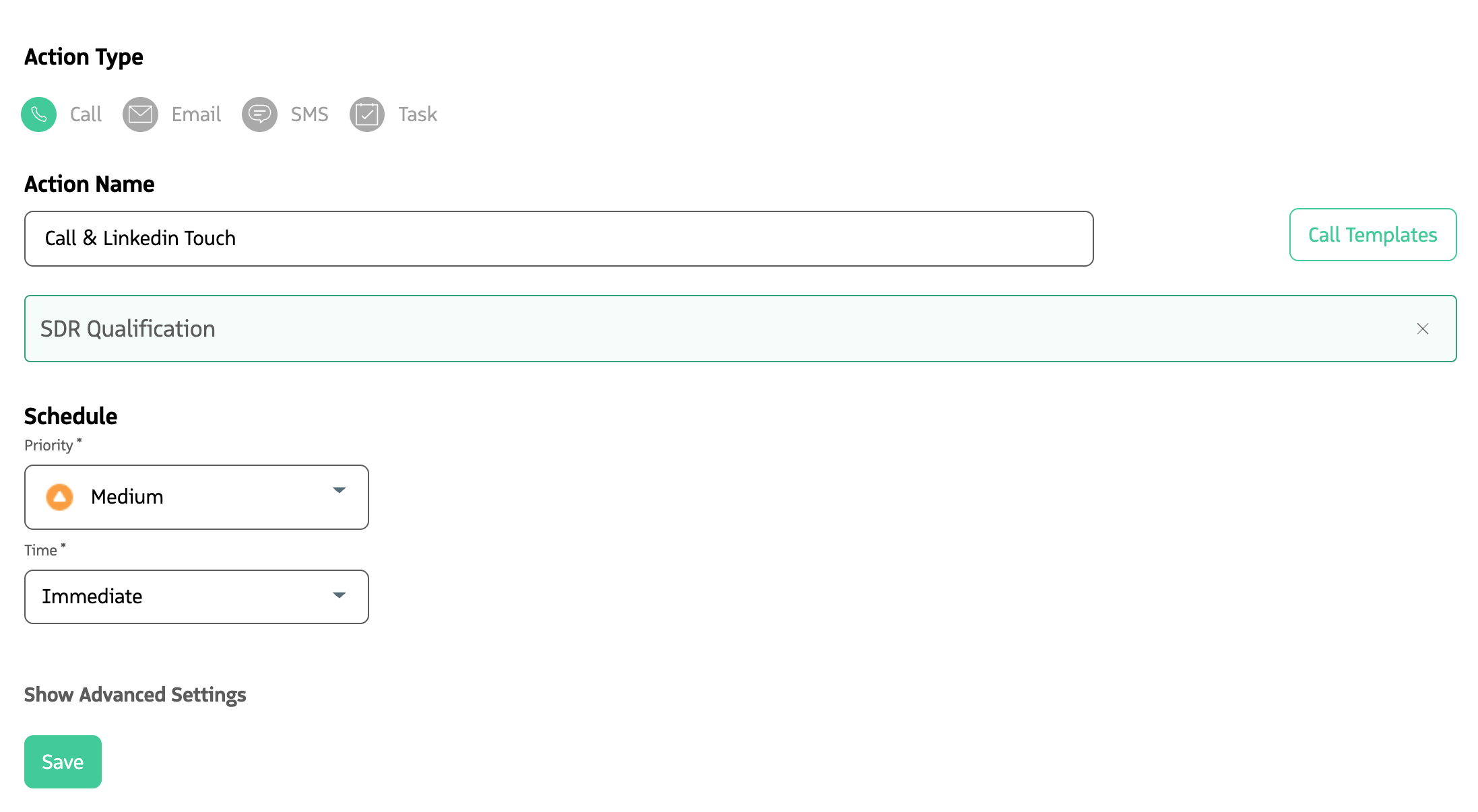
Advanced action settings allow configuration of additional criteria, record updates, delegation, and more.
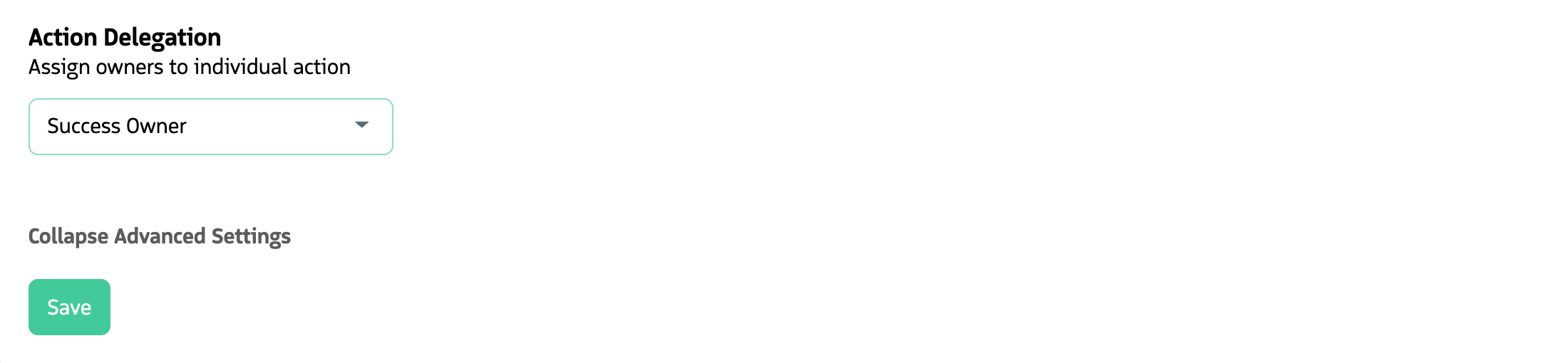
Action delegation
Delegation controls who owns and executes participant actions.
Each sequence has a Default Sequence Delegation setting. New actions are set to Inherited by default, which means they use the sequence’s Default Sequence Delegation. The initial default is the participant owner, but admins can change the Default Sequence Delegation to another supported user relationship.
Because inherited actions reference the sequence-level default, an admin can change the Default Sequence Delegation once and automatically update the delegation used by every action that remains set to Inherited.
You can also set delegation explicitly on an individual action. Actions with an explicit delegation do not inherit the sequence default and are not changed when the Default Sequence Delegation is updated. This allows a sequence to use one delegation rule for most actions while assigning specific actions to a different owner when needed.
For details, examples, and permissions, see Sequence delegation.
Criteria condition
Actions can be delayed until a specific set of criteria is met, or they can be skipped if the criteria are not satisfied at the time of execution.
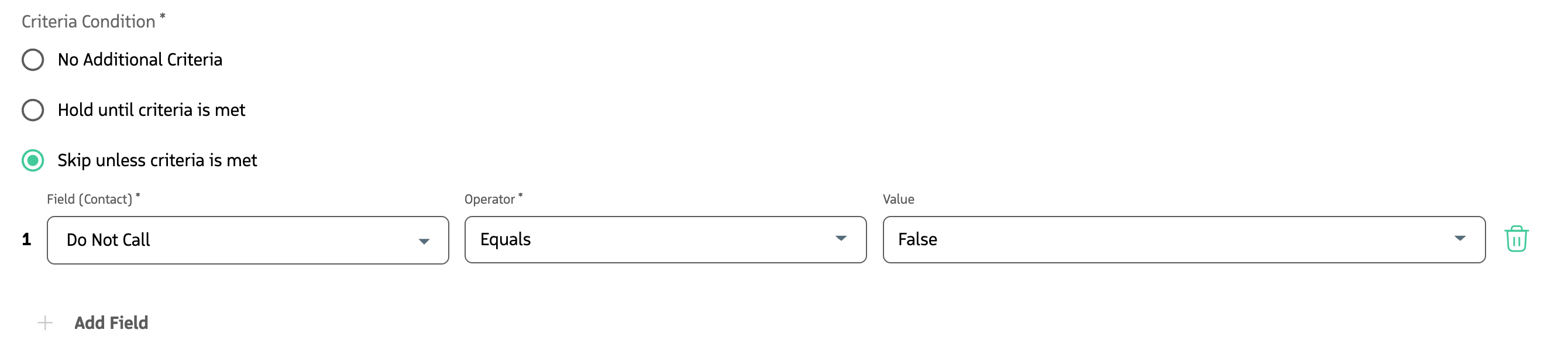
Similar to sequence criteria, action criteria provide multiple criteria options:
- AND: All specified criteria must be satisfied.
- OR: Any one of the specified criteria being satisfied is sufficient.
- Custom: Define custom logic, for example
1 AND (2 OR 3).
Record updates
When an action is performed, you can optionally update fields on the participant record, such as a Contact, Lead, Opportunity, or Campaign, by selecting Field Updates Required and choosing a field and value.
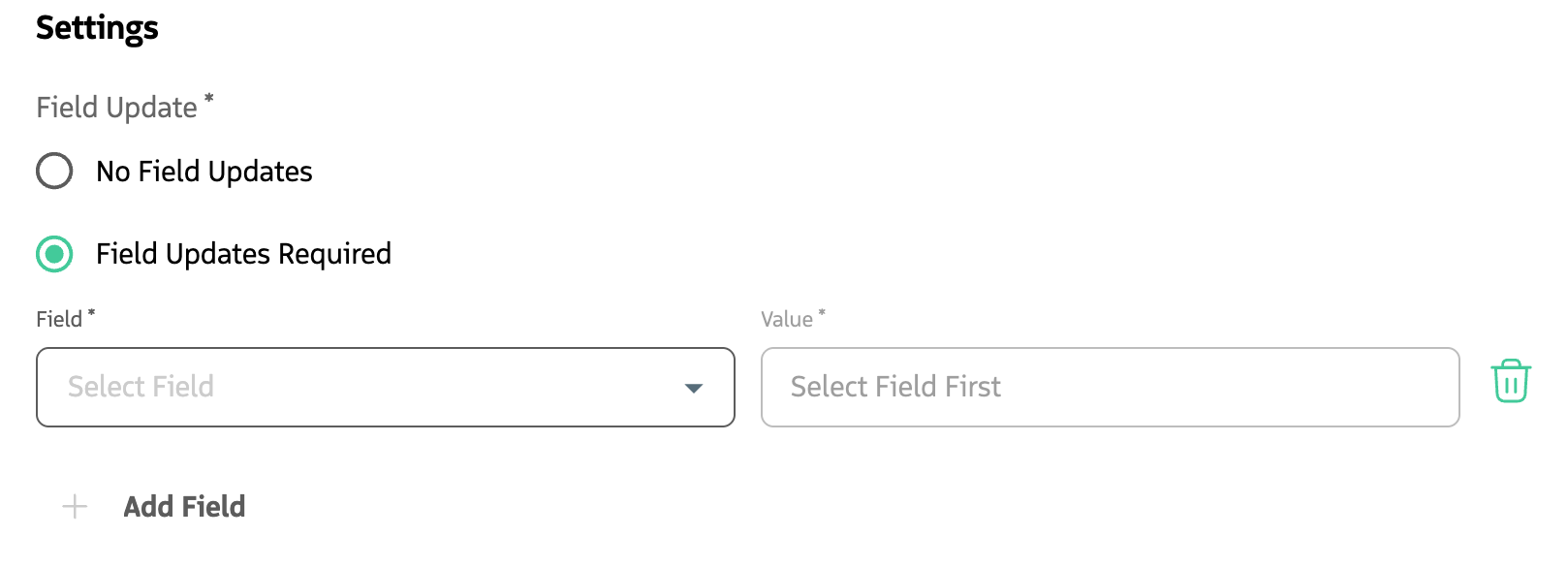
Which fields are available depends on the sequence record type and the field set configured for that type. To change or add fields, see Customize Fields in Guided Selling.
Common use cases include tracking progress, reporting, and workflow automation, for example triggering other Salesforce automation when a field is updated.