View Sequence Details
Learn what each section of the Sequence page shows and how lifecycle status affects the controls available for a sequence.
Open a Sequence
- Open Salesforce.
- Click the icon (App Launcher) in the Salesforce header.
- Search for Guided Selling and open it.
- Open the Sequences tab.
- Click a sequence name.
Sequence Header
The header shows the sequence identity, lifecycle state, organization controls, primary actions, and activation status.
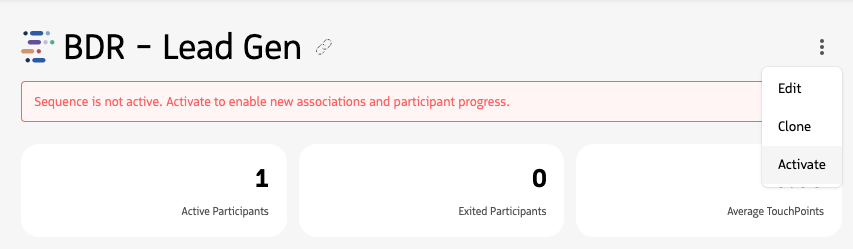
Header elements can include:
- Sequence name: Identifies the sequence throughout Guided Selling.
- Lifecycle status: Shows whether the sequence is Draft, Inactive, or Deleted. See Sequence Lifecycle.
- Favorite: Star or unstar the sequence. Favorites are personal to each user and help keep frequently used sequences at the top of sequence lists.
- Labels: Show the labels applied to the sequence. Labels help organize and filter the sequence library. See Organize Sequences with Labels.
- Status banner: Draft, inactive, or deleted sequences can display a banner that makes the sequence’s current state clear. Deleted sequences are read-only.
- Activation progress: While an Automatic sequence is being activated, the header can show the percentage of activation processing completed.
- Activate: Available when a sequence can be activated. Automatic sequences that begin with an automatic Email or SMS may require an explicit activation-warning acknowledgment. See Activation Types & Priority.
- Deactivate: Changes an Active sequence to Inactive so it stops normal enrollment while remaining available for later reactivation.
- Clone: Opens a copy of the sequence as an editable Draft.
- Edit: Opens editable sequence configuration when permitted by the lifecycle state.
For edit, clone, deactivate, and delete behavior, see Edit, Clone, or Delete a Sequence.
Deleted sequence header
A safely deleted sequence may still be opened from related historical records. The page displays its Deleted lifecycle state or banner and is read-only. Deleted sequences cannot be reactivated.
Metrics cards
Below the header, metric cards provide at-a-glance sequence performance, including participant counts and engagement metrics.
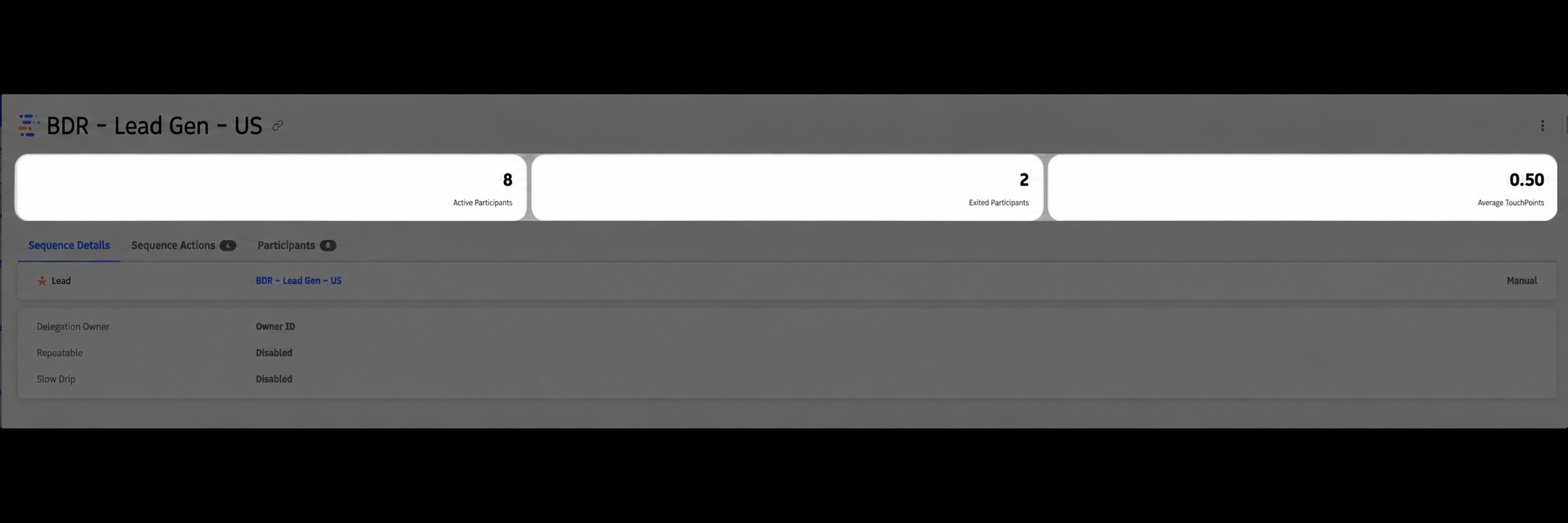
Sequence metrics cards.
| Title | Definition |
|---|---|
| Active Participants | Number of Sequence Associations where Association Status = ACTIVE. |
| Exited Participants | Number of completed Sequence Associations plus applicable historical participation records. |
| Average Touchpoints | Number of performed Sequence Actions divided by the total number of participants. |
| Conversion Rate | Percentage of participating Leads that converted while associated with the sequence. |
Main Content Area
A vertical menu on the left lets you move between sequence configuration, actions, and participants.
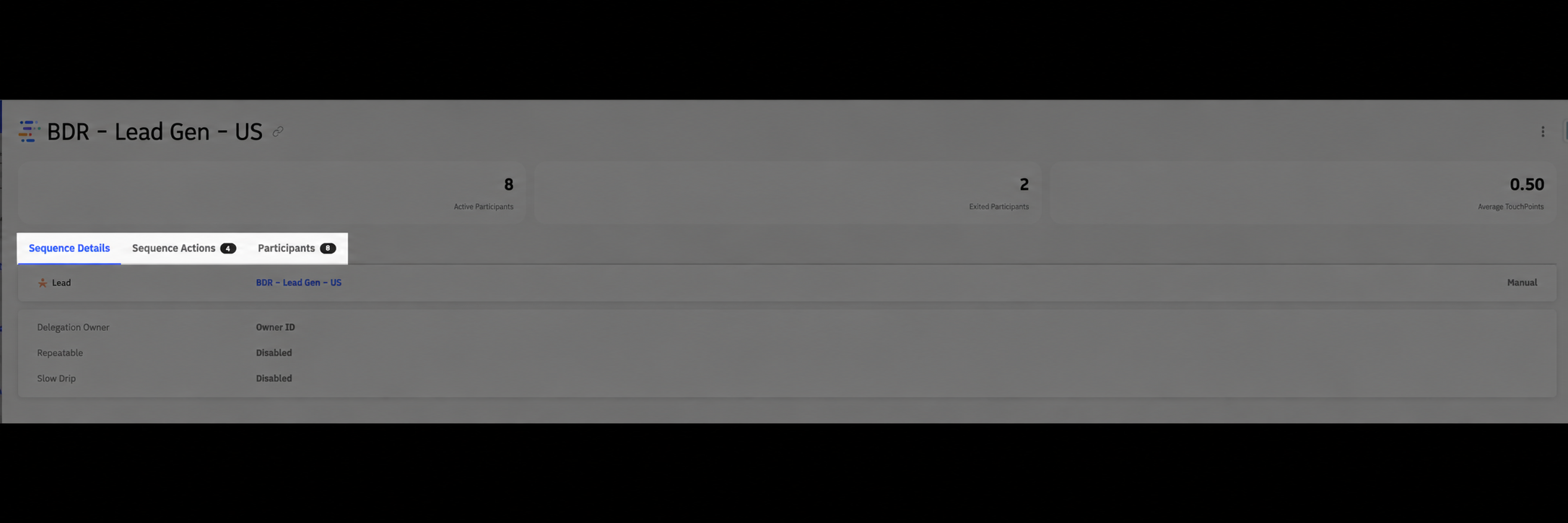
Left menu and main content area.
- Sequence Details: View the sequence record type, activation type, settings, and entrance and exit criteria.
- Sequence Actions: View the ordered list of actions, timing, templates, and action-level settings.
- Participants: View current and historical participant associations and open participant details.
Sequence Details view
When Sequence Details is selected, the main area shows sequence configuration.
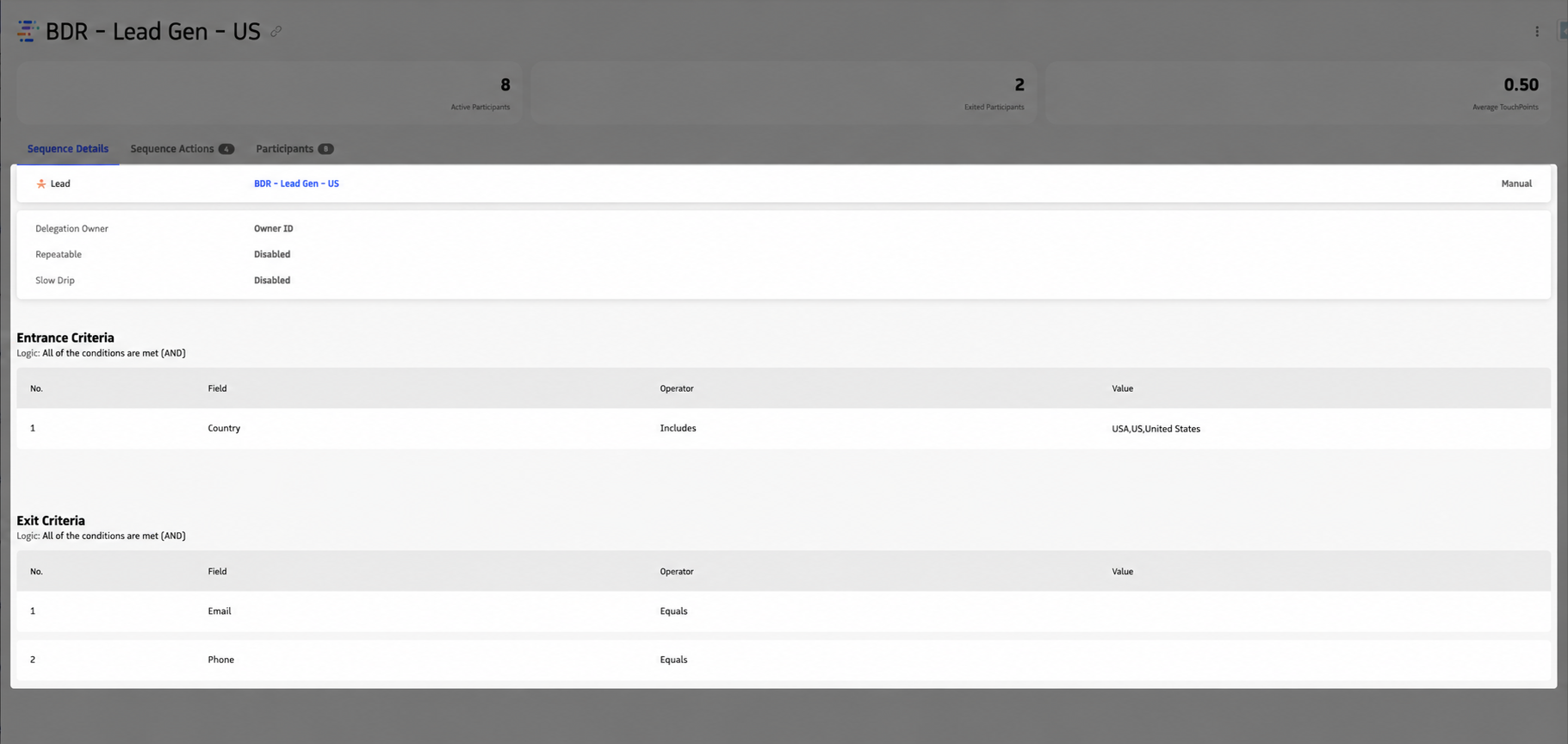
Sequence Details view.
Record and Activation type
- Type: Lead, Contact, Opportunity, or Campaign. This determines which records can be enrolled and which fields are available. See Record Types.
- Activation Type: Automatic or Manual. This controls how participants enter the sequence. See Activation Types & Priority.
Sequence settings
- Default Sequence Delegation: Defines the delegation used by actions set to Inherited. See Sequence & Action Delegation.
- Repeatable: Controls whether the same participant can re-enter after exiting when eligibility requirements are met. See Repeatable Sequences.
- Slow Drip: Limits how many participants are activated per working day. See Slow Drip.
Entrance and Exit Criteria
Entrance criteria determine when a record is eligible to enter the sequence. Exit criteria determine when an enrolled participant should exit. See Sequence Criteria.
Sequence Actions view
When Sequence Actions is selected, the main area shows the ordered sequence actions and their timing.
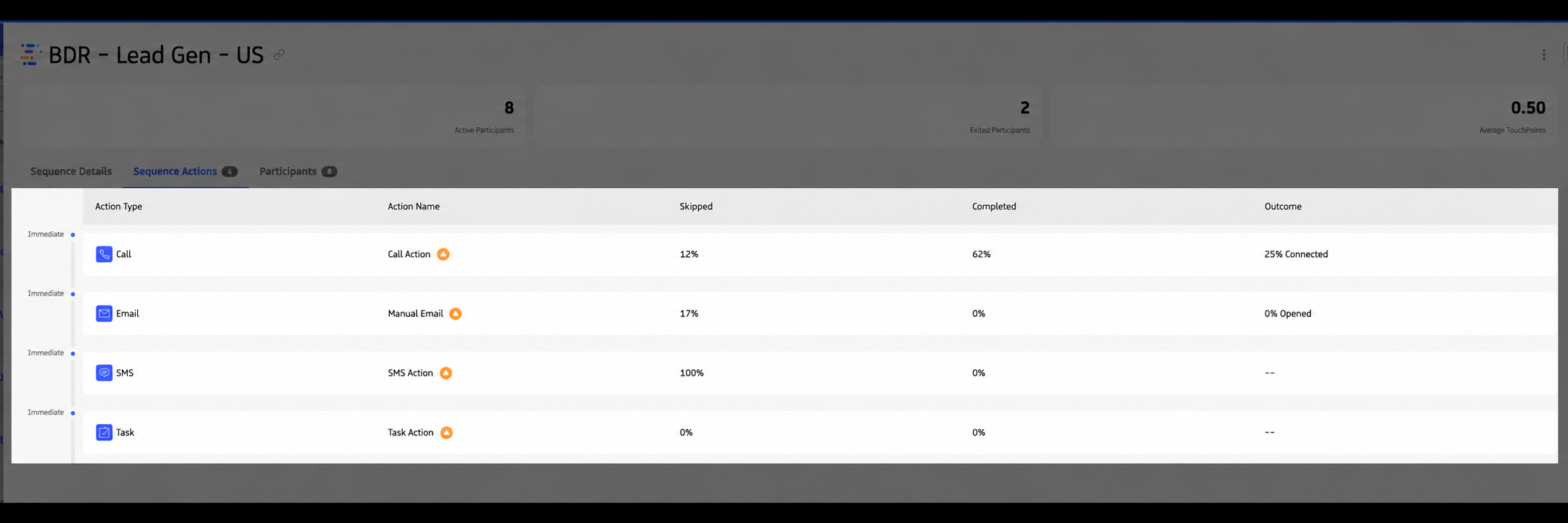
Sequence Actions list with timing.
Click an action to view its template, activation type, timing, delegation, criteria, field updates, and other action settings.
For details, see Actions.