Edit, Clone, or Delete a Sequence
You can edit, clone, deactivate, or delete sequences in Guided Selling. What happens depends on the sequence’s lifecycle status and whether it has been activated.
For an overview of Draft, Active, Inactive, and Deleted sequences, see Sequence Lifecycle.
Choose a Sequence
- Open Salesforce.
- Click the icon (App Launcher) in the Salesforce header.
- Search for Guided Selling.
- Open the Sequences tab.
- Click a sequence name.
Edit a Sequence
Sequence Admins can edit Draft, Active, and Inactive sequences. Changes to an existing saved sequence take effect when you save them.
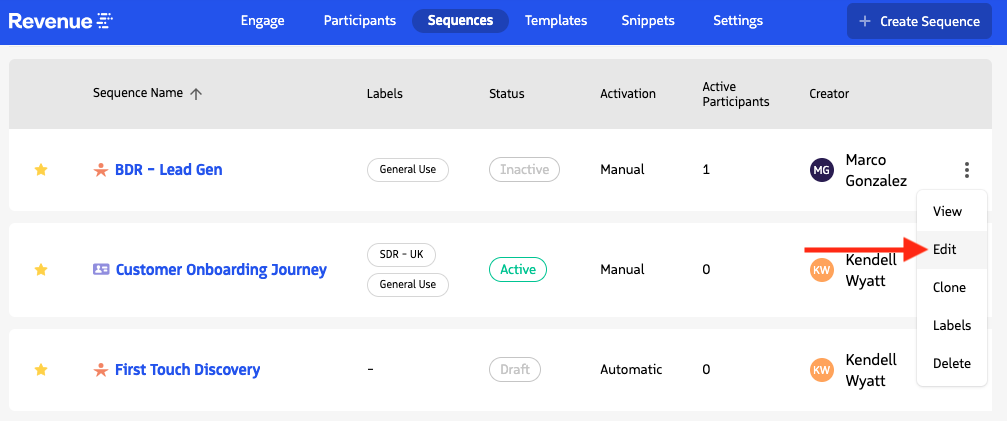
- Open the sequence.
- Click Edit.
- Update the sequence as needed.
- Click Save.
Editable configuration can include:
- Sequence name
- Activation type and priority
- Default Sequence Delegation
- Entrance and exit criteria
- Actions
- Business Timing
- Slow Drip
- Repeatable sequence settings
Edit a sequence with participants
When editing a sequence with active or historical participants, consider how changes affect Participant Actions and current enrollment.
- New actions can be added to the sequence where supported by the current sequence configuration.
- Changes to existing actions can affect participants who have not yet completed those actions.
- Removing an action removes uncompleted Participant Actions for that step.
- Changes to exit criteria can affect participants currently in the sequence. See Sequence Criteria.
Clone a Sequence
Cloning creates an editable Draft based on the source sequence. The clone is not immediately activated or committed as an active copy.
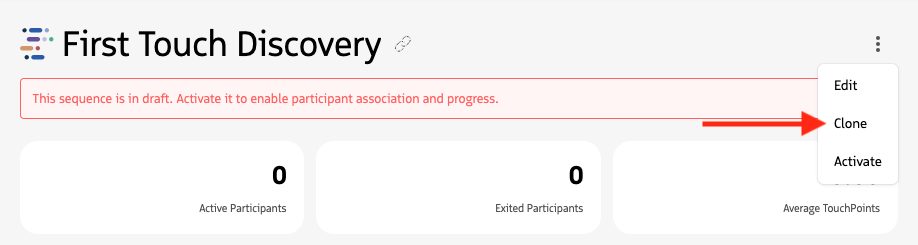
- Open the sequence you want to copy.
- Click Clone.
- Review the cloned sequence in its editable draft state.
- Update the name, criteria, actions, timing, delegation, or other settings as needed.
- Save the cloned sequence.
- Activate it when it is ready for use.
The clone carries over the source sequence configuration, including its actions and applicable action settings. Participants and participant history are not copied.
As with a newly created sequence, the sequence Record Type cannot be changed after the clone is saved.
Deactivate a Sequence
Deactivation changes an Active sequence to Inactive without deleting it.
Use Deactivate when you want to stop the sequence but may need to review, edit, or reactivate it later.
An Inactive sequence remains part of the sequence library and retains its configuration and history. It can be reactivated later.
Delete a Sequence
Guided Selling uses different deletion behavior for Draft sequences and sequences that have been activated.
Delete a Draft sequence
Deleting a Draft sequence is permanent.
Draft sequences have not been activated and do not have participant history to preserve, so the sequence record is permanently removed.
Safely delete an Active or Inactive sequence
Deleting an Active or Inactive sequence uses Safe Delete.
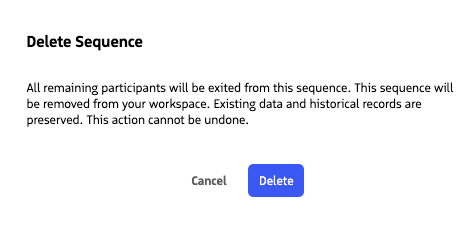
When you confirm deletion, Guided Selling:
- Exits any remaining participants with the exit reason Sequence Deleted.
- Changes the sequence lifecycle status to Deleted.
- Removes the sequence from the Sequences list, Add to Sequence, and other selection workflows.
- Preserves historical Sequence Association, task, and attribution records.
After Safe Delete
A Deleted sequence:
- Cannot enroll participants
- Cannot be reactivated
- Is read-only in Guided Selling
- Is hidden from normal sequence lists and selection surfaces
- May still be reachable from related historical records
- Displays a Deleted status or banner when viewed
- Retains historical participant and attribution data
Deleted sequences cannot be restored through the Guided Selling UI.
Deactivate or delete?
Use the lifecycle behavior to choose the appropriate option:
| Option | Use when | Can reactivate? | History retained? |
|---|---|---|---|
| Deactivate | You want to stop the sequence temporarily or may use it again | Yes | Yes |
| Delete Draft | You want to discard a sequence that has never been activated | No | Not applicable |
| Safe Delete | You want to retire an Active or Inactive sequence from normal workflows | No | Yes |
For the complete lifecycle model, see Sequence Lifecycle.