Quick Actions
Quick Actions let you create one-off actions for a Lead or Contact without adding a new step to a sequence.
You can use Quick Actions whether or not the person is enrolled in a sequence. They are useful when you need to schedule follow-up outside the participant’s normal sequence cadence or when a full sequence is unnecessary.
Quick Actions appear in the dedicated Quick Actions component on the Lead or Contact record and can also surface on Engage when they are due.
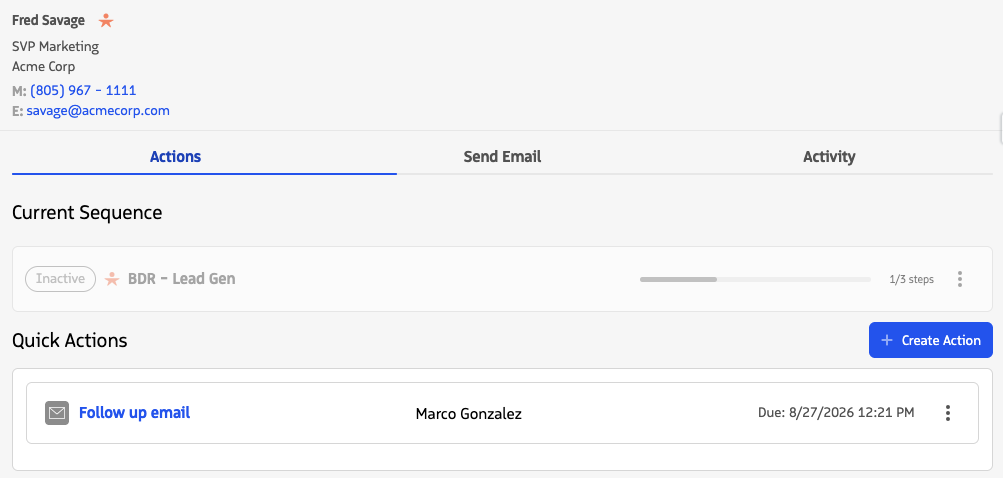
Quick Actions appear below Current Sequence actions
Quick Actions component
The Quick Actions component is separate from the Participant Overview and Sequence Overview experience.
Use this component to create a new Quick Action and review Quick Actions for the Lead or Contact.
The component can display:
- Actions that are currently due
- Actions that are not yet due
- Completed actions
- Skipped actions
Actions that are completed, skipped, or not yet due are shown in a grayed-out state so they remain visible for context without appearing as currently actionable work.
Supported Action Types
Quick Actions support the following action types:
| Action type | Capabilities |
|---|---|
| Call | Schedules a call for the Lead or Contact. |
| SMS | Schedules an SMS message. |
| Schedules an email. You must specify the Email Subject and Body, or select an Email Template. To send an email immediately instead of scheduling it, use Send Email. | |
| Task | Creates a task. You must specify the Subject under the Field section. You can optionally populate other supported task fields. |
Add a Quick Action
From a Salesforce Lead or Contact
- Open the Lead or Contact record in Salesforce.
- Find the Quick Actions component on the record page.
- Click + Quick Action.
- Select the action type.
- Configure the action details.
- Set the Action Due date and time.
- Click Save.
When the Quick Action becomes due, it is available as actionable work in Guided Selling. Before it is due, it remains visible in the Quick Actions component.
From the Participants tab
If the Lead or Contact is enrolled in a sequence, you can also create a Quick Action from Guided Selling.
- Open the Participants tab.
- Find the participant.
- Click the Options icon.
- Select Quick Action.
- Select the action type and configure the action details.
- Set the Action Due date and time.
- Click Save.
Review existing Quick Actions
Open the Quick Actions component on the Lead or Contact record to review one-off actions for that person.
The component keeps non-active actions visible for context:
- Not yet due: Displayed in a grayed-out state until the due date and time.
- Completed: Remains visible after completion.
- Skipped: Remains visible after it is skipped.
This lets you review recent and upcoming one-off work without relying only on the actions that are currently due on Engage.