Add and Remove a Participant
When you enroll a participant, you are adding a Lead or Contact to a Sequence. The record becomes a Participant in that sequence, and Guided Selling schedules the Sequence’s Actions.
Some actions may run automatically, while others appear as work for reps to complete on Engage.
The steps below explain how to manually add or remove participants from sequences.
Add a Participant to a Sequence
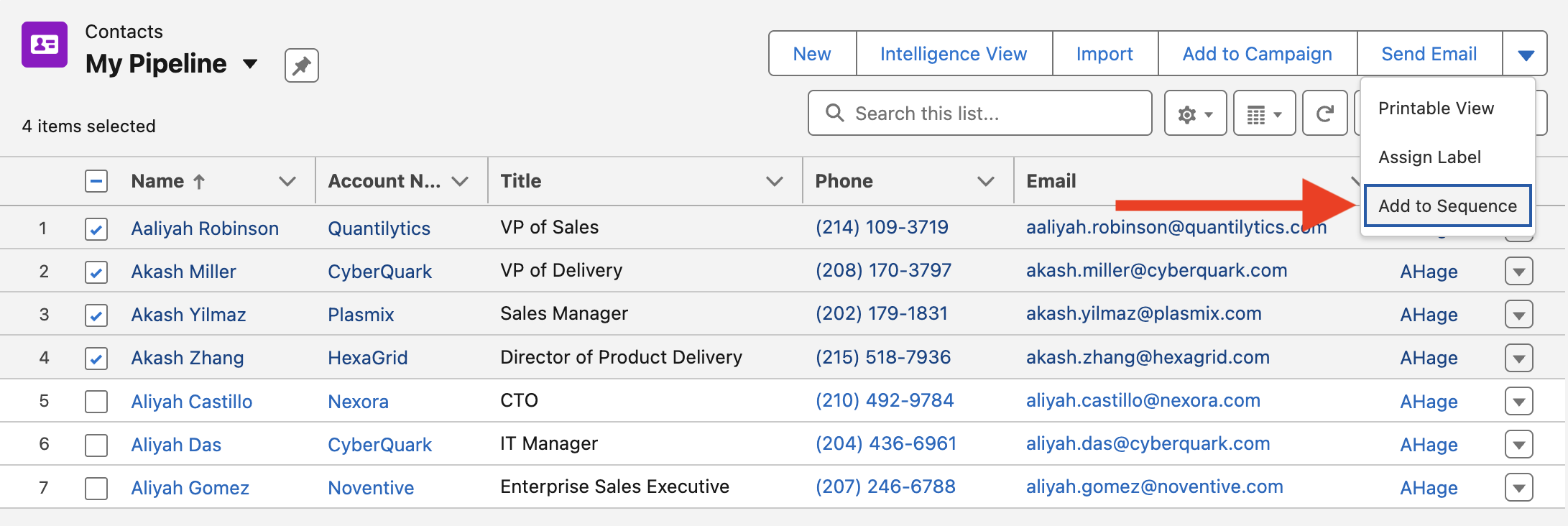
You can manually enroll a single Lead or Contact from Participant Overview or enroll multiple records from a Salesforce list view.
- Open the Lead or Contact record in Salesforce.
- Locate the Participant Overview on the record page.
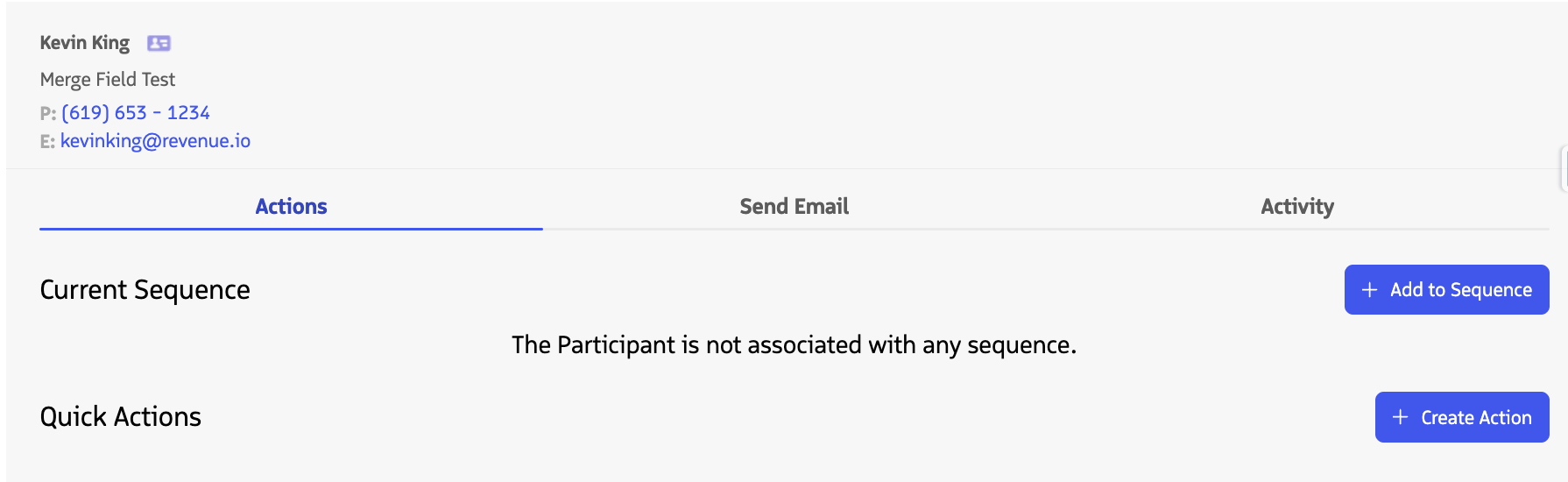
- From the Actions tab, locate the Current Sequence section.
- If the participant is not currently associated with a sequence, click Add to Sequence.
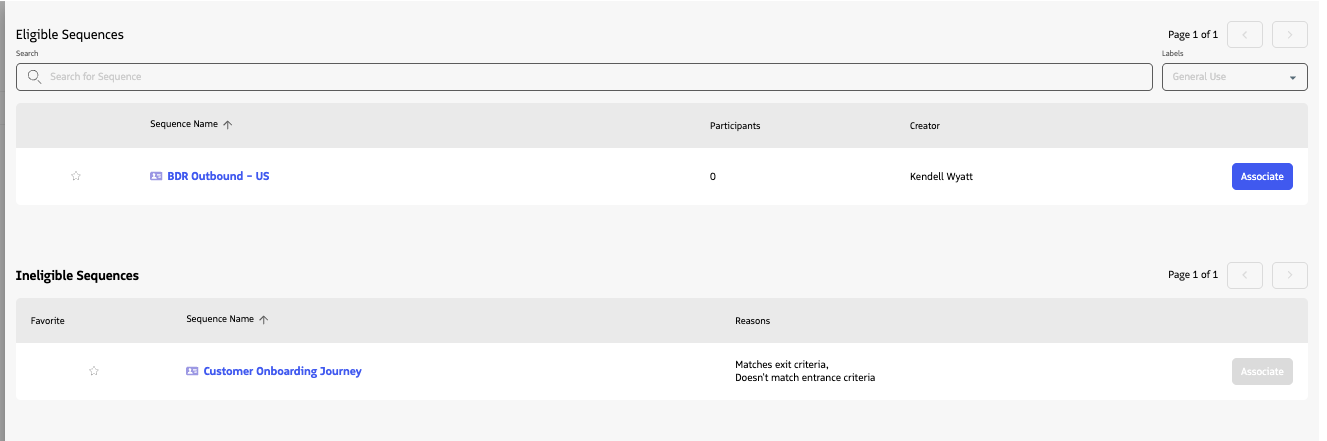
Review the sequences listed under Eligible Sequences.
You can search for a sequence or use available filters to help locate the sequence you want to use.
Click Associate next to the sequence.
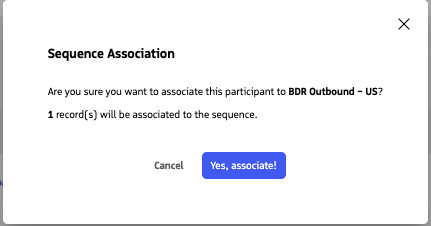
- Review the Sequence Association confirmation.
- Click Yes, associate! to enroll the participant.
After the association is created, the sequence appears under Current Sequence and the participant’s sequence actions become available in Participant Overview.
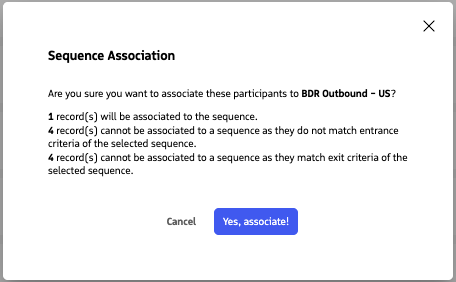
Enrollment Requirements
A Lead or Contact must be eligible for the selected sequence before it can be manually associated.
Eligibility can depend on factors such as:
- The participant meeting the sequence entrance criteria.
- The participant not already being associated with the same sequence.
- The participant not meeting the sequence’s exit criteria.
- The sequence’s Multi-Sequence and re-entry settings.
- An eligible Guided Selling owner being available for the participant.
- The sequence being available for manual association.
Sequences that are not eligible appear under Ineligible Sequences. The reason the sequence is unavailable is displayed, and the Associate button is disabled.
Automatic Sequences
Sequences configured for automatic enrollment use their configured criteria to determine when participants should enter the sequence.
If a sequence is not available for manual association, open the Sequences tab and review its configuration. See View Sequence Details for information about sequence configuration, including activation type and criteria.
Manually Remove a Participant from a Sequence
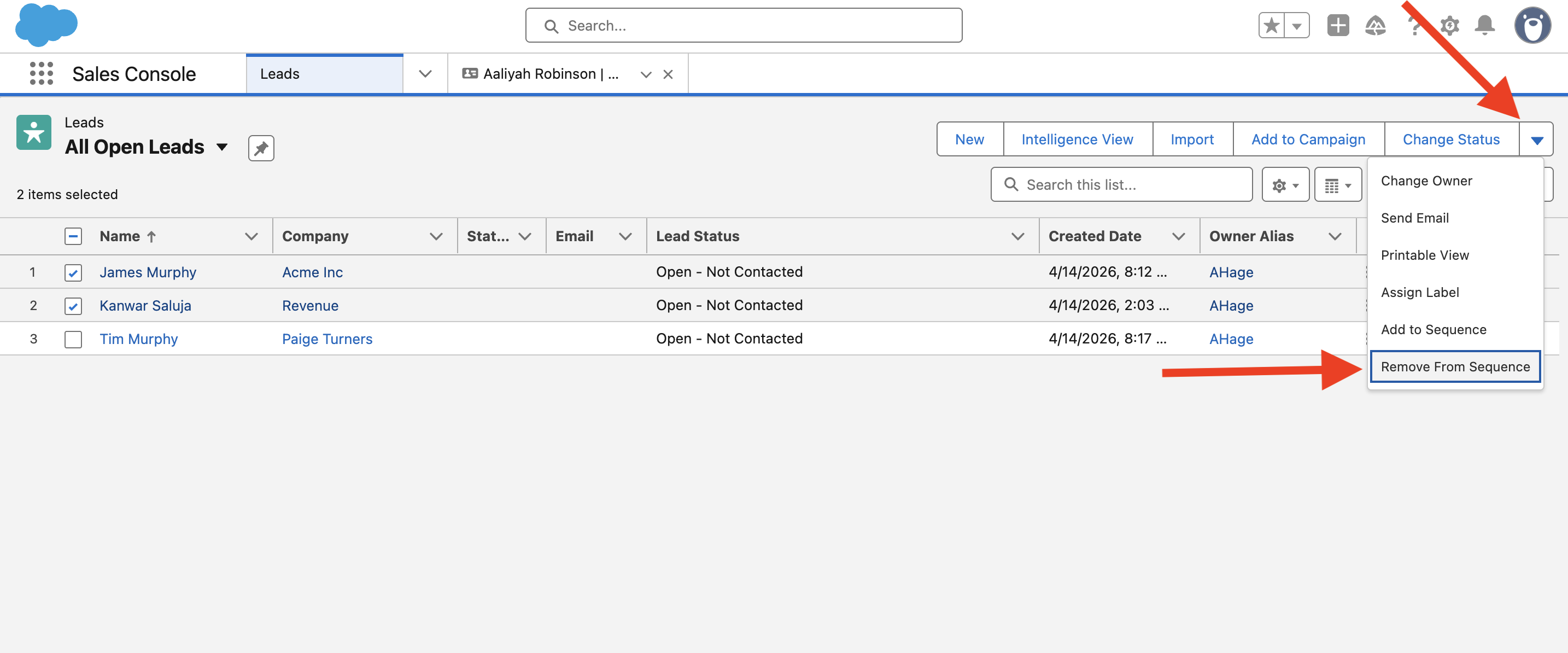
Participants normally exit a sequence when they meet its configured exit conditions. You can also manually remove a participant when needed.
- Open the Lead or Contact record in Salesforce.
- Locate the Participant Overview.
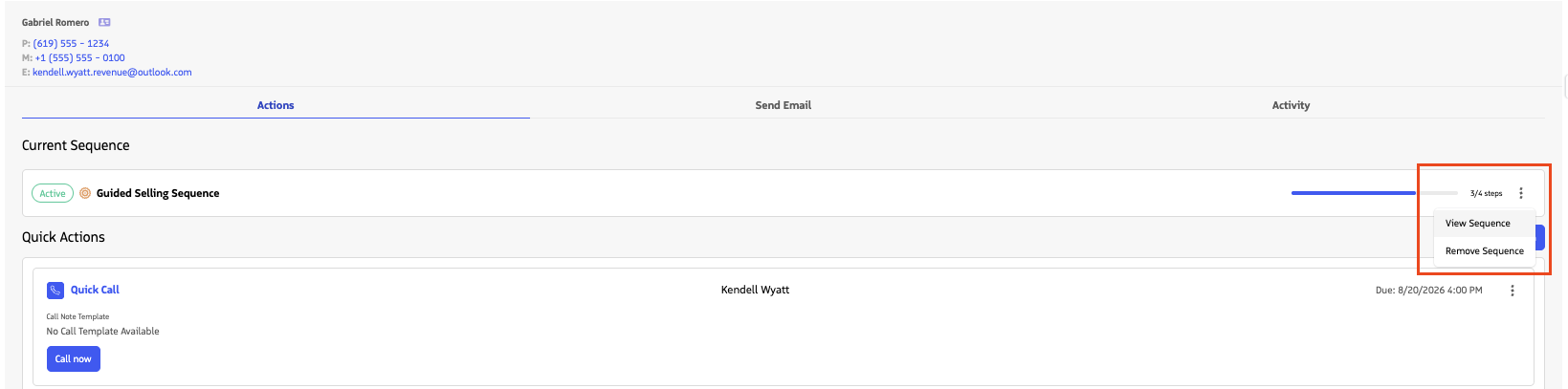
- From the Actions tab, locate the participant’s sequence under Current Sequence.
- Click the options menu on the sequence.
- Select Remove Sequence.
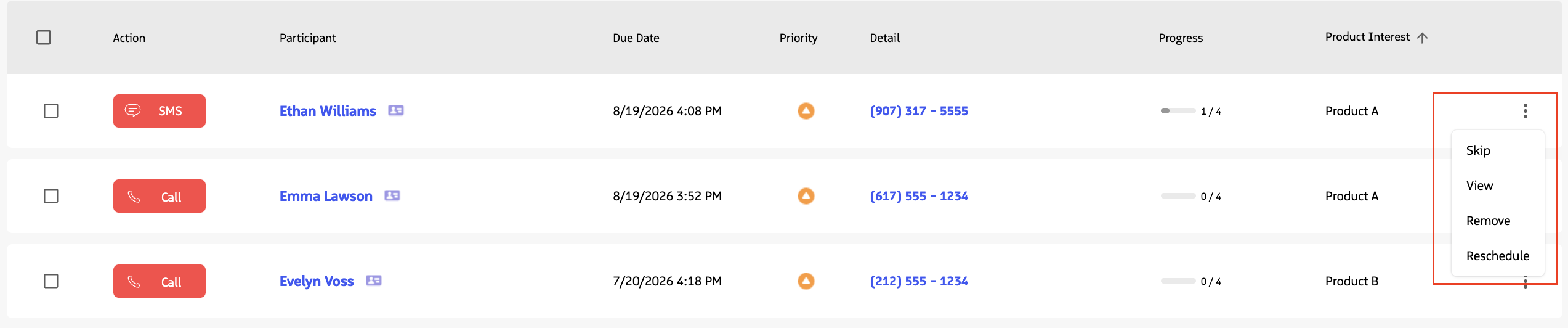
- Review the confirmation and click Remove.
Automatic Sequence Re-entry
In some cases, a participant cannot be manually removed from an Automatic sequence that allows repeated enrollment.
If the participant still qualifies for the sequence, removing them would cause Guided Selling to immediately add them back at the beginning of the sequence. When this occurs, the removal window explains that the participant cannot be manually removed and displays the sequence’s exit criteria.
Update the participant’s Salesforce record so that it meets the sequence’s exit criteria. Guided Selling can then remove the participant through the normal sequence exit process.