Customize Upcoming Emails
Customize upcoming email actions from the Participant Overview so each participant receives messaging that fits the conversation. You can update an existing email or select a reusable email template before the action becomes due.
Automatic email actions send the saved content on schedule. Manual email actions appear on Engage when they are due so you can review and send them.
Customize an upcoming email
You can modify one email, several emails, or every upcoming email action for the participant.
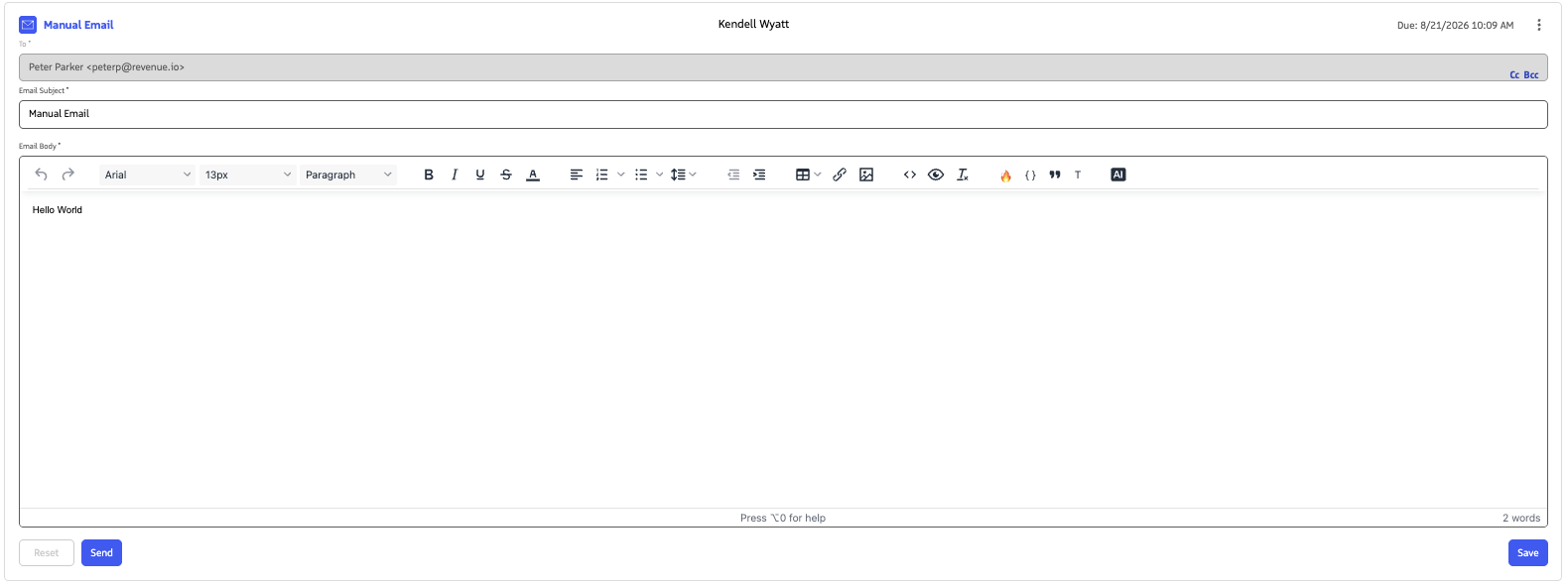
Open the email editor
- On the Actions tab, find the upcoming email action you want to customize.
- Click the email action to expand the editor.
Select a template
To replace the email with content from a reusable template:
- Click the T button in the Email Body toolbar. The button opens the Templates drawer.
- Select the template you want to use.
- If the email already contains content, confirm that you want to replace the existing subject and body.
The selected template populates the email subject and body. Merge fields are resolved for the participant when applicable.
Customize the message
- Update the Email Subject if needed.
- Edit the Email Body to personalize the message.
- Update merge fields, formatting, or snippets as needed.
- Review the email, then click Save to store your changes.
Editing template content: When you type in the subject or body of a template-based email and change the template content, Guided Selling treats the email as custom content and unlinks it from the selected template. The customized subject and body are retained.
Template unlinking is triggered by keyboard input. An edit made only through a context-menu action may not trigger the same unlink behavior. To use a template again, click the T button and select a template.
When the action becomes due
Behavior depends on how the email action is configured in the sequence:
- Automatic email: When the action becomes due, Guided Selling sends the saved content automatically, subject to your organization’s email limits and sending requirements.
- Manual email: When the action becomes due, it appears on Engage so you can review, make additional changes, and send it.
Customizing an upcoming email changes the content for that participant’s action without requiring you to change the sequence for other participants.
Merge fields
When you customize an email from Engage or the Participant Overview, merge fields display their resolved values for the Lead or Contact. Raw merge field tokens appear in the Sequence Builder.