Skip Actions on Engage
Role:
Sequence Agent
License:
Guided Selling
There are times when an action is no longer relevant for a participant (for example, a step is no longer needed or the outreach happened another way). In those cases, you can skip the action from Engage.
You can skip participant actions from Engage, the Participants tab, or the Participant Overview Module. For Participants workflows, see Manage Actions.
Skipping an individual action advances the participant to the next step in the sequence, but that next action may not be due yet.
Skip from the Engage view
To skip an action from the Engage view:
Open the action menu
- Click the menu dropdown on the right side of the action.
- Select
Skip.

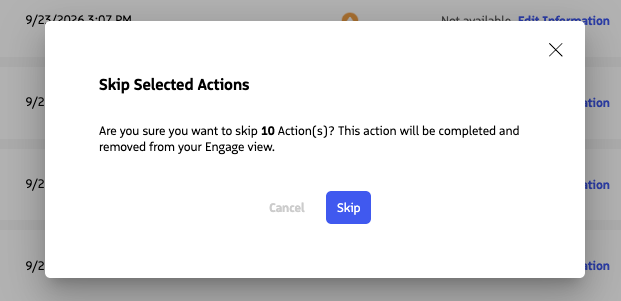
Confirm skip
- Confirm that you want to skip the action.
- The action is skipped and the participant advances to the next step.
Bulk skipping
You can skip multiple actions at once from the Engage view or Participants view. Select multiple actions, then use the bulk Skip option to update all selected actions.
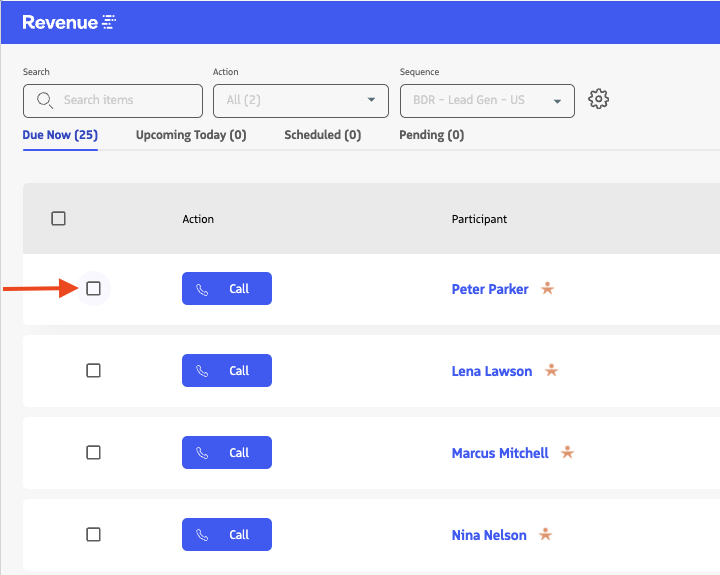
Select multiple actions
- In Engage, select the checkbox for each action you want to skip.
- Confirm the selected actions are the ones you want to update.
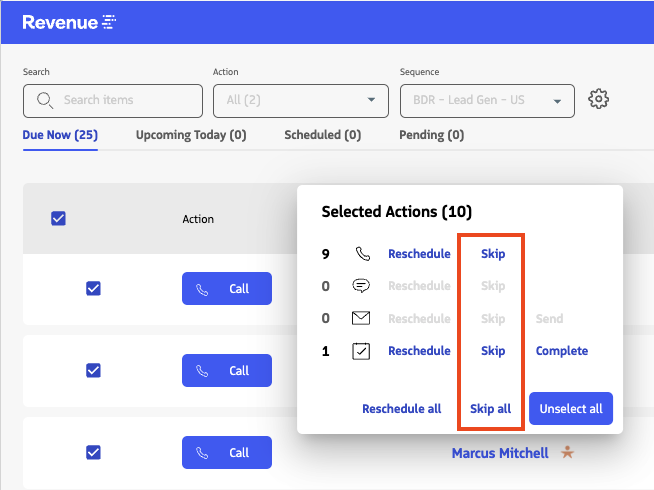
Bulk action menu
- After selecting actions, the
Bulk Action Menuappears automatically. - Select
SkiporSkip all.
Confirm skip
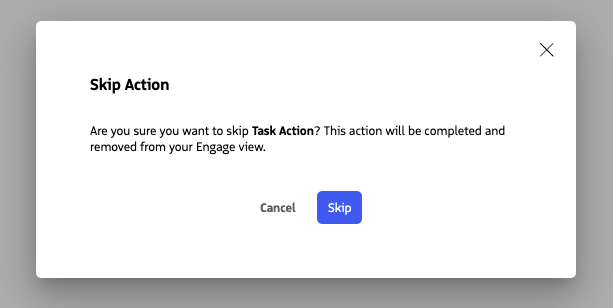
- Confirm the bulk skip.
- All selected actions are skipped and participants advance accordingly.