Filter Actions on Engage
The Engage view includes flexible filtering tools that help you focus on the right actions at the right time. You can narrow the action list using Quick Filters, Header Filters, and filters available in Table settings.
Filtering Participant Actions
You can filter participant actions in several ways.
Quick Filters
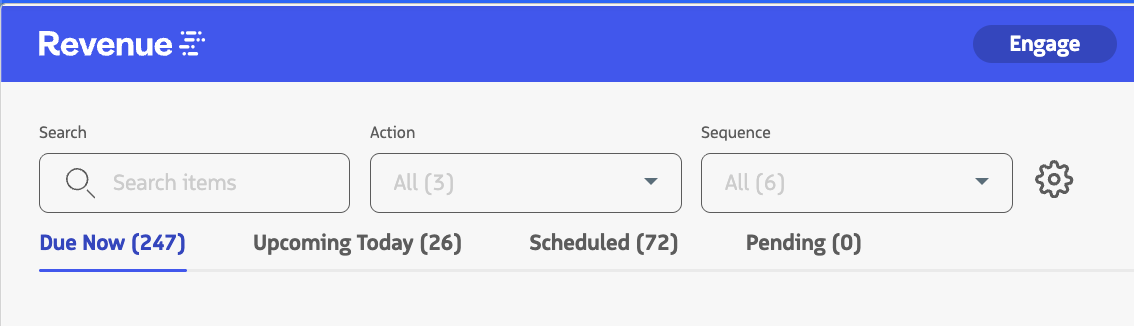
Quick Filters are displayed above the action list and next to the Global Search. You can configure them by clicking Settings on Engage.
You can select up to 3 filterable fields to display as Quick Filters. Available options can include standard Engage fields, such as Action and Sequence, as well as supported Lead and Contact fields that have been added to your Engage table.
Header Filters
Header Filters display filtering options directly in the table header for supported columns.
Header Filters are disabled by default. To enable them, click Settings , expand Display & layout, and enable Header filters.

Custom Filters
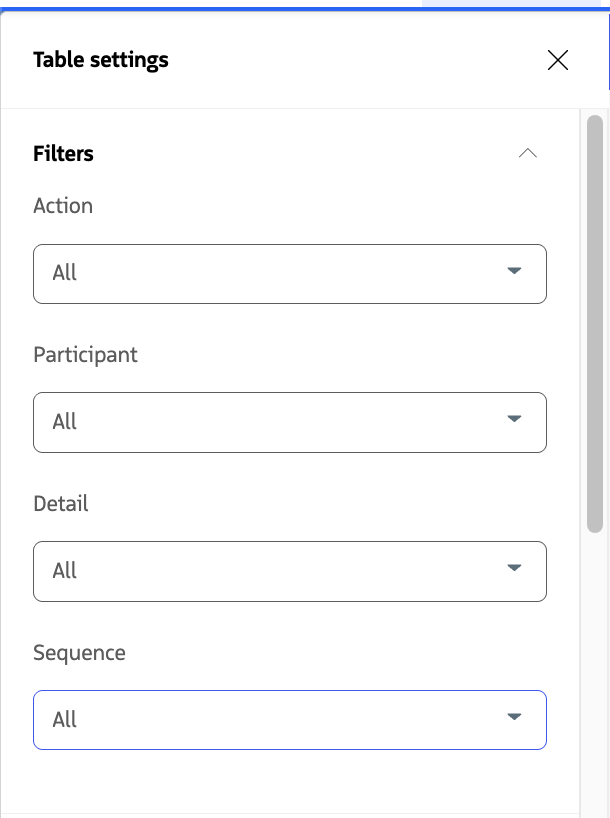
The Filters section of Table settings lets you narrow the action list using filterable fields available in your Engage table.
Supported Lead and Contact fields can also be added to Engage and used for filtering. The fields available to reps are controlled by the Guided Selling Field Sets in Salesforce.
To make a custom field available for filtering:
- A Salesforce Administrator adds the field to the appropriate Revenue.io Sequence Leads or Revenue.io Sequence Contacts Field Set.
- From Engage, click Settings .
- Expand Columns.
- Under More Fields, use Find a field to add the field to your Engage table.
- Use the field from the Filters section to filter participant actions.
Custom fields added to the table can also be available for Quick Filters and Header Filters when those filtering options are enabled.
For more information, see:
Settings Panel Options
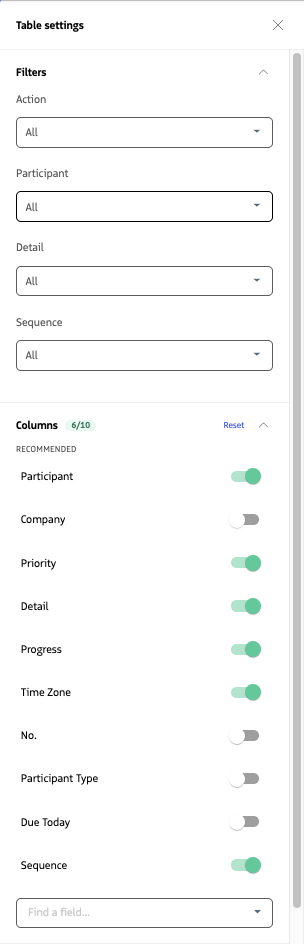
The Table settings panel is organized into Filters, Columns, and Display & layout.
Filters: Apply filters using the filterable fields available in your Engage table.
Columns:
- Recommended: Show or hide the standard columns available in Engage.
- Find a field: Add supported Lead and Contact fields made available through the Guided Selling Field Sets.
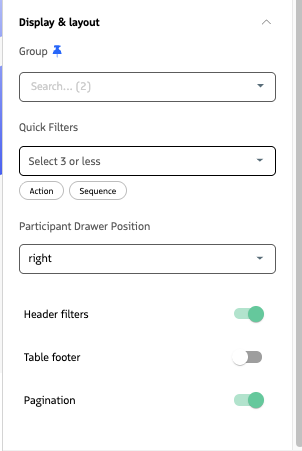
Display & layout:
- Group: Filter participant actions by a selected group. Use the pin icon to save the selected group as your preferred group.
- Quick Filters: Choose up to 3 filterable fields to display above the Engage table.
- Participant Drawer Position: Choose where the Participant drawer opens on screen.
- Header filters: Show or hide filtering controls in the table header.
- Table footer: Show or hide the table footer.
- Pagination: Enable or disable paginated table navigation.