Engage
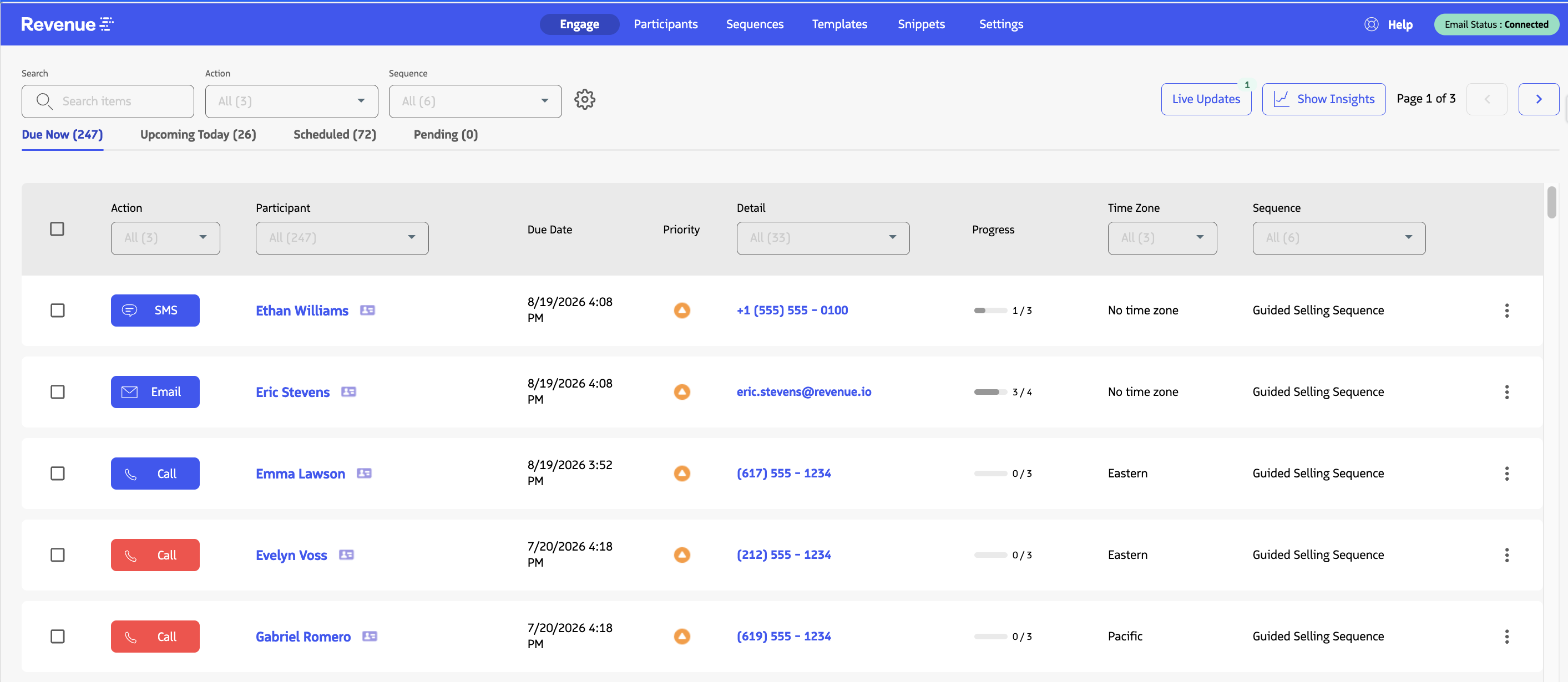
Engage is the primary view for working with your prospects in Guided Selling. Use it to view current and upcoming participant actions and to complete what’s due from your sequences. Calls, emails, SMS messages, and tasks, all in one place.
Engage Insights
When you click the Show Insights button, the page reveals analytics cards that show your progress throughout the day.
The Total Completed metric can also be filtered by a specific action type, allowing you to view completed activity for individual action types such as calls, emails, SMS messages, or tasks.

Engage Settings
Click the Settings button to open the Table settings panel. From here, you can filter actions, choose which fields appear as columns, and customize how the Engage table is displayed.
Key options include:
- Filters: Filter the action list using available Engage fields, such as Action, Participant, Company, Detail, and supported Lead or Contact fields.
- Columns: Show or hide columns in your Engage view.
- Recommended: Enable or disable the standard columns available in Engage.
- More Fields: Add supported Lead or Contact fields as additional columns. The fields available under Find a field are controlled by the Guided Selling Field Sets in Salesforce.
- Display & layout: Customize how actions and controls are displayed in Engage.
- Group: Configure how actions are grouped in the Engage table.
- Quick Filters: Choose up to 3 fields to display as Quick Filters above the Engage table.
- Participant Drawer Position: Choose where the Participant drawer opens when viewing participant details.
- Header filters: Show filtering options directly in the table headers.
- Table footer: Show or hide the table footer.
- Pagination: Navigate through the action list in pages instead of using continuous scrolling.
For step-by-step setup of filters and columns, see Customize Engage.
Engage Table Configuration
You can drag and resize columns directly in the Engage table. You can also add Lead and Contact fields to personalize the information displayed for your participant actions.
Make Fields Available in Engage
The fields you can add to Engage are controlled by the Guided Selling Field Sets in Salesforce.
- A Salesforce Administrator adds the field to the appropriate Revenue.io Sequence Leads or Revenue.io Sequence Contacts Field Set.
- The field becomes available for use in Guided Selling, including the available fields in Engage.
- From the Engage tab, click the Settings button.
- Scroll to the Columns section.
- Under More Fields, use Find a field to select the field.
- Enable the field to add it as a column in your Engage view.
- Use the field to sort or filter participant actions as needed.
For details about making Salesforce fields available in Engage, see Add Custom Fields to Engage.
For built-in Engage columns and filters, see Customize Engage.