System Updates
The System Update page shows the current Guided Selling version installed in your Salesforce org and any newer versions available for self-service upgrade.
Administrators are notified in Salesforce when a new version becomes available. To review available updates, go to Guided Selling Settings > System Update.
Before you upgrade
The most important step before any Guided Selling upgrade is to review the Release Notes for the version you are installing.
Release Notes include:
- New features, fixes, and other changes included in the release
- An Implementation Steps section with any required upgrade or post-install actions
- Instructions for validating jobs or migrations that should run automatically
- Any manual steps that an administrator must complete
See Guided Selling Release Notes to find the release notes for your target version.
Major versions and patches
Whether additional implementation work is required generally depends on whether you are staying on the same major version or moving to a new one.
Patch upgrade within the same major version
For example:
13.0.x → 13.0.y
Patch releases on the same major version typically do not require additional upgrade steps.
However, you should still review the Release Notes for the patch before upgrading. If the Release Notes include any specific implementation or validation instructions, follow them.
Upgrade to a new major version
For example:
11.0.x → 12.0.x
or
12.x → 13.x
An upgrade to a new major version may require migrations, configuration changes, prerequisite versions, validation steps, or manual post-install actions.
The Implementation Steps may differ depending on where you are upgrading from. For example, a release may provide one set of instructions for customers already on the previous major version and additional prerequisite steps for customers upgrading from an older version.
Accessing System Updates
Navigate to System Updates
- Go to Guided Selling Settings.
- Open System Update.
- Confirm your current installed version.
- Review the available update.
Review the Release Notes
- Open the Release Notes for the version you plan to install.
- Review the changes included in the release.
- Find the Implementation Steps section.
- Identify the instructions that apply to your current Guided Selling version.
- Complete any required prerequisites before starting the package installation.
When viewing the System Update page, your current Guided Selling version is displayed in the top right. Available updates appear in the center of the page with release information.
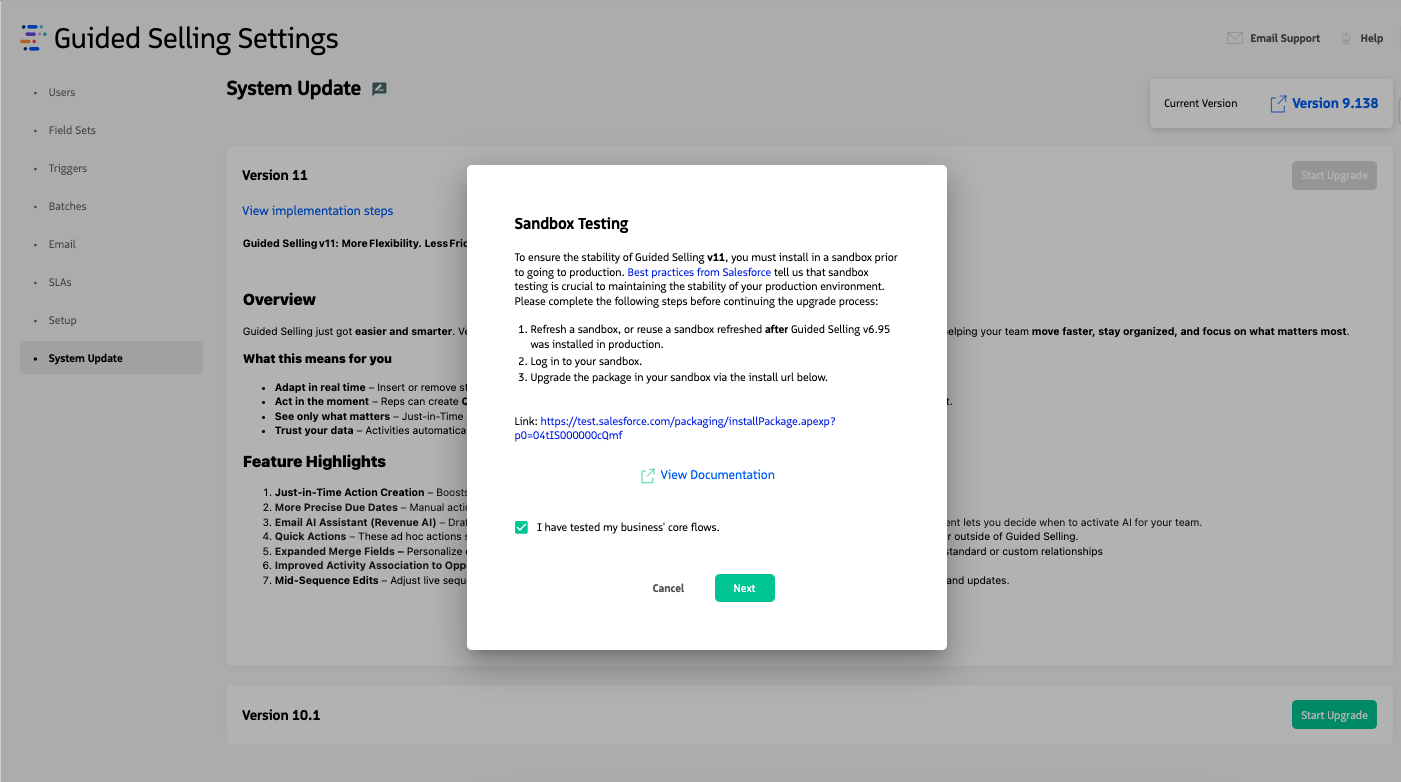
Review the available version and its Release Notes before starting an upgrade.
Performing a self-service upgrade
We recommend testing Guided Selling upgrades in a sandbox before upgrading production.
Install in Sandbox
- From Guided Selling Settings > System Update, open the Release Notes for the target version.
- Complete any prerequisite Implementation Steps that apply before installation.
- Click Start Upgrade.
- Open the Sandbox Install URL.
- Complete the Salesforce package installation.
- Return to the Release Notes and complete the remaining Implementation Steps.
- Verify any migrations or background jobs listed in the Release Notes.
- Test your core Guided Selling business flows.
Install in Production
- Confirm that sandbox testing and the applicable Implementation Steps completed successfully.
- Open the Production org’s System Update page.
- Review the target version’s Release Notes again.
- Click Start Upgrade and complete the Production installation.
- Complete all applicable post-install Implementation Steps.
- Verify any jobs, migrations, configuration changes, or other validation steps identified in the Release Notes.
After the package installs
Guided Selling upgrades can include automated post-install processing, such as migrations or batch jobs. The exact processing varies by release.
Do not rely on a generic list of post-install jobs. Instead, use the Implementation Steps for the version you installed. They identify:
- Which processing should start automatically
- Which jobs you should verify
- Which jobs or migrations, if any, must be started manually
- Any configuration that must be reviewed or updated
- How to validate that the upgrade completed successfully
If an expected job or migration does not complete successfully, follow the troubleshooting guidance in the applicable Release Notes or contact our Support Team.