Add Custom Fields in Guided Selling
Field Sets control which Salesforce fields are available for supported Guided Selling features.
You can use Guided Selling Field Sets to make fields available for:
- Entrance Criteria: Conditions that determine when a record enters a sequence.
- Exit Criteria: Conditions that determine when a record exits a sequence.
- Automatic Field Updates: Actions that update field values when specific conditions are met.
- Engage custom columns: In Guided Selling v13 and later, fields included in the Lead and Contact Field Sets are available for reps to add to their personal Engage view.
Available Field Sets
Guided Selling provides field sets for different objects:
- Revenue.io Sequence Leads: Fields available for Lead sequence criteria and Engage.
- Revenue.io Sequence Contacts: Fields available for Contact sequence criteria and Engage.
- Revenue.io Sequence Opportunities: Fields available for Opportunity sequence criteria.
- Revenue.io Sequence Campaigns: Fields available for Campaign sequence criteria.
Adding a field to a Field Set makes it available to the supported Guided Selling features. It does not automatically add that field as a visible column for every rep in Engage.
Each rep chooses which available fields appear in their personal Engage view. For rep instructions, see Add Custom Fields to Engage.
Manage Field Sets
The management buttons on the Guided Selling Settings page direct you to the appropriate Salesforce Field Set.
Access Field Sets
- Open the App Launcher in Salesforce and search for Guided Selling by Revenue.io.
- Click the Settings tab in the top navigation bar.
- Go to the Field Sets section in the left menu.
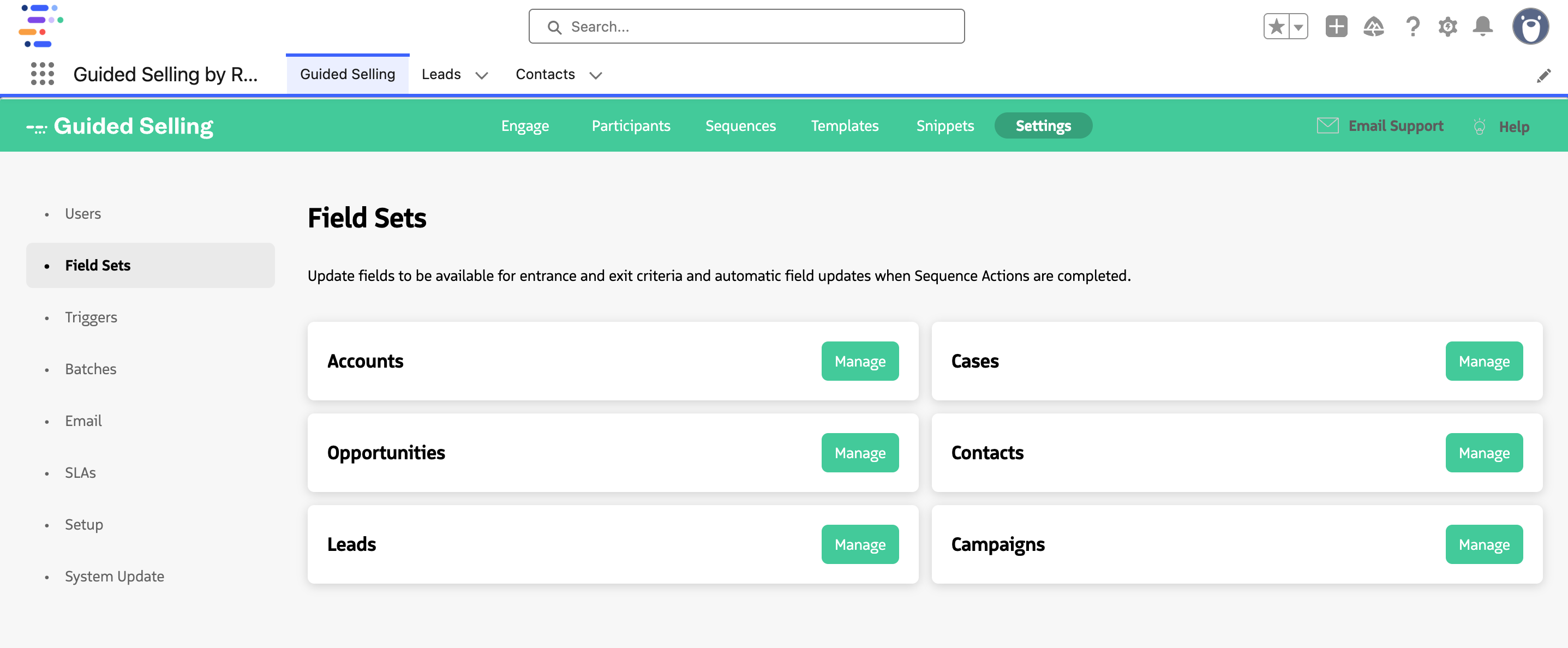
Field set management in the Settings page
- Click Manage for the Field Set you want to update.
- In Salesforce Setup, select Edit for the Field Set.
Add or remove fields
- Drag fields from the available field list into the Field Set.
- Remove fields by dragging them out of the Field Set.
- Reorder fields as needed.
- Click Save.
For Lead and Contact Field Sets, newly added fields become available for reps to add as Engage columns in Guided Selling v13 and later.
Custom fields added to Engage support filtering and sorting. If a selected field does not exist for a particular participant record, the field appears blank for that row.
- Return to Guided Selling Settings.
- Click the Users tab.
- Click Grant All Permissions.
Best Practices
- Include only fields that users need for sequence criteria, automatic field updates, or Engage.
- Confirm that users have read access to fields you expose through Guided Selling.
- Keep Field Sets organized and review them periodically.
- Test Field Set changes in a sandbox before applying them in production.
- Document which fields are used by sequences and which are exposed to reps in Engage.
- Re-grant permissions after modifying a Field Set.