Summer 2026 Release (V13)
Guided Selling Summer ‘26 builds on v12’s automation foundation to give teams a more complete outreach toolkit, smarter timing controls, and a cleaner way to build and manage the sequence library at scale. With automatic SMS, business-day-aware scheduling, a redesigned rep workspace, and new tools for organizing sequences, this release makes Guided Selling faster to use and easier to trust.
Feature Highlights
| Feature | Why It Matters |
|---|---|
| Automatic SMS Actions | Send personalized SMS messages automatically as part of a sequence, so reps stay focused on conversations while Guided Selling handles the outreach. |
| Business-Day Timing for Sequence Actions | Keep follow-ups aligned to working days so actions do not become due over weekends or outside useful working windows, with the ability to customize working days at the user, profile, and org level to support teams with different schedules. |
| Rebuilt Participant Overview | Give reps one workspace for participant context, sequence status, action status, Quick Actions, and one-off email. |
| Email Engagement Tracking | See opens, clicks, and replies as real-time intent signals — in a live feed on Engage and in a per-participant activity history on the Participant Overview. |
| Activation Guardrails and Sequence Status Visibility | Warn admins before activating sequences that could immediately send automatic email or SMS, while making sequence status easier to see at a glance. |
| More Flexible Sequence Cloning and Action Cloning | Review cloned sequences before saving, and copy action configuration to new actions without rebuilding settings from scratch. |
| Safe Delete for Sequences | Retire sequences without losing history. Participants are exited cleanly and deleted sequences are removed from all lists. |
| Favorite Sequences | Star frequently used sequences to pin them to the top of every sequence list for quicker access. |
| Sequence Labels | Tag sequences with freeform labels for better library organization and searchability. Admin-only management. |
| Custom Fields in the Engage View | Admins control which Salesforce fields are available in Engage by managing Field Sets, and reps can personalize their own Engage View by adding or removing columns from that available set. |
📔 Check out this Interactive Demo of our newest features!
Implementation Steps
Customers upgrading from v11 or earlier
Required prerequisite steps before upgrading to v13
If your org is currently on Guided Selling v12 or later, skip to Customers upgrading from v12 or later. If your org is on v11 or earlier, have a System Admin with a Guided Selling license follow all steps from the beginning (ETA 45 min).
Delete Lightning Component Tabs
After version 5.16, we removed these tabs from our package. If you’ve had the package installed since then, some of these tabs may still appear in your org because Salesforce doesn’t automatically remove previously installed tabs. Here’s a list of tabs you may find that should be deleted:- Navigate to Setup > User Interface > Tabs
Section API Name Label Visualforce Tabs cadence_actions Actions (Deprecated) Visualforce Tabs cadences Sequence (Deprecated) Visualforce Tabs sequence_setting Sequence Setting (Deprecated) Visualforce Tabs target_list Engage (Deprecated) Lightning Component Tabs cadence_actions_classic Actions (Deprecated) Lightning Component Tabs cadence_classic Sequence (Deprecated) Lightning Component Tabs sequence_setting_classic Sequence Setting (Deprecated) Lightning Component Tabs target_list_classic Engage (Deprecated) Upgrade to version 11.30.8
- Choosing “Install for Admins Only” is recommended
- Production org: Install in Production
- Sandbox org: Install in Sandbox
- Choosing “Install for Admins Only” is recommended
Wait for ActionMigrationBatch to complete
- Navigate to Setup > Apex Jobs
- Locate ActionMigrationBatch
- Verify that 1 or more batches processed successfully.
- Additional Validation - data check (SOQL query)
SELECT id, RDNACadence__ActivationType__c, RDNACadence__Type__c FROM RDNACadence__CadenceAction__c- All rows should have values for both fields
- Navigate to Setup > Apex Jobs
Upgrade to version 11.34
- Choosing “Install for Admins Only” is recommended
- Production org: Install in Production
- Sandbox org: Install in Sandbox
- Choosing “Install for Admins Only” is recommended
Delete Deprecated Fields and Objects*
*Your org may contain additional custom or previously deprecated, fields that reference the Action ID field or the Action Object. If you encounter any dependency errors when attempting the following steps, please delete any fields referenced in that error in order to proceed.- Delete the Action ID (RDNACadence__Action_Id__c) field from the Sequence Action Object
- Switch to Salesforce Classic.
- Navigate to Setup > Create Objects.
- Find and open Sequence Action.
- Locate the Action ID (RDNACadence__Action_Id__c) field and click Del in the Action column.
- Confirm the deletion by selecting “Yes, I want to delete the relationship.”
- At the bottom of Custom Fields & Relationships, click Deleted Fields, then click Erase for Action ID (RDNACadence__Action_Id__c).
- Confirm “Yes, I want to permanently delete the custom field.”
- Delete the Action object
- Go back to Setup > Create Objects.
- Find the Action object and click Del.
- Confirm “Yes, I want to delete the custom object.”
- Scroll down to Deleted Objects, click through, and select Erase to permanently delete it.
- Delete the Action ID (RDNACadence__Action_Id__c) field from the Sequence Action Object
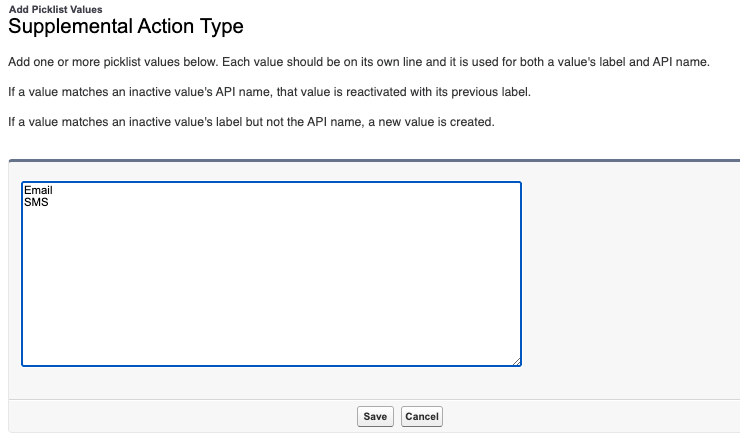
Add Values to Type__c picklist values to support new Quick Action types
- In Lightning Go to Setup Object Manager Participant Action Fields & Relationships
- Click Supplemental Action Type (RDNACadence__Type__c)
- Values Click New
- Add “Email” and “SMS”
- Click Save
Upgrade to version 13.0.5 (v13)
- Choosing “Install for Admins Only” is recommended
- Production org: Install in Production
- Sandbox org: Install in Sandbox
- Choosing “Install for Admins Only” is recommended
Verify the SMS Opt Out field configuration
- In Salesforce, navigate to Setup > Object Manager > Lead > Field Sets.
- Open the Guided Selling field set.
- Confirm that SMS Opt Out (
ringdna__HasOptedOutOfSms__c) is included in the field set. - Repeat these steps under Object Manager > Contact > Field Sets.
- Save any changes.
In some organizations upgrading from earlier versions of Guided Selling, Salesforce may not automatically add the SMS Opt Out field to existing field sets. If this field is missing from the Lead or Contact field set, Engage may appear empty and return no participant actions.Execute post-install migration jobs
Open the Developer Console via the gear icon.
Navigate to Debug > Open Execute Anonymous Window.
Copy/paste the following Apex code:
List<RDNACadence__Email_Template__c> templatesToUpdate = [
    SELECT Id
    FROM RDNACadence__Email_Template__c
];

for (RDNACadence__Email_Template__c template : templatesToUpdate) {
    template.RDNACadence__isReusable__c = false;
}

update templatesToUpdate;

RDNACadence.Api gsApi = new RDNACadence.Api();

gsApi.call('emailTemplateMigrationBatch', null);
gsApi.call('migrateConversationEmailFields', null);
gsApi.call('populateSequenceProgressCounters', null);
gsApi.call('populateHasCriteria', null);
Click Execute.
Verify the Email Template migration
Run the following SOQL query:
SELECT COUNT()
FROM RDNACadence__CadenceAction__c
WHERE RDNACadence__Type__c = 'Email'
AND RDNACadence__EmailTemplate__r.RDNACadence__IsReusable__c = false
Verify that the query returns
0results. All templates that were previously associated with sequence actions should now be available as reusable email templates.
Verify all post-install jobs completed successfully
Navigate to Setup > Apex Jobs.
Verify successful completion of the following jobs:
EmailTemplateMigrationBatchMigrateConversationEmailFieldsBackfillCadenceActionScheduleFieldsSequenceLifecycleStatusMigrationPopulateActionsRemainingPopulatePositionPopulateHasCriteria
The progress bar will not display correctly in Engage or the Participant Overview untilPopulateActionsRemainingandPopulatePositionhave completed successfully.
Configure your org’s default Working Days
- In Salesforce, navigate to Setup > Custom Settings.
- Open GS Public Settings and select Manage.
- Edit the org-level settings.
- Select the days your organization considers working days.
- Click Save.
Review this setting after upgrading to v13. Working Days may not be populated automatically during the upgrade, so confirm that the appropriate days are selected for your organization before using Working Days-based sequence timing.
Customers upgrading from v12 or later
Upgrade to version 13.0.5 (v13)
- Choosing “Install for Admins Only” is recommended.
- Production org: Install in Production
- Sandbox org: Install in Sandbox
- Choosing “Install for Admins Only” is recommended.
Verify the SMS Opt Out field configuration
- In Salesforce, navigate to Setup > Object Manager > Lead > Field Sets.
- Open the Guided Selling field set.
- Confirm that SMS Opt Out (
ringdna__HasOptedOutOfSms__c) is included in the field set. - Repeat these steps under Object Manager > Contact > Field Sets.
- Save any changes.
In some organizations upgrading from earlier versions of Guided Selling, Salesforce may not automatically add the SMS Opt Out field to existing field sets. If this field is missing from the Lead or Contact field set, Engage may appear empty and return no participant actions.Execute post-install batch jobs
Open the Developer Console via the gear icon.
Navigate to Debug > Open Execute Anonymous Window.
Copy/paste the following Apex code:
new RDNACadence.Api().call('populateSequenceProgressCounters', null);
new RDNACadence.Api().call('populateHasCriteria', null);
Click Execute.
Verify all post-install jobs completed successfully
Navigate to Setup > Apex Jobs.
Verify successful completion of the following jobs:
BackfillCadenceActionScheduleFieldsSequenceLifecycleStatusMigrationPopulateActionsRemainingPopulatePositionPopulateHasCriteria
The progress bar will not display correctly in Engage or the Participant Overview untilPopulateActionsRemainingandPopulatePositionhave completed successfully.
Configure your org’s default Working Days
- In Salesforce, navigate to Setup > Custom Settings.
- Open GS Public Settings and select Manage.
- Edit the org-level settings.
- Select the days your organization considers working days.
- Click Save.
Review this setting after upgrading to v13. Working Days may not be populated automatically during the upgrade, so confirm that the appropriate days are selected for your organization before using Working Days-based sequence timing.
New Features and Functionality
Automatic SMS Actions
What’s New?
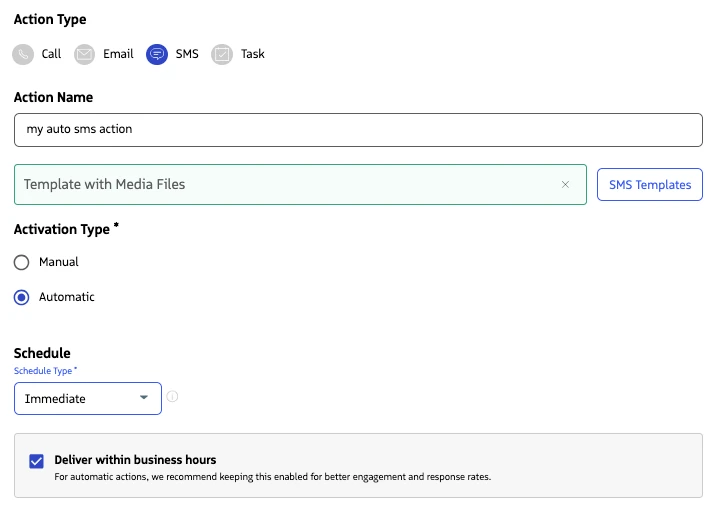
SMS sequence actions can now be configured as Automatic, closing a key automation gap so SMS can run on schedule alongside automatic email. SMS templates support merge fields so automated messages can be personalized to each recipient without manual effort. A built-in deliverability reporting job gives admins visibility into SMS failure rates so they can take action before rates approach Twilio’s watch thresholds.
Why Was This Built?
Teams running automated outreach sequences needed SMS to work the same way as email — firing on schedule without requiring a rep to manually send each message. Merge field support ensures that automating SMS does not mean sacrificing personalization. Because SMS deliverability risk scales with volume, proactive reporting was built alongside the feature so admins have both the capability and the visibility to use it responsibly.
How It Works
- Auto SMS must be enabled by Revenue for each account before it is available. Once enabled, a Revenue admin can turn it on or off at any time. Disabling the account-level setting converts all existing automatic SMS participant actions to manual, allowing orgs to shut off Auto SMS immediately without stranding in-progress sequences.
- Admins configure SMS actions as Automatic in the Sequence Builder.
- SMS templates with merge fields are supported — fields are resolved at send time using participant and related record data. See Add merge fields to an SMS template for configuration steps.
- Opt-out checks are applied before sending. If the participant has opted out of SMS, the action is skipped.
- Admins can control whether the Automatic option is visible to individual users in the Sequence Builder, independent of the account-level setting. Users without the visibility setting can still be enrolled as participants in sequences that include automatic SMS actions.
- A scheduled deliverability reporting job generates a CSV snapshot saved as a Salesforce File in the Guided Selling library, broken down by overall failure rate, top sequences, top sequence actions, and top phone numbers, across configurable time windows (1-day and 7-day by default). When any window’s failure rate exceeds a configurable threshold — defaulting to 2.5%, half of Twilio’s 5% watch threshold — an email alert is sent to a configured recipient list. Contact Revenue support to configure deliverability reporting for your account.
- When sending an automatic SMS, the outbound number is selected using the same logic as manually sent messages. The system uses the rep’s Smart Number by default. If the rep has Local Presence enabled in their Revenue.io dialer settings, the system will attempt to select a Local Presence number that matches the recipient’s geography instead. If the selected number cannot send SMS, the system automatically falls back to the rep’s Smart Number.
Note: Revenue.io does not verify whether a phone number is capable of receiving SMS messages before sending. Customers are responsible for maintaining the quality of phone number data in their org and monitoring their SMS deliverability rates over time. High rates of undeliverable messages can impact your Twilio account standing.
For implementation guidance, see Enable Automatic SMS. To configure and interpret SMS failure reporting, see Monitor Deliverability.
Business-Day Timing for Sequence Actions
What’s New?
Sequence step delays can now be configured in working days, according to customizable schedules. For a rep who works Monday through Friday, a step set to “+2 business days” lands 2 weekdays after the prior action completes — not 48 clock hours, which could fall on a weekend or outside working hours.
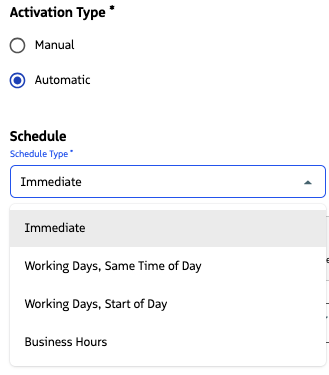
See the Business Timing interactive walkthrough for a brief explanation of each timing option and how to configure Working Days.
Why Was This Built?
A follow-up that becomes due outside of business hours throws off sequence timing, and creates Monday morning backlogs of overdue tasks. Beyond the rep experience, actions that technically go overdue over a weekend make SLA metrics unreliable. Business Timing brings sequence pacing into alignment with how teams actually work, and gives admins the tools to enforce predictable follow-up timing across reps who may operate on different working-day schedules.
How It Works
- Admins can configure an action delay to be due on a following working day, at the same time the previous action was completed, or at the start of that day. For delays meant to be less than a day, the delay can also be counted in hours, automatically skipping over non-working hours.
- Working days configuration resolves in this order: user-level setting → profile-level setting → org-level setting.
- Drip Sequences will automatically respect each owner’s schedule. Participants will no longer be dequeued on non-working days.
- The legacy Delivery Preference setting has changed to Deliver within business hours, but still acts as an additional safeguard when actions shouldn’t become due outside of business hours. This is set by default for automatic actions when Working Days, same time of day or Immediate is selected.
- Two custom settings under GS Public Settings control optional behavior:
- BH For Manual Actions Enabled — When enabled, the Deliver within business hours option is available on manual actions (Call, SMS, Email, Task) in addition to automatic actions. Enabled by default; disabling it removes the option from manual actions and simplifies the UI for orgs that don’t need it.
- Calendar Day Timing Enabled — When enabled, adds a Calendar Days timing option that counts the action delay in literal days and hours including weekends, with no working day logic applied. Disabled by default. Few orgs will have a specific use case that requires this legacy timing behavior.
- Business Timing is configured at the sequence action level and is not applied automatically to existing actions. Existing actions retain their current timing until they are updated or migrated.
For detailed guidance, see Business Timing, including configuration guidance and migration options for existing sequences.
Rebuilt Participant Overview Module
What’s New?
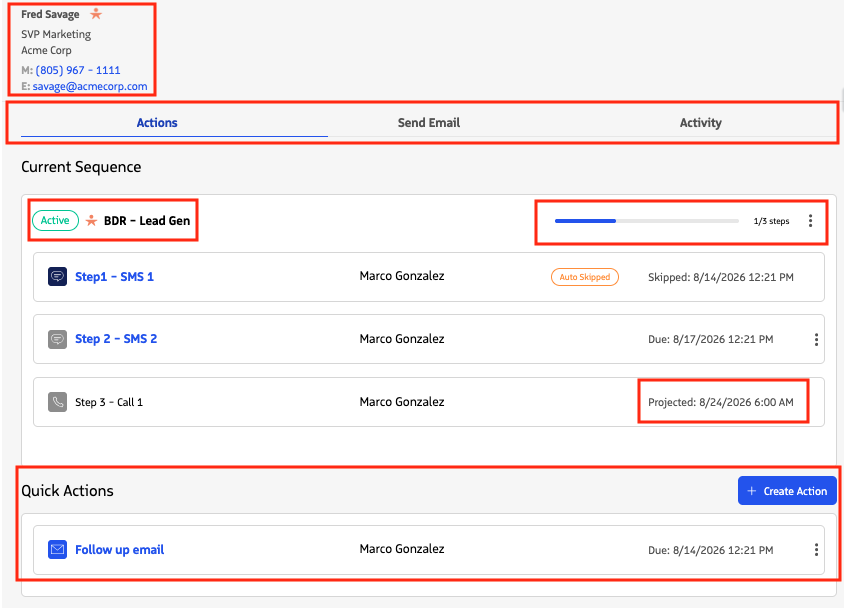
The Participant Overview Module has been redesigned as a unified workspace that keeps reps in flow — with richer participant context, sequence actions and Quick Actions together in one place, smarter status visibility at every stage of an engagement, and improved pre-send validation for one-off email.
Why Was This Built?
Reps now have a single surface that gives them the full picture of a participant — their contact details, where they stand in a sequence, and the actions available to them — without switching views. Bringing sequence actions and Quick Actions together means less context-switching mid-engagement. The new status labels and consistent layout regardless of enrollment state give reps meaningful signals at every stage of the participant lifecycle, not just when actions are actively due.
How It Works
- Sequence actions and Quick Actions are combined in a single Actions tab, alongside enrollment options — so reps have everything available in one place regardless of whether the participant is currently enrolled.
- On Engage, the Participant Overview module opens by clicking on the participant name instead of clicking on the progress bar, allowing the progress bar column to be removed without losing access to the participant details. The progress bar is now also included on the Participant Overview.
- Participant Highlights are surfaced at the top of the overview for quick reference, including name, title, company, phone, mobile, and email. Click on the Lead or Contact icon to go to the full Details page.
- Sequence status badges next to each sequence name now reflect the true combined state of the sequence and the participant’s enrollment, including Active, Paused, Queued, or Inactive. In prior versions, any non-workable state collapsed to a generic “No participant actions available” message that hid all action detail. The full action list is now always shown, with the sequence or enrollment state clearly indicated alongside it.
- Action status labels appear on every action row — including upcoming actions — giving reps advance warning when an action is likely to fail before it becomes due. Labels include: Pending Criteria, Pending Skip, Invalid Owner, Missing Email, Missing Phone, Opt Out, Auto Skipped, and Manually Skipped. Skipped actions are now shown in the list rather than removed — reps can see what was skipped and why.
- Projected due dates on upcoming actions now display a specific date and time, not just a relative day. Projected timing is calculated from the current action and current time, using the sequence’s business timing configuration, so what the rep sees reflects a more precise schedule.
- Access the one-off email composer in the Send Email tab. This tab includes proactive banners that flag blockers before the rep begins composing — if the rep’s email account is not connected, the participant has opted out, or the participant has no email address on file, a banner appears immediately.
Email Engagement Tracking
What’s New?
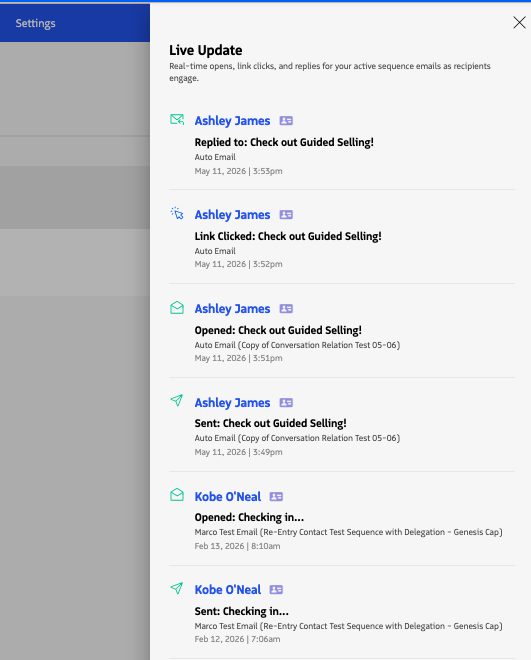
Reps can now see email engagement events — opens, clicks, and replies — surfaced directly in Guided Selling as intent signals. This is delivered in two phases: a real-time live feed accessible from Engage that shows engagement events across all of the rep’s sent emails, and a per-participant Activity tab on the Participant Overview that shows the complete email engagement history for a specific lead or contact.
Why Was This Built?
Email engagement data has always been captured by Revenue.io — opens, clicks, and replies are persisted in Salesforce. The gap was that reps had no way to see it without leaving Guided Selling. Knowing that a prospect just opened an email or clicked a link is one of the highest-value signals available to a rep during active selling: it tells them who is warm, right now, without waiting for the prospect to respond.
How It Works
- Email Event Live Updates (Phase 1) — A button on the Engage toolbar opens an overlay panel showing email engagement events in reverse chronological order. The feed covers all Guided Selling emails the rep has ever sent — not limited to the current participant or sequence. Each event shows the event type (open, link click, or reply), the lead or contact name, the email subject, the sequence name, and when the event occurred. Tapping the lead or contact name opens the Participant Overview drawer without navigating away from Engage.
- Activity Tab on Participant Overview (Phase 2) — The Participant Overview Module now includes an Activity tab showing a similar email engagement history, scoped to the specific lead or contact being viewed.
Activation Guardrails and Sequence Status Visibility
What’s New?
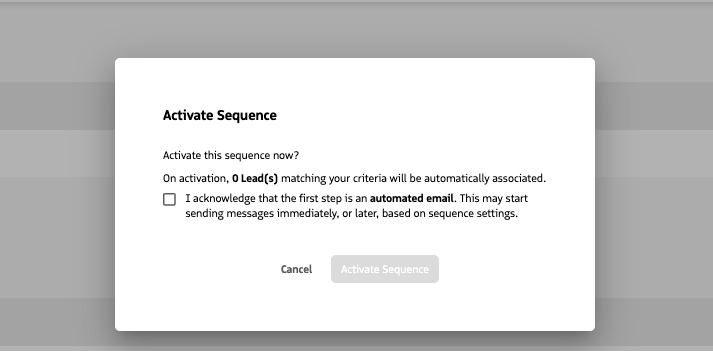
A contextual warning and explicit acknowledgment requirement have been added when activating sequences that start with an automatic action. The warning only appears in situations that carry actual risk — not on every sequence activation — and makes the timing implications clear before the admin commits.
Why Was This Built?
When a sequence’s first step is configured to send automatically, activating that sequence will create associations immediately for targets that meet the sequence criteria, and in turn, trigger outbound messages almost immediately. This creates real risk if criteria are misconfigured or if the sequence is activated unintentionally.
How It Works
- For automatic sequences starting with an automatic email or SMS action: a contextual warning appears during activation alongside the participant count confirmation. The admin must explicitly acknowledge before proceeding.
- For manual sequences: the activation confirmation modal is removed. A status banner is shown on the sequence page when the sequence is not active. The banner clears on activation — making the active state visible without requiring a modal confirmation.
More Flexible Sequence Cloning and Action Cloning
What’s New?
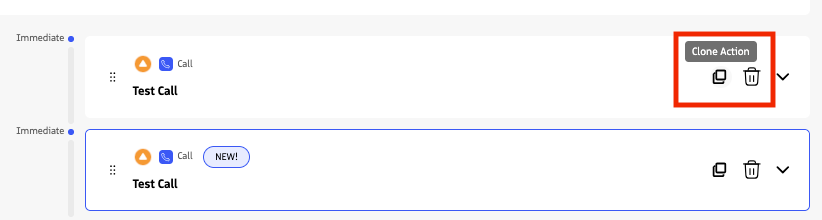
Sequence cloning now opens the copied sequence in an editable draft state before it is saved, giving admins more flexibility to review and adjust key settings before committing the clone. Guided Selling also introduces action cloning, allowing admins to copy an existing sequence action and carry over its full configuration — templates, criteria, field updates, delegation rules, and activation settings — without rebuilding from scratch.
Why Was This Built?
Sequence cloning already helped admins reuse structure, but immediately saving the cloned sequence limited what could be changed before the record was committed. Opening the clone as a draft gives admins a safer review step before saving. Action cloning solves a different problem: admins often need to create similar actions within the same sequence, and rebuilding complex configuration from scratch is slow, repetitive, and error-prone. Together, these updates make it easier to reuse sequence and action setup without sacrificing control.
How It Works
- Clone is available on any sequence or sequence action in the Sequence Builder.
- Cloned sequences open in an editable draft state — review and adjust before saving.
- Templates, criteria, field update rules, delegation rules, and activation type are all carried over from the source action.
Safe Delete for Sequences
What’s New?
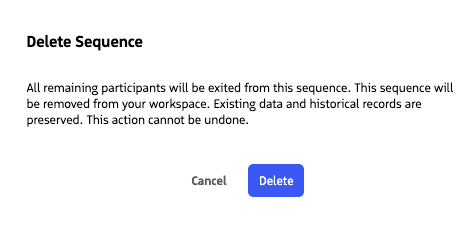
Admins can now safely remove old or unused sequences from their workspace without losing any historical data. Deleting an Active or Inactive sequence exits all remaining participants — with an exit reason of “Sequence Deleted” — and removes the sequence from all lists, while preserving all historical association and attribution data. Draft sequences can be permanently deleted since they have no participant history. Deleted sequences cannot be recovered through the product UI.
Why Was This Built?
Admins had no clean way to retire sequences. Sequences could be deactivated, but they remained visible in sequence lists and selection pickers, cluttering the library and making it harder to find what was in active use. A hard delete would have destroyed historical data that teams rely on for reporting and attribution. Safe Delete threads the needle: sequences disappear from the working UI while all historical records remain intact.
How It Works
- The same Delete option, with new behavior, remains available on any Active, Inactive, or Draft sequence.
- Deleting an Active or Inactive sequence first exits all participants (exit reason: “Sequence Deleted”), then marks the sequence as Deleted.
- Draft sequences are permanently deleted since they have no participant history.
- Deleted sequences are hidden from the Sequences list, the Add to Sequence picker, and all other selection surfaces throughout Guided Selling.
- Historical Sequence Association records, task logs, and attribution data are preserved and remain queryable.
Favorite Sequences
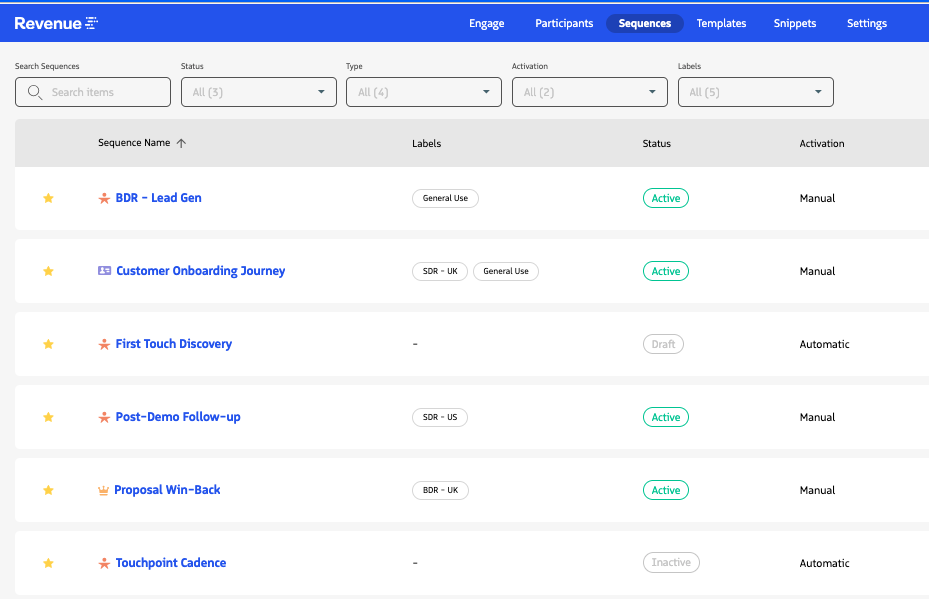
What’s New?
Users can now star sequences to pin them to the top of all sequence lists — the Sequences list, the Eligible Sequences list, and the Add to Sequence picker — making it faster to find and use the sequences they rely on most.
Why Was This Built?
As sequence libraries grow, reps increasingly have to scroll or search to find the sequences they use every day. Favorites give each user a personal shortcut to their most-used sequences without affecting how sequences are organized for the rest of the team.
How It Works
- Any user can star or unstar any sequence. Favorites are personal — they do not affect the view for other users.
- Starred sequences appear pinned to the top of the Sequences list, and the Add to Sequence picker.
Sequence Labels
What’s New?
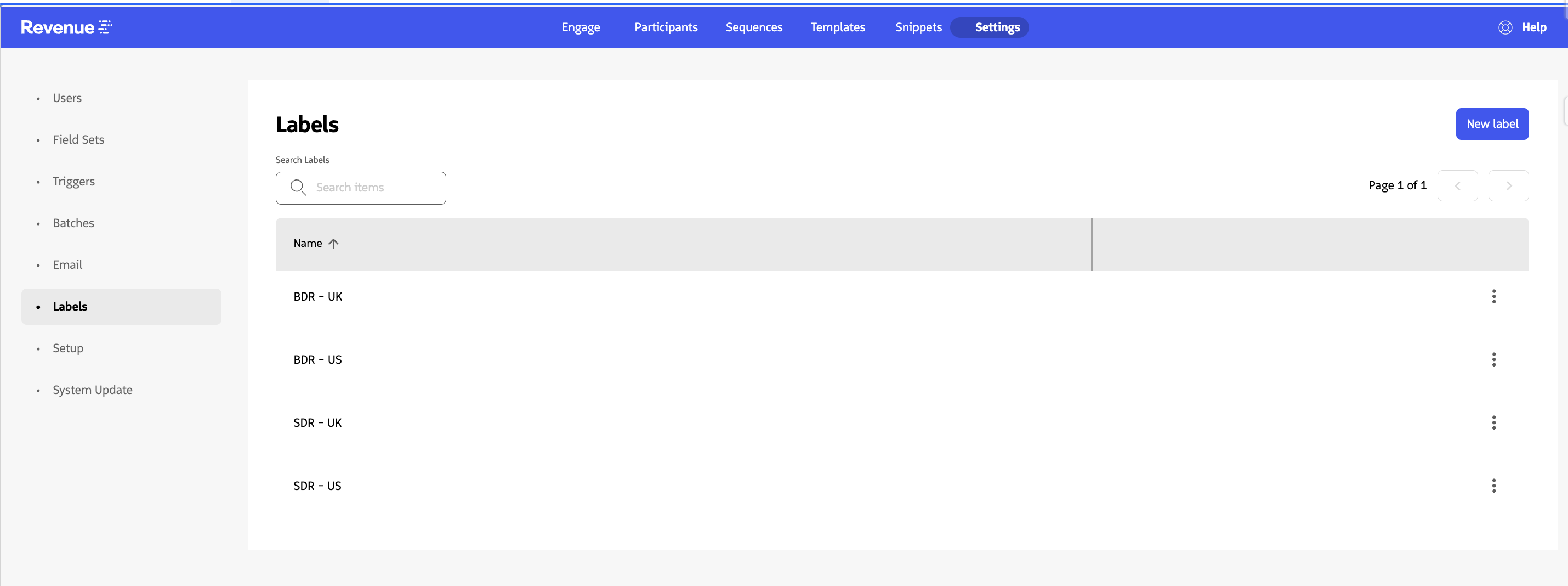
Admins can now tag sequences with freeform labels to categorize and filter the sequence library. Labels can be applied to any sequence and used as a filter in the Sequences list. Label creation, editing, and deletion is restricted to admins — reps can use labels to filter but cannot modify the label set.
Why Was This Built?
Larger sequence libraries become difficult to navigate when the only organizational tools are a naming convention and record type. Labels give admins a flexible way to group sequences by team, campaign, product line, or any other dimension that makes sense for their org — without requiring a formal taxonomy or changing how sequences are structured.
How It Works
- Sequence Admins create and manage labels in Settings. Users can apply existing labels to sequences and filter sequence lists by one or more labels.
- The Sequences list includes a Label filter that supports multi-select.
- Reps can also filter by labels on the Add to Sequence picker during manual association.
For guidance on creating, applying, and filtering with labels, see Organize Sequences with Labels.
Custom Fields in the Engage View
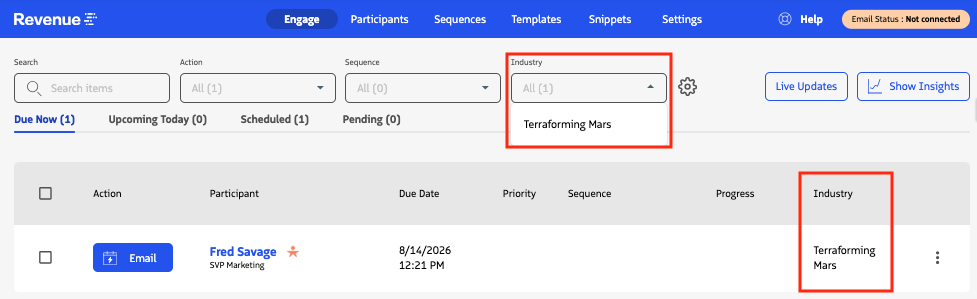
What’s New? Reps can now personalize their Engage View by adding and removing columns to match their workflow. Admins control the available field pool by managing the Guided Selling Field Sets on the Lead and Contact objects — any field added to those Field Sets becomes available for reps to add as a column in their personal Engage View. Many fields are already part of these Field Sets for use in entrance and exit criteria, so reps will have access to a rich set of columns immediately after upgrading to v13. Added fields support filtering and sorting just like the built-in columns.
Why Was This Built? Reps working out of the Engage View had limited visibility into participant context without navigating away. The standard columns cover action status and timing, but not the field-level detail reps often need — like company size, territory, last activity date, or any custom field the org tracks on their Lead and Contact records. Making the column set configurable lets reps surface the right context for their workflow without opening each record.
How It Works
- Reps can add and remove columns from their Engage View through personal Engage View settings — each rep manages their own column set independently.
- The available columns are determined by the Guided Selling Field Sets on the Lead and Contact objects, which admins manage through the standard Salesforce Field Set editor.
- Added fields support the same filtering and sorting behavior as built-in Engage View columns.
- Fields that do not exist on a given record type display as blank for those rows.
Minor Enhancements
- Multi-select filters on the Sequences list — The Sequence Type filter and the Labels filter on the Sequences list both support multiple selections. Filters compose together, so admins can narrow by type and label simultaneously.
- Multi-select filters in the Engage View — Any filter column in the Engage View supports multi-select, including built-in fields like Company, Record Type, and Sequence Name, as well as any custom fields added by an admin. Reps can filter by multiple values simultaneously within a single column.
- Opening participant records in a sub-tab in Lightning Console — Clicking to open a Lead or Contact from within Guided Selling now correctly opens the record in a sub-tab when using the Lightning Console app layout.
- Guided Selling visual design updated to match the Revenue.io platform — Page headers, buttons, toggles, and action icons have been updated to align with the Revenue.io design language, including updated colors and the Revenue.io logo mark.
Technical Enhancements
| Area | What Changed | Purpose |
|---|---|---|
| Unified action batch | Four separate batch jobs (Campaign, Contact, Lead, and Opportunity Action Batch) consolidated into Action Processing Batch, chained with a new Association Processing Batch. | Eliminates concurrency issues between action types and improves performance by resolving participant actions through a direct 1:1 Sequence Association relationship. |
| Action processing split | ActionProcessingBatch scoped to automatic action execution only. ActionCleanupBatch added for manual-action housekeeping. | Automatic email/SMS execution is isolated from manual-action cleanup, like skipping due to criteria or opt-out. Each batch can be monitored and triggered independently. |
| GS Scheduler | CadenceScheduler now schedules both ActionProcessingBatch and ActionCleanupBatch. | Separate scheduled workloads for automatic execution and housekeeping make each job easier to monitor and troubleshoot independently. |
| Sequence lifecycle field | Cadence__c.LifecycleStatus__c added with values: Draft, Active, Inactive, Deleted. SequenceLifecycleStatusMigration runs post-install. | Sequences now have an explicit lifecycle status. Existing sequences are migrated automatically from the legacy active/inactive flag. |
| SMS Deliverability jobs | SmsDeliverability queueable and SmsDeliverabilityScheduler added. | Powers the scheduled Auto SMS deliverability reporting and email alerting capability. |
| Participants tab performance | Participants tab load optimized for orgs with large participant volumes. | Resolves load failures and slow performance for admins with permission to view all participants. |
| Sequence Processing Errors | New object RDNACadence__Sequence_Processing_Error__c added. When sequence association fails due to a validation rule or similar error, the system now captures the error and surfaces it — inline for single-record manual association, and as a Sequence Processing Error record for bulk manual or automatic association. | Improves troubleshooting visibility for association failures. This is a support-facing capability; contact Revenue support for guidance on enablement. |
Considerations When Upgrading
| Area | What to Review |
|---|---|
| (Deprecated) IsActivated__c on Lead and Contact | This field has been soft-deprecated. The source of truth for participant status is now RDNACadence__Association_Status__c on RDNACadence__Sequence_Association__c. Valid values: Active, Queued, Completed, Inactive, Paused. Update any Flows, Reports, Apex, or dashboards referencing IsActivated__c to use Sequence_Association__r.Association_Status__c. The field label has been updated to begin with “(Deprecated)”. |
| (Deprecated) Sequence_Active__c on Sequence Association | This field has been soft-deprecated. The source of truth for sequence status is now RDNACadence__LifecycleStatus__c on the related Cadence__c record, accessible via RDNACadence__Sequence__r.RDNACadence__LifecycleStatus__c. Valid values: Draft, Active, Inactive, Deleted. The field label has been updated to begin with “(Deprecated)”. |
| (Deprecated) Sequence_ID__c on CampaignMember and OpportunityContactRole | Guided Selling will no longer populate this field on CampaignMember and OpportunityContactRole. Note: this deprecation does not apply to Lead or Contact objects, where the field continues to be populated. Any Flows, Reports, or Apex relying on this field for active sequence membership on CampaignMember or OpportunityContactRole should be updated to query Sequence_Association__c directly. |
| (Deprecated) Most Recent Sequence Entered and EntranceCriteria Matched Date on Lead and Contact | These fields are being soft-deprecated as dependencies in sequence logic. No sequence enrollment, exit, or eligibility behavior gates on their values — sequence membership is determined by Sequence_Association__c. Most Recent Sequence Entered (RDNACadence__Cadence_Id__c) continues to be populated as a convenience field but should not be relied on as the authoritative source of enrollment state. Validate any Flows or Reports that read these fields. |
| (Deprecated) Email engagement rollup fields on Lead and Contact | The fields Number_Of_Sequence_Emails_Sent__c, Number_Of_Sequence_Emails_to_Opened__c, and Number_Of_Sequence_Emails_to_Reply__c are soft-deprecated and are no longer populated. Their labels have been updated to begin with “(Deprecated)”. Email engagement data is now available through the Email Engagement Tracking feature via the Sequence_Email_Action__c object. Reports or dashboards reading these fields for current engagement counts should be updated. |
| Trigger_Type__c and DeliveryPreference__c replaced on Sequence Action | These fields on RDNACadence__CadenceAction__c have been replaced by two new fields: RDNACadence__Schedule__c (replaces Trigger_Type__c; stores the timing type) and RDNACadence__ScheduleConstraint__c (replaces DeliveryPreference__c; stores the Deliver within business hours constraint). Legacy field values are migrated to the new fields on upgrade. Any Flows, Reports, or Apex that read or write Trigger_Type__c or DeliveryPreference__c should be updated to use the new fields. |
| New field: Position__c on Sequence Association | RDNACadence__Position__c is a new field on RDNACadence__Sequence_Association__c that tracks the participant’s current position in the sequence. This field powers the progress bar in the Participant Overview and Engage list. |
| New field: ActionsRemaining__c on Sequence Action | RDNACadence__ActionsRemaining__c is a new field on RDNACadence__CadenceAction__c that stores the number of actions remaining from that step to the end of the sequence. This field supports progress bar calculation. It is populated at sequence activation and updated as actions are added or removed. |
| Association_Status__c: new Paused value and lifecycle interaction | The Paused value is new to Association_Status__c in v13. A participant’s association moves to Paused when they are manually deactivated from a sequence. When the related sequence’s LifecycleStatus__c is Inactive, participants are considered inactive regardless of their individual Association_Status__c value. Integrations or automations that branch on Association_Status__c should account for the Paused value and for the combined lifecycle/association state. |
| Batch job monitoring | Action Processing Batch, Action Cleanup Batch, and Association Processing Batch replace the prior Campaign, Contact, Lead, and Opportunity Perform Action Batch jobs. Update any monitors or alerts referencing action batch jobs by name to reflect new job names. |
| Sequence lifecycle status migration | A post-install migration (SequenceLifecycleStatusMigration) runs automatically to populate the new LifecycleStatus__c field on existing sequences. No manual action is required, but validate any Flows, Reports, or Apex referencing the legacy active/inactive flag on Cadence__c after upgrade. |
| Auto SMS deliverability reporting | Deliverability reporting is not enabled by default. Contact Revenue support to configure the notify email list and scheduled job for your account. |
| SMS Opt Out field-set configuration | Confirm that ringdna__HasOptedOutOfSms__c is included in the Guided Selling Field Sets for both Lead and Contact. Some orgs upgraded from older versions may not receive this field-set update automatically. If the field is missing, Engage may appear empty and return no participant actions. |