Enroll Your First Participant
Roles:
Sequence AgentSequence Admin
License:
Guided Selling
Add a participant to a sequence
- Open a Lead or Contact record in Salesforce.
- Find the Participant Overview module.
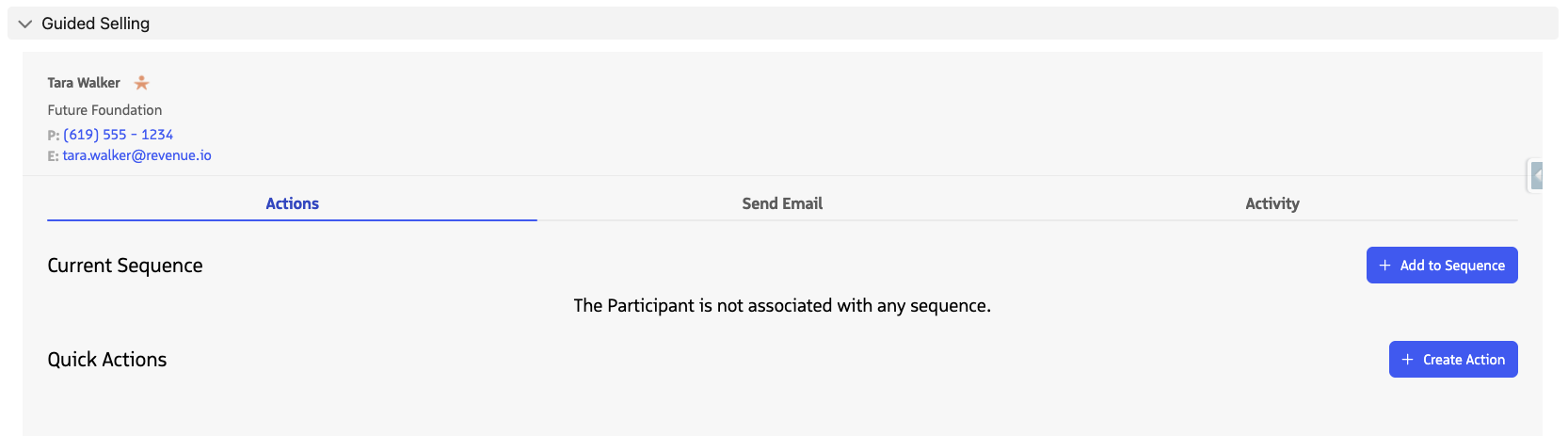
- Click Add to Sequence to display the available sequences.
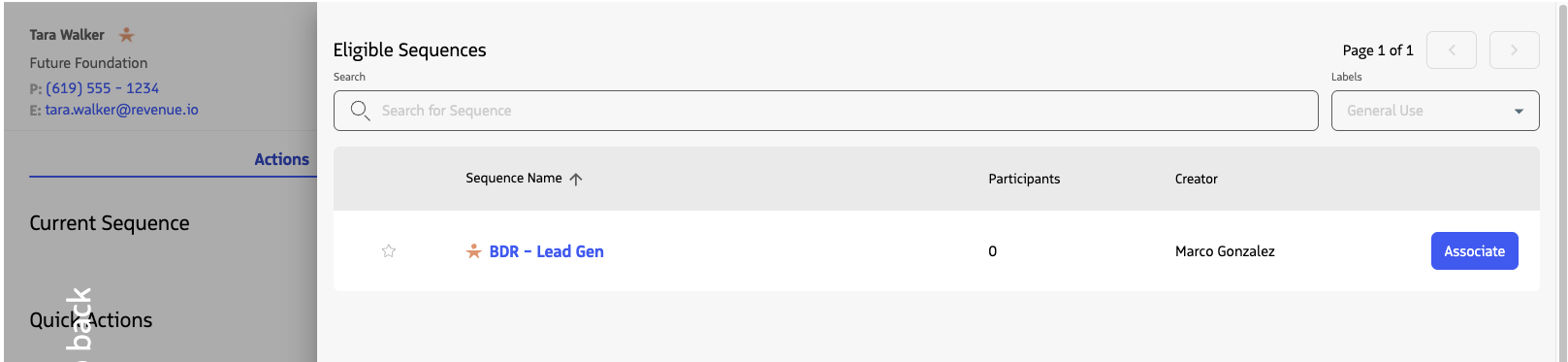
- Find the sequence you want to add the participant to, then click Associate.
- In the confirmation prompt, click Yes, associate!.
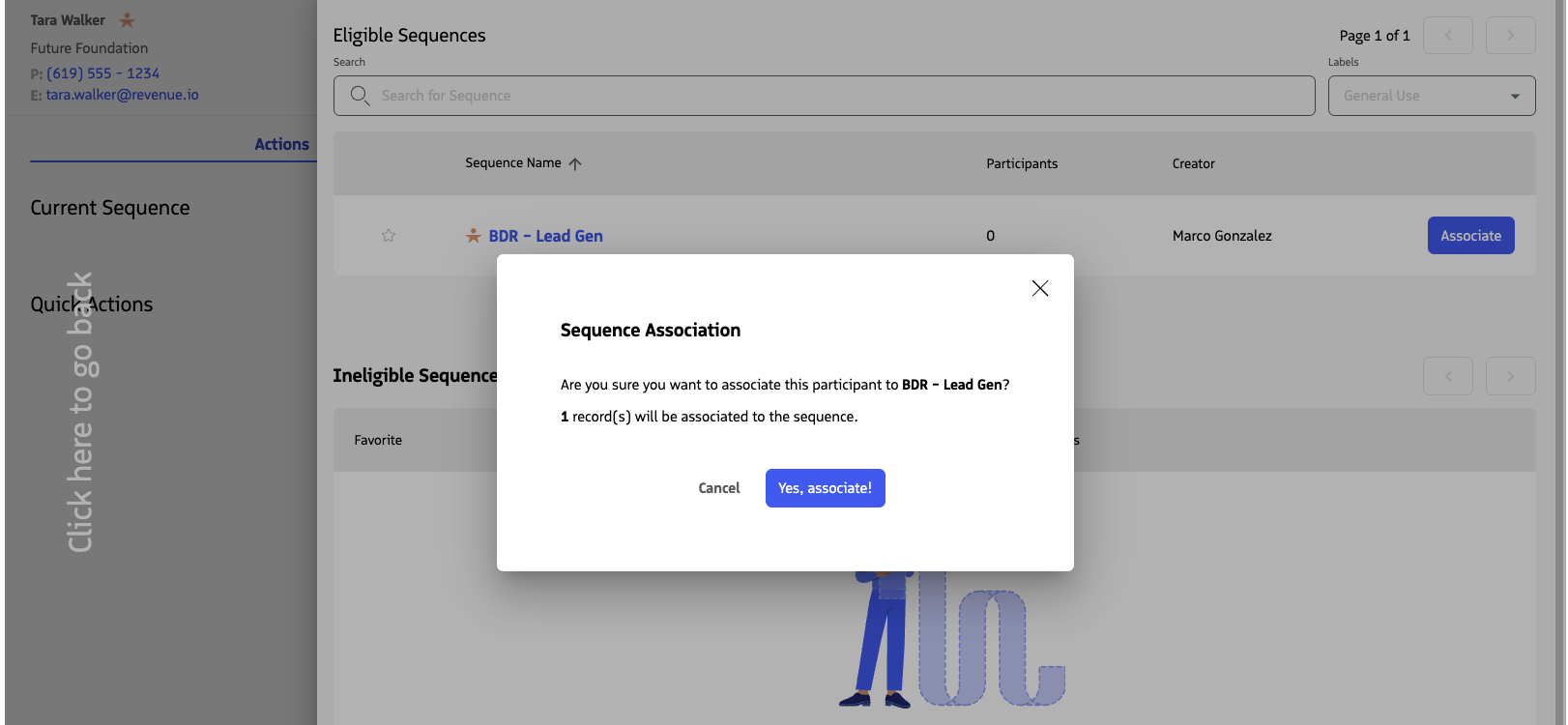
After confirmation, the record is enrolled as a participant in that sequence.
Before you enroll
The sequence must be active, the record must match the sequence entrance criteria, and the record cannot already be in another active sequence.
If a participant does not meet the entrance criteria, the sequence appears under Ineligible Sequences, and the Associate button is disabled.
Need bulk enrollment or participant removal?
For list-view bulk adds, bulk removals, and more participant management options, see Add and Remove a Participant.
Automatic sequences
If a sequence does not appear after you click Add to Sequence, it may use automatic enrollment. The system enrolls participants in these sequences when they satisfy the entrance criteria and do not satisfy the exit criteria. You cannot add participants manually to automatic sequences.
To review a sequence’s entrance criteria, open the Sequences tab, select the sequence, and review its detail page.