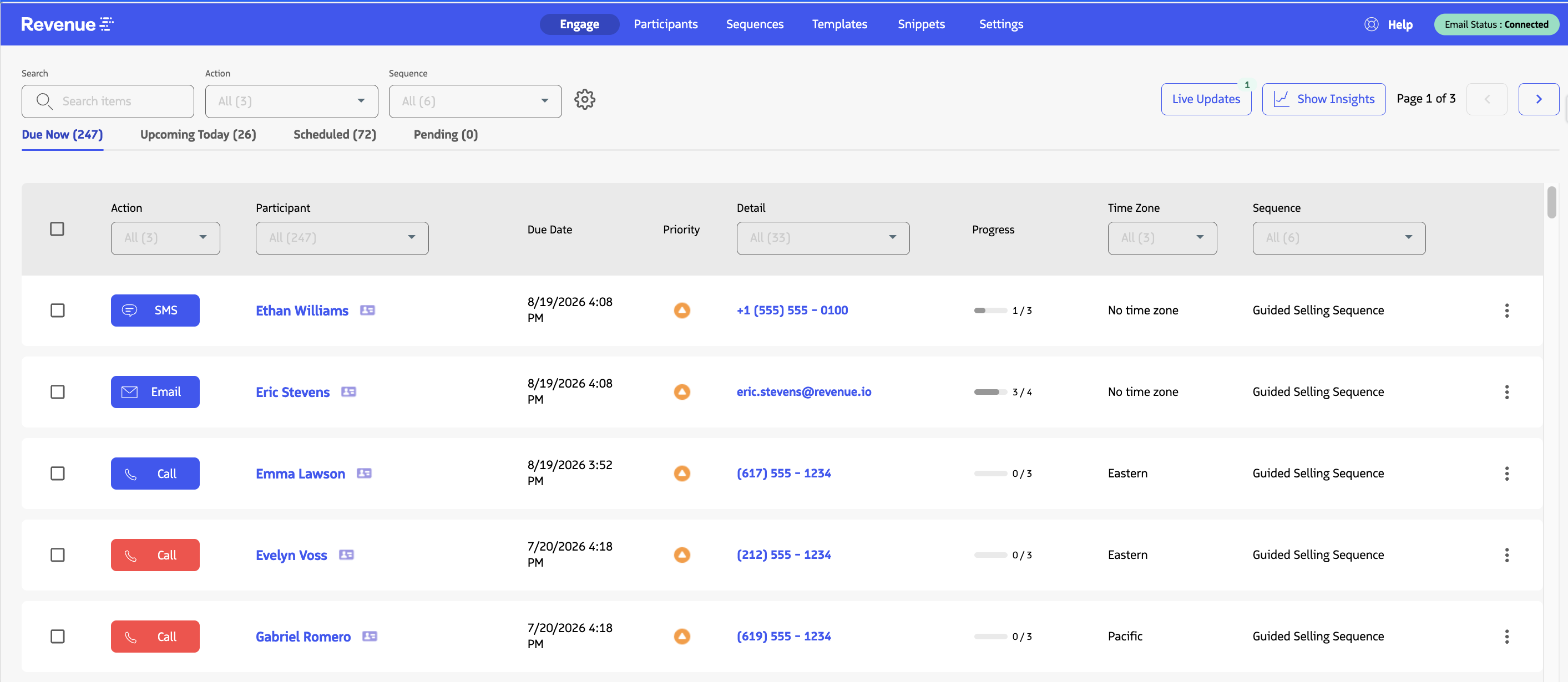
Access Guided Selling
Roles:
Sequence AgentSequence Admin
License:
Guided Selling
Guided Selling is accessed directly within Salesforce. Once you have been granted access and assigned the appropriate permissions in Salesforce, you will see Guided Selling in your available Apps.
Accessing Guided Selling
Open Salesforce
- Log in to Salesforce
- Click the icon (App Launcher) in the Salesforce header to open the App Launcher
Access the Guided Selling App
- Type
Guided Sellingin the Search bar - Select Guided Selling by Revenue.io
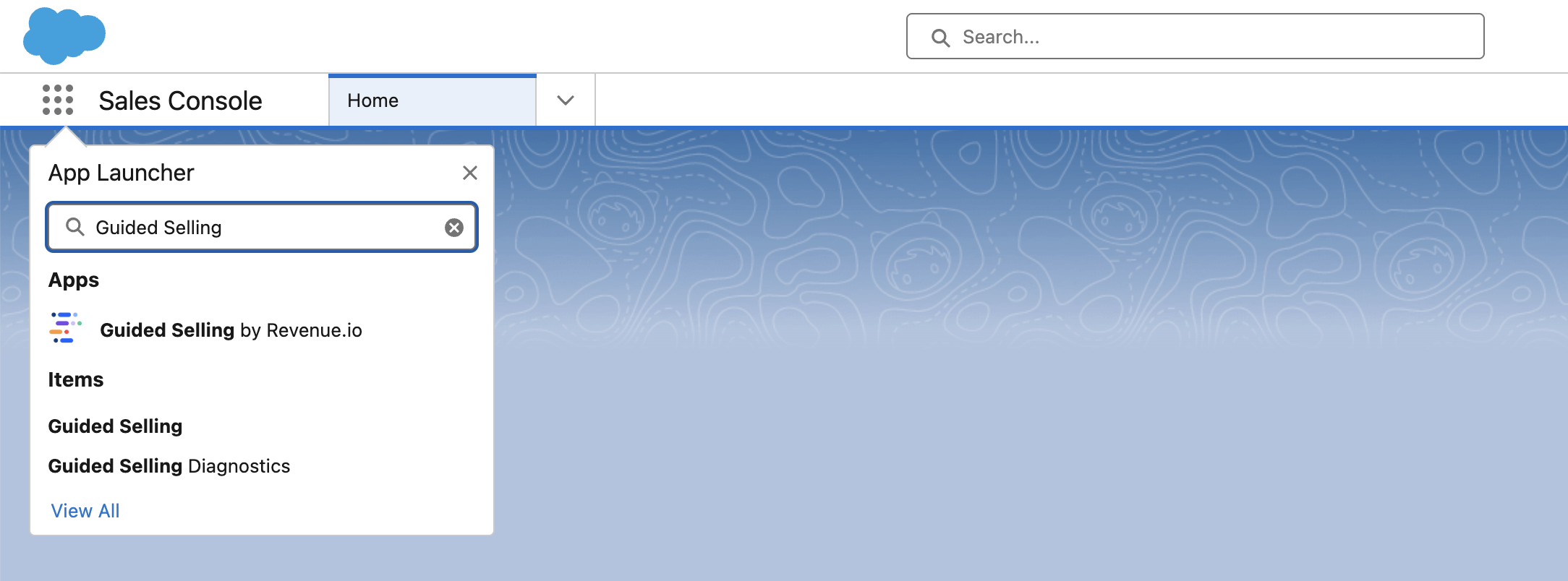
If you cannot see the Guided Selling app, Engage tab, or participant components, contact your administrator to verify your permission sets and app visibility.
Add Guided Selling to another Salesforce App
If your team works within Salesforce Sales Console, or uses a custom Salesforce App, you can quickly add Guided Selling as a menu option.
Open Your Salesforce App
- Log in to Salesforce
- Click the icon in the Salesforce header to open the Navigation Items
- Click Edit
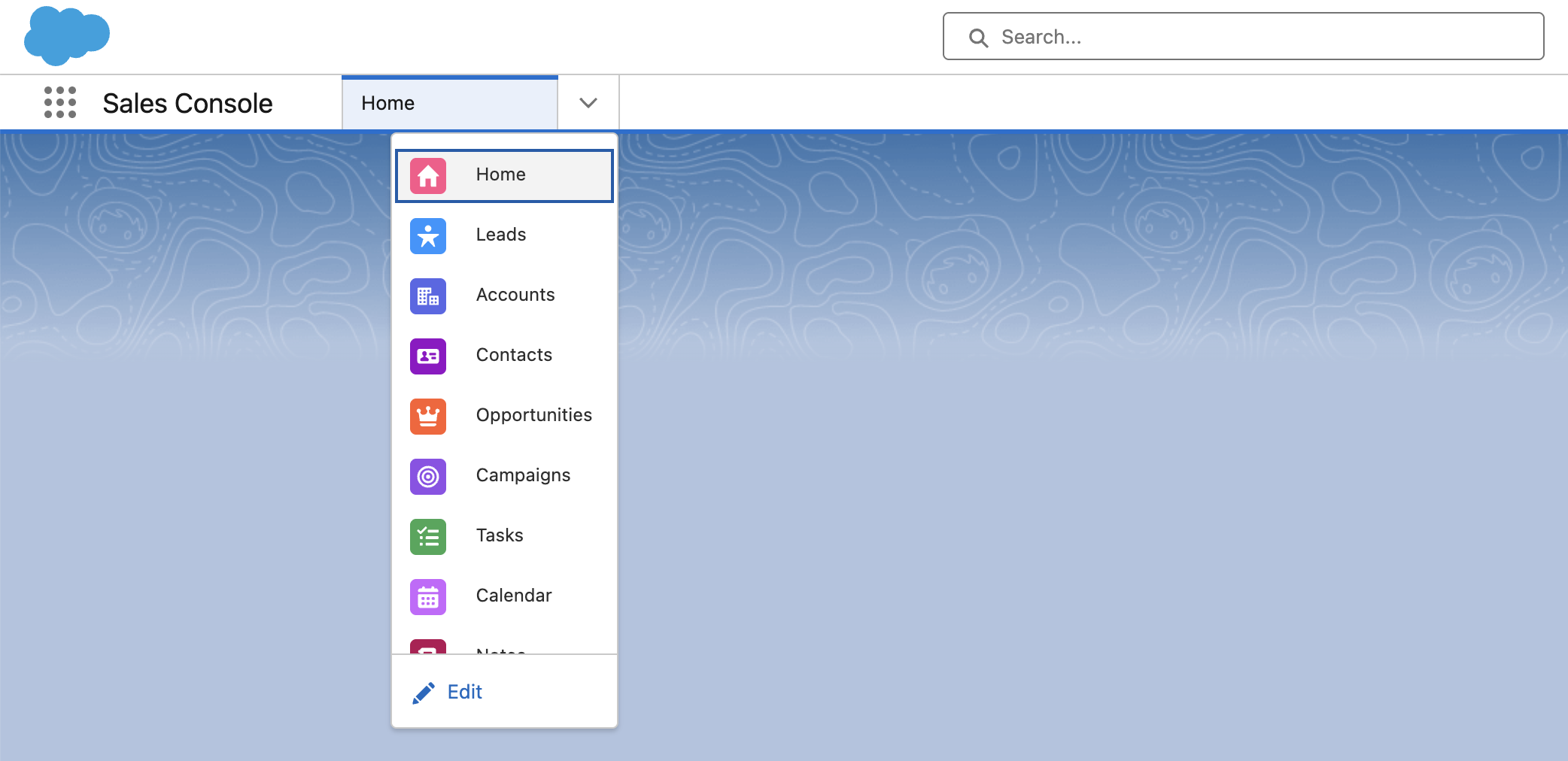
Edit App Navigation Items
- Click Add More Items
- Search
Guided Sellingand click the icon - Use the icon to drag Guided Selling to the top of your Navigation Items
- Click Save
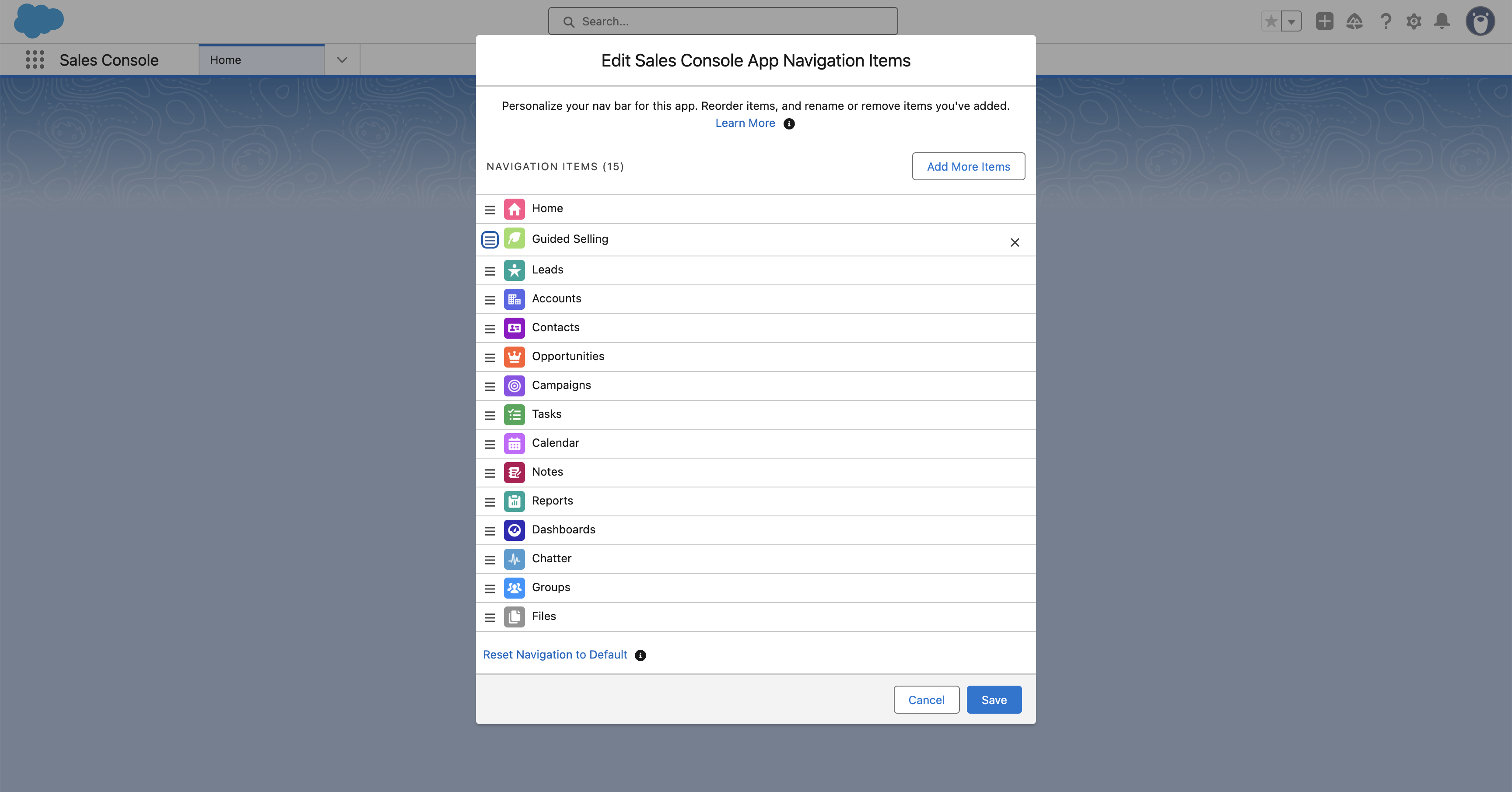
Now you can access Guided Selling in your app’s Navigation List by clicking
Guided Selling Components
As a sales rep, you’ll primarily work with:
- Engage view: Your daily action list where you complete sequence actions
- Participants tab: View and manage your participants across sequences
As a manager or administrator, you’ll primarily work with:
- Sequences tab: Create, edit, and activate sequences, then monitor how each sequence is performing.
- Templates: Create and manage reusable email content so reps can send consistent, approved messaging in Sequences and Quick Actions.