Searching Conversations and Advanced Filters
Conversation Search
Users can run a Conversation Search on the Conversations page to find conversations that:
- Include (or do not include) Keywords or phrases (such as competitors or features)
- Resulted in successful or unsuccessful outcomes (using Dispositions, Lead Status, or Opportunity Stages)
- Calls demonstrating particular rep behaviors (frequent interruptions, talking too much, etc.)
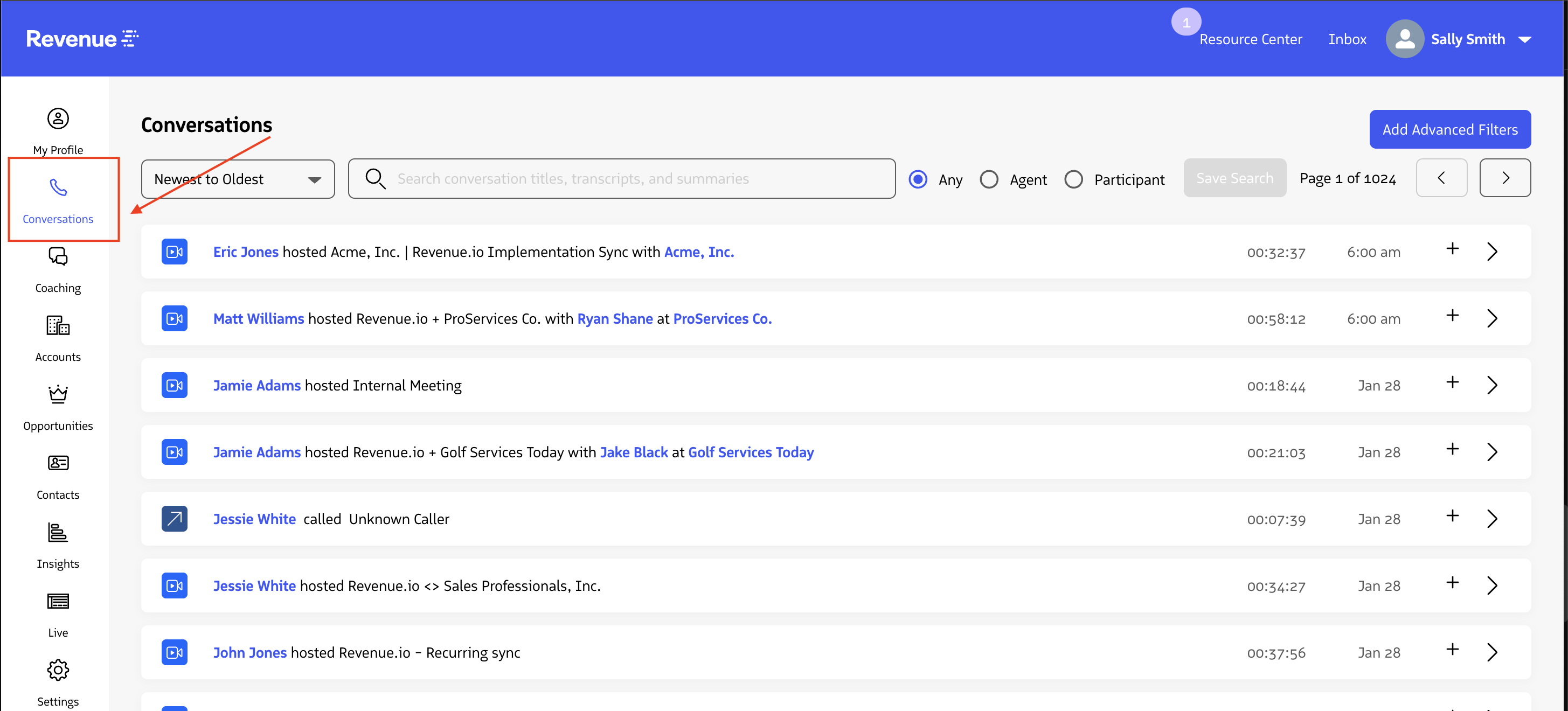
To run a Conversations Search: Select Conversations in the Revenue app.
Conversation Search Filters
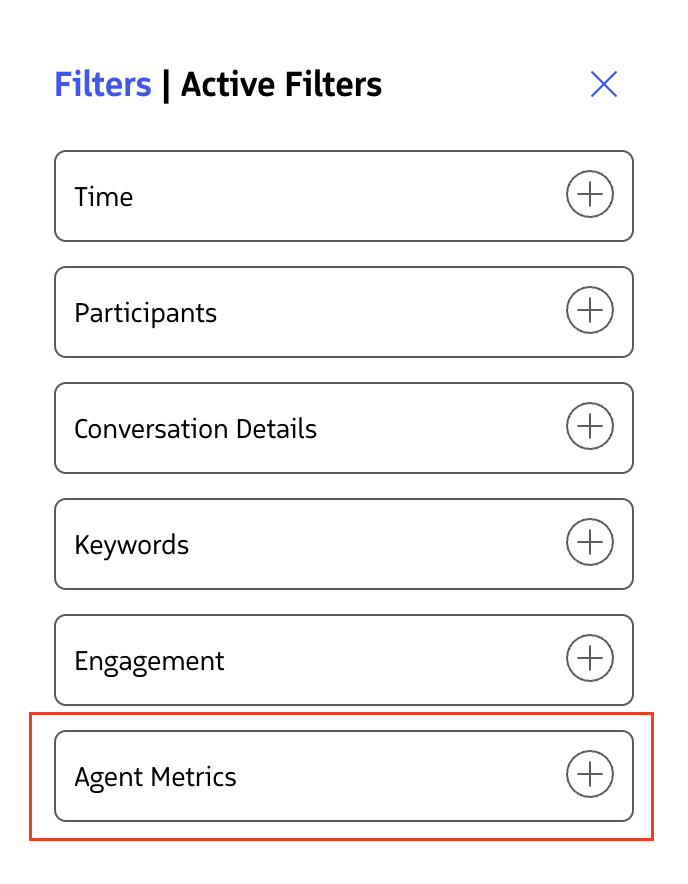
When applying multiple filters, they are compounded. For example if you apply filters Participants -> Name - Sally Smith as host, Type of Conversation = Audio Conversation, and Engagement = Has Notes, the results will pull conversations where Sally Smith is the host of an audio conversation that has notes.
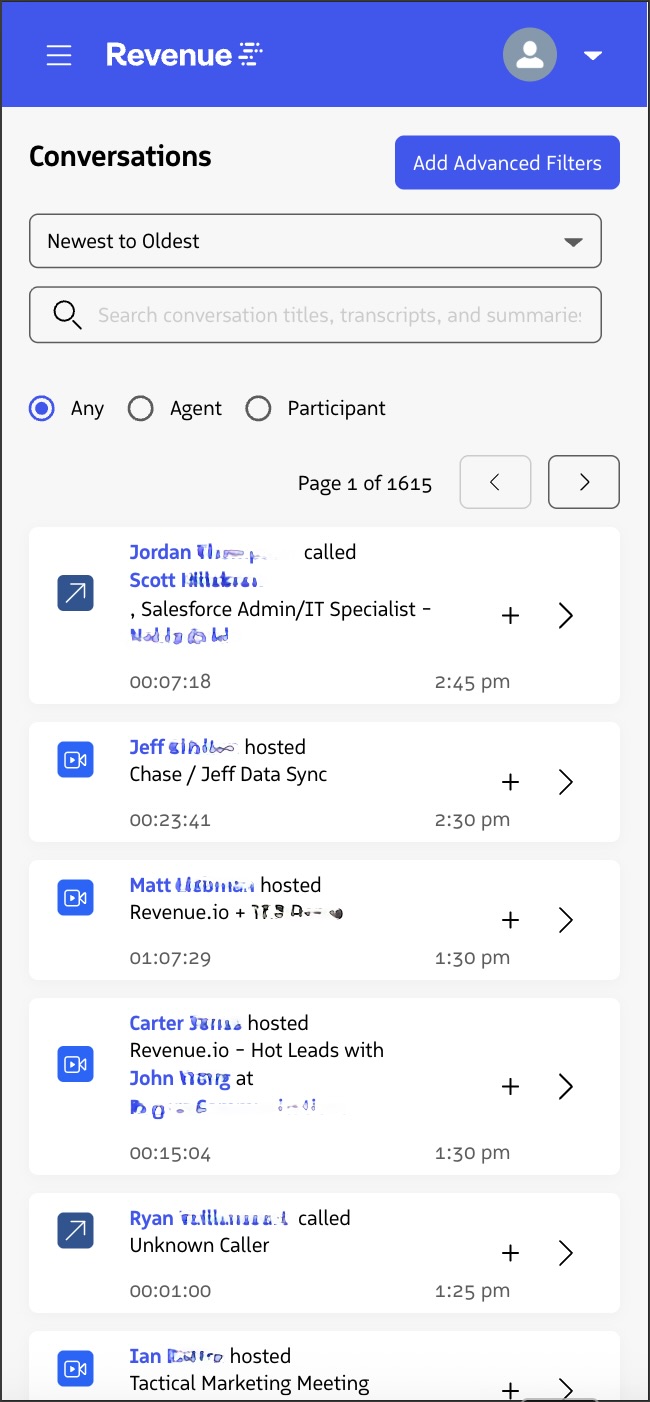
Note: for conversations that are still processing, you can only search and filter by what’s shown on the conversation row. This typically includes the conversation owner’s name, the primary contact and account (if set), call type (audio or video), and call duration.
Open Text Search
- The search bar at the top of the page allows users to input search queries - type out what you’re searching for and hit enter.
- This will search call transcripts, call notes, supervisor notes, and participant details.
- For an exact match, put your text search terms within quotation marks.
- e.g., To find conversations that specifically said I like Peanut butter and jelly sandwiches, enter “I like Peanut butter and jelly sandwiches”

- For a loose match, type in the text without quotation marks. This will show you conversations that contain all of the text searched for but not necessarily together.
- i.e., a Text search of I like Peanut butter and jelly sandwiches, (not in quotes) will return conversations in which some words were used at any point within a conversation but not necessarily were said/used together.
- They could have said, “We no longer have Peanut butter on our menu due to allergies. However, we still offer jelly and all other sandwiches. I recommend the Turkey sandwich.”
- i.e., a Text search of I like Peanut butter and jelly sandwiches, (not in quotes) will return conversations in which some words were used at any point within a conversation but not necessarily were said/used together.

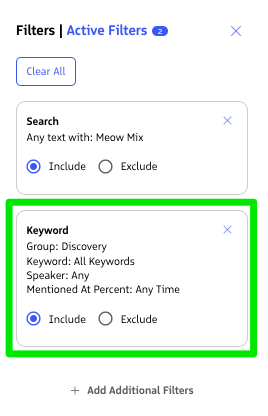
- To mark text as Include or Exclude Criteria: Once you enter a text search, you will see an Advanced Filters notification, clicking Advanced Filters → Active Filters will indicate your search to include or exclude the inputted search string
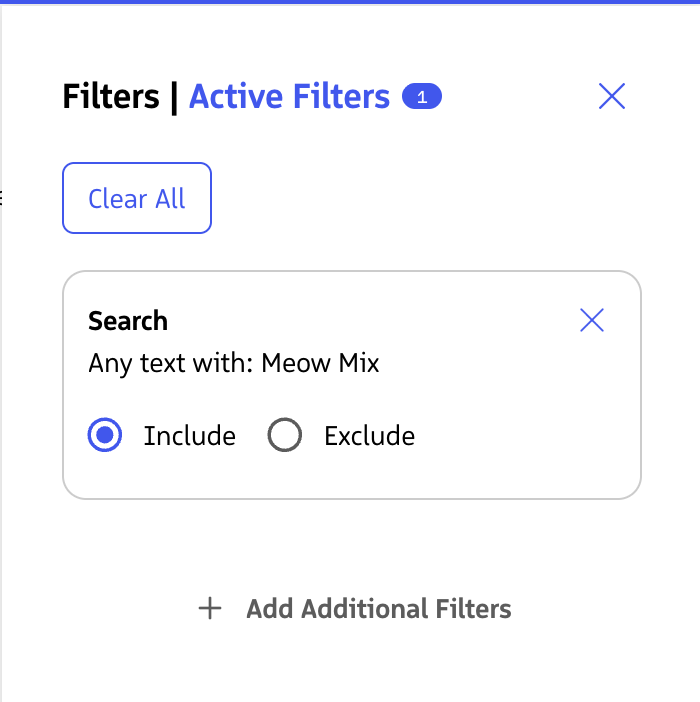
Filters
When applying multiple filters, they are compounded. For example if you apply filters Participants -> Name - Sally Smith as host, Type of Conversation = Audio Conversation, and Engagement = Has Notes, the results will pull conversations where Sally Smith is the host of an audio conversation that has notes.
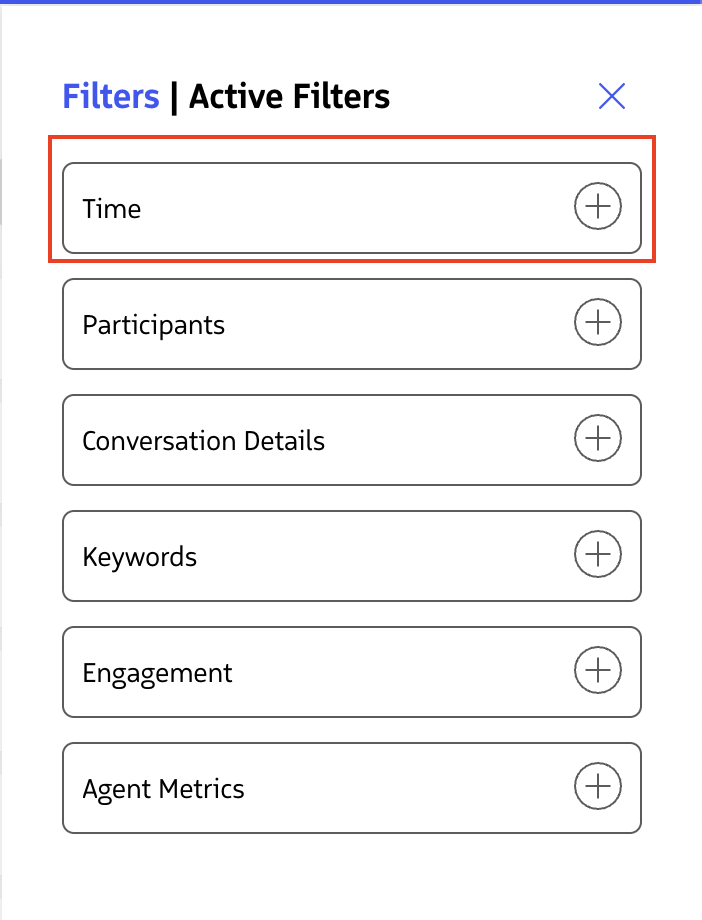
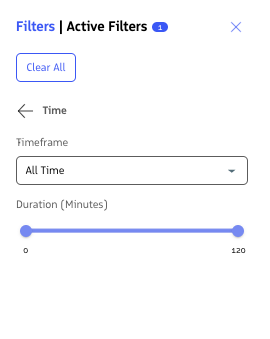
Time Filters
- Timeframe of calls
- Apply filters based on the date when a conversation occurred
- Duration of calls
- Apply filters based on the length of Conversations (A great way to filter out shorter conversations)
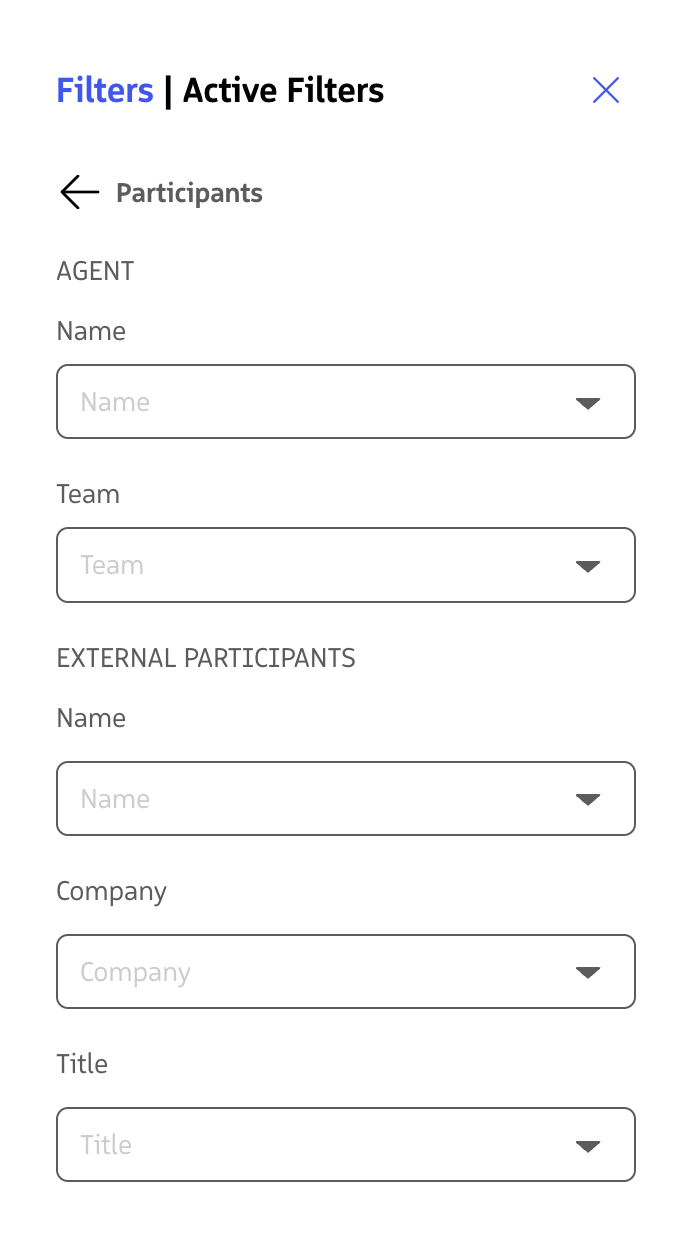
Participant Filters
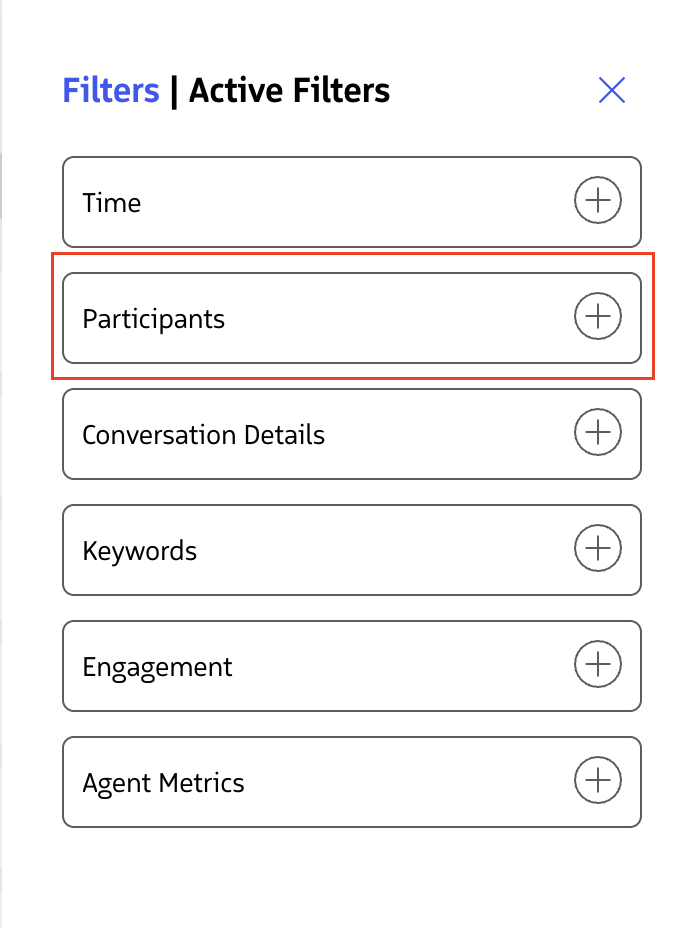
- Agent Details
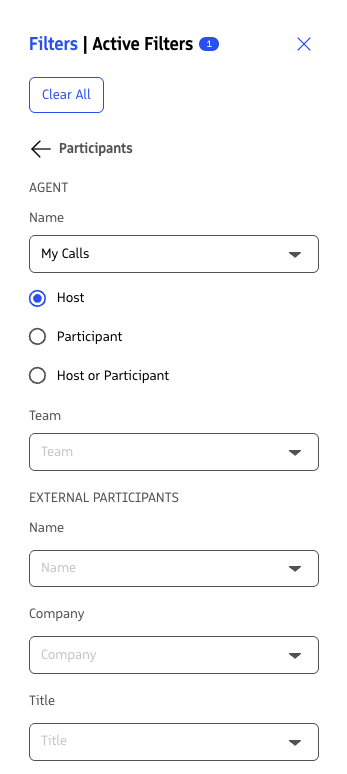
- Agent Name
- Filter to only show conversations where a specific Rep is the host, participant, or either they are the host or a participant
- Agent Team
- Filter to only show conversations where a Rep assigned to a specific team is the host, participant, or either they are the host or a participant
- Agent Name
- External Meeting Attendee Details
- External Participant Name
- Filter to only show conversations attended by a specific prospect/lead/contact/customer’s name
- External Participant Company
- Filter to only show conversations attended by a specific prospect/lead/contact/customer’s company name
- External Participant Title
- Filter to only show conversations attended by a specific prospect/lead/contact/customer’s title (as shown within Salesforce)
- External Participant Name
Conversation Details Filters
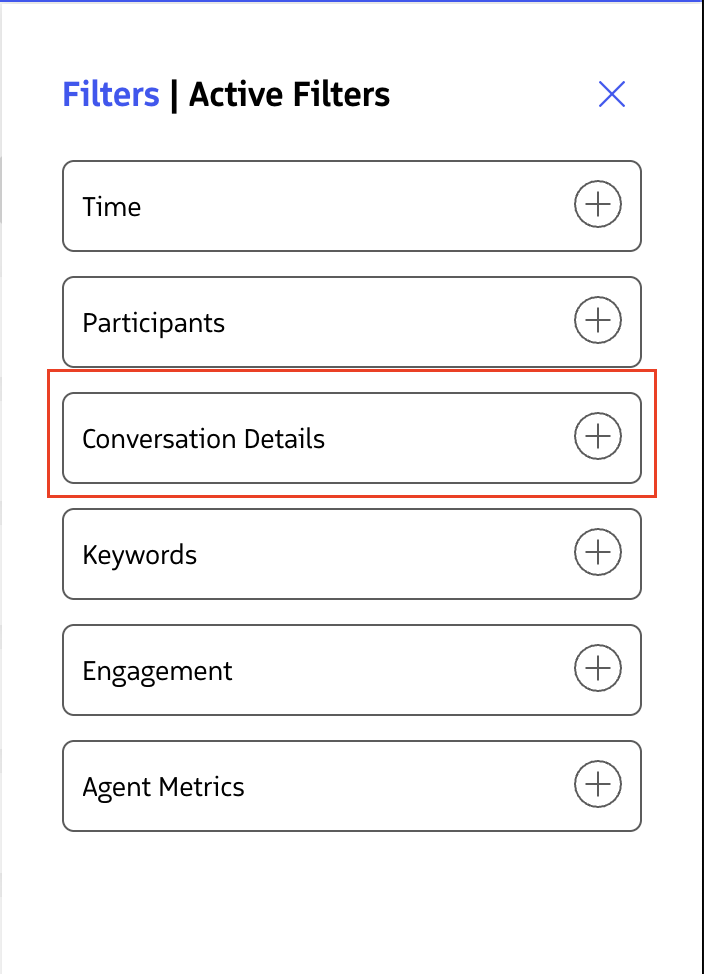
- Opportunity Stages
- Filter to only show conversations that took place during a specific Opportunity Stage
- Lead Status
- Filter to only show conversations based on specific lead statuses
- Type of Conversation
- Filter to only show conversations that are Audio conversations or Video Conversations
- Call Direction
- Filter to only show conversations based on the direction (Inbound calls only or Outbound calls only)
- Disposition of call
- Filter to only show conversations based on the disposition reason assigned to the conversation
- Call Rating (entered by Agent in the RingDNA dialer)
- Filter to only show conversations based on the Reps entered call ratings within the ringDNA dialer
- Libraries
- Filter to only search for conversations within specific Libraries
Keyword Filters
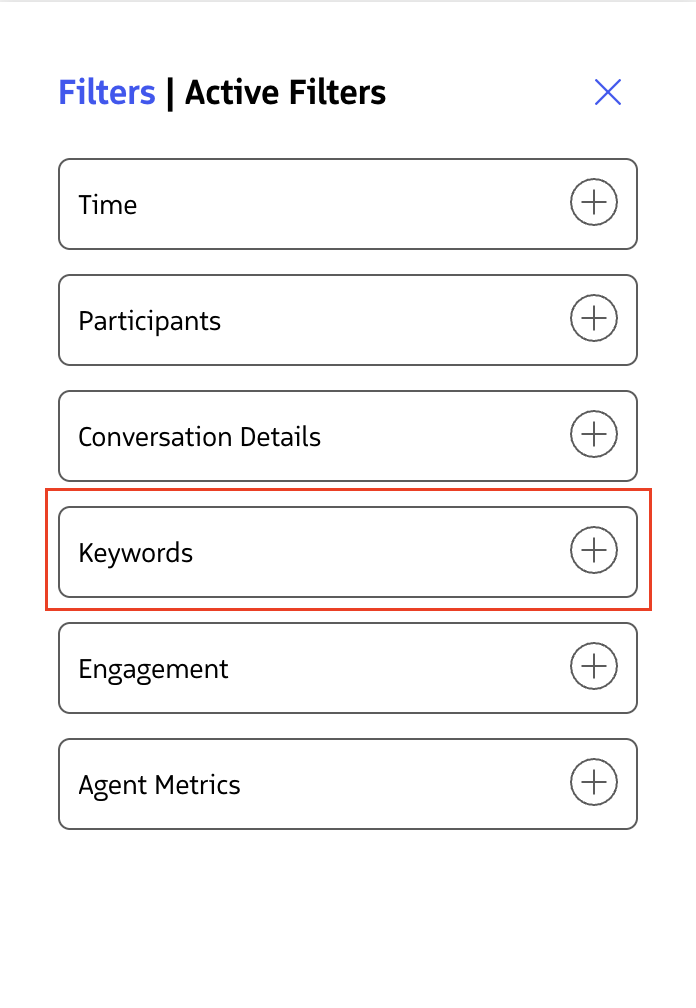
- Keywords/Keyword groups
- Filter to only show conversations that contained a specific keyword or any keyword from a specific keyword group
- Mentioned By:
- Filter to only show conversations that had particular keywords/keyword groups mentioned by either
- The Agent (Rep hosting the conversation)
- The Participant (Non-internal Agent/Rep meeting attendees)
- Anyone (mentioned by anyone on a call)
- Filter to only show conversations that had particular keywords/keyword groups mentioned by either
- Mentioned At:
- Filter to only show conversations in which specific keywords/keyword groups were detected within a particular part (percentage) of a call
- e.g.
- First 25% of a call
- Last 50% of a call
- Within the middle of a call (25%-75%)
- e.g.
- Filter to only show conversations in which specific keywords/keyword groups were detected within a particular part (percentage) of a call
- Notes:
- You must click ‘Apply Filter’ for filter selections made to take effect
- By clicking the Active Filters → your selected keywords, you will find calls that do not include the chosen keyword.
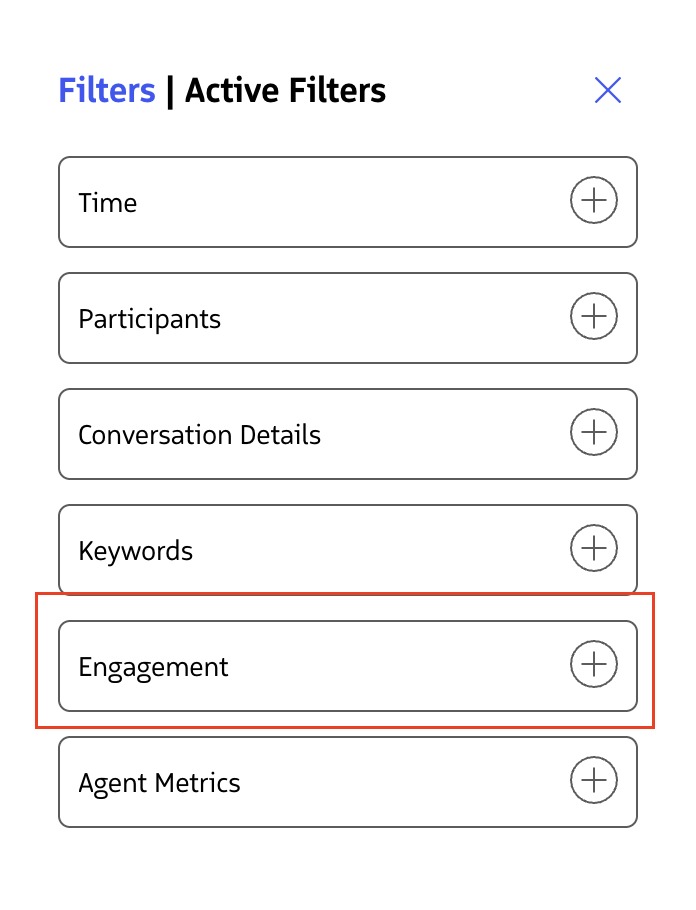
Engagement
- Has Notes
- Filter to only show conversations that contain Rep notes
- Has Supervisor Notes
- Filter to only show conversations that contain Supervisor notes
- Has Annotations
- Filter to only show conversations that contain annotations
- Shared with Others
- Filter to only show conversations that were shared
- Has Tasks
- Filter to only show conversations that have Salesforce tasks
- Flagged for Coaching
- Filter to only show conversations that were flagged for coaching within the ringDNA Dialer
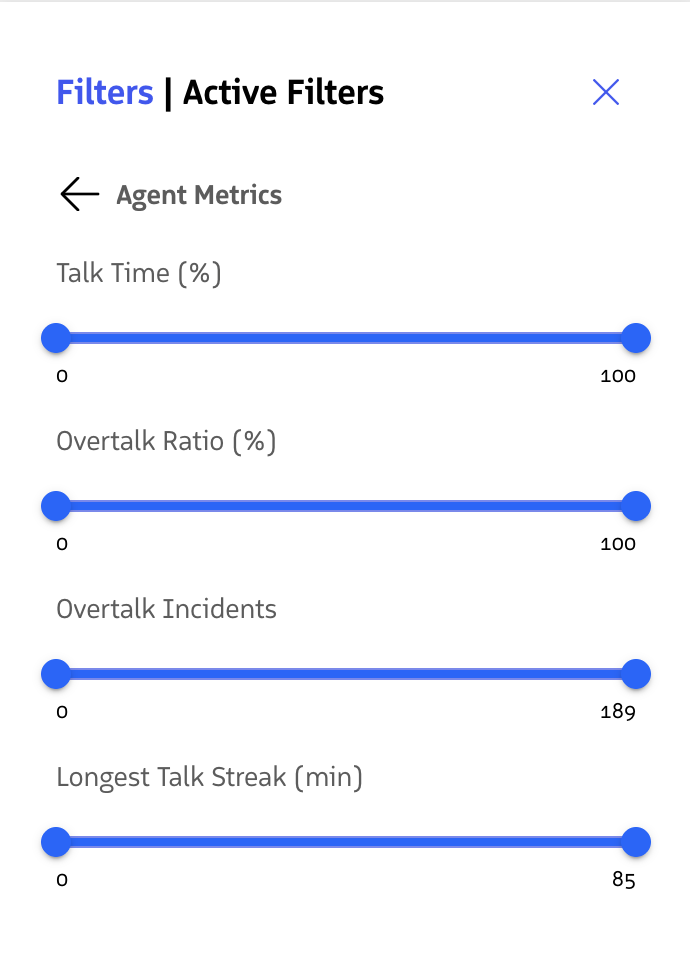
Agent Call Metrics
- Search by metrics like Agent talk ratio, overtalk incidents, and talk streak length.
- This section searches specifically for an Agent’s conversation etiquette on a call.