Follow-Up Emails
- Follow-Up Emails must be enabled for both the Account and the User
- The conversation must be longer than 4 minutes and contain more than 100 spoken words to be transcribed and generate a draft
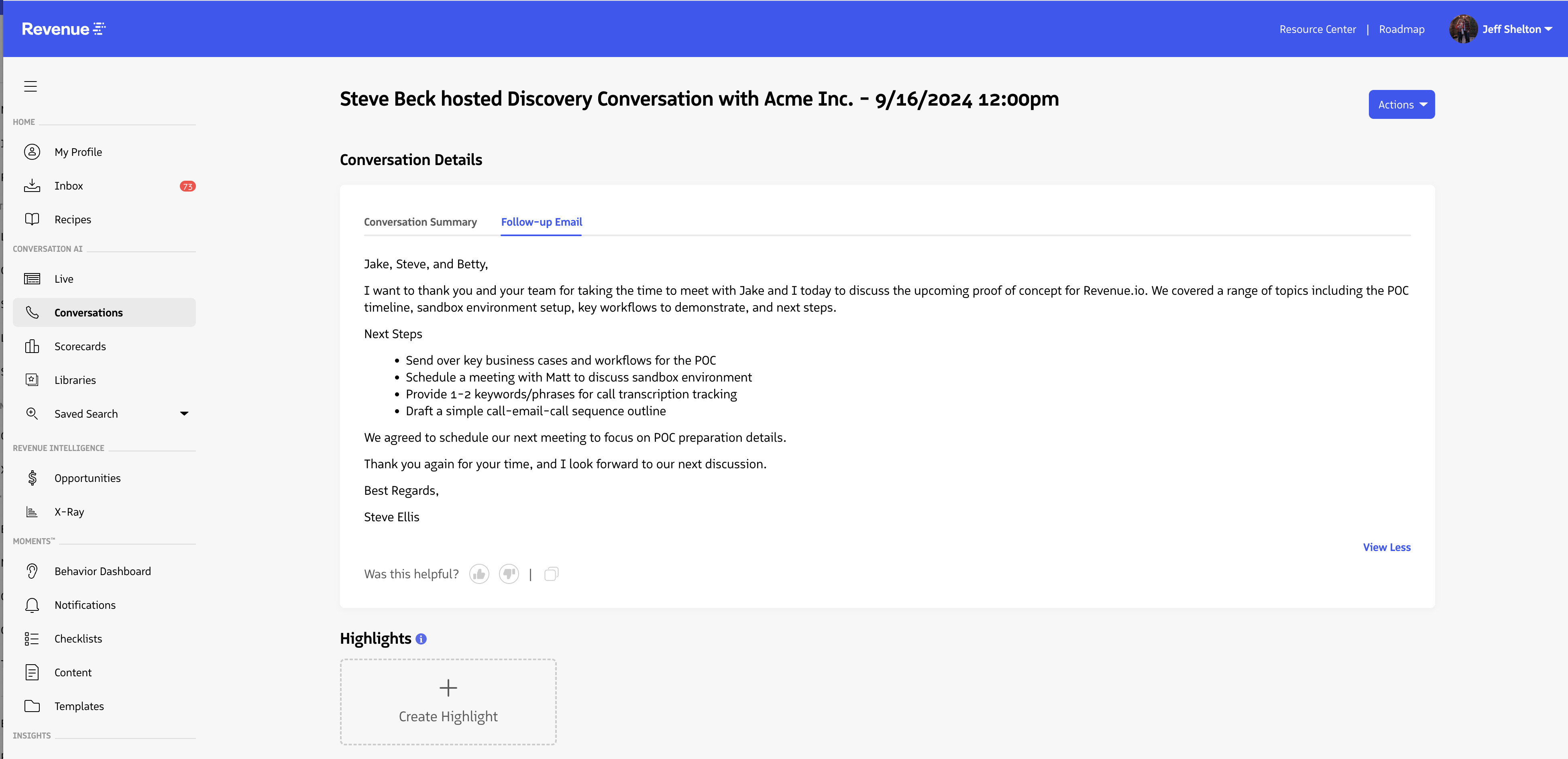
After a qualifying conversation, Revenue.io uses the transcript to generate a follow-up email draft — including a summary of key discussion points, action items, and next steps — and places it directly in your connected email inbox for review and sending.
On any conversation record, select the Follow-Up Email tab under conversation details to review the draft, copy it to your clipboard, or submit feedback.
Enable Follow-Up Emails for your account
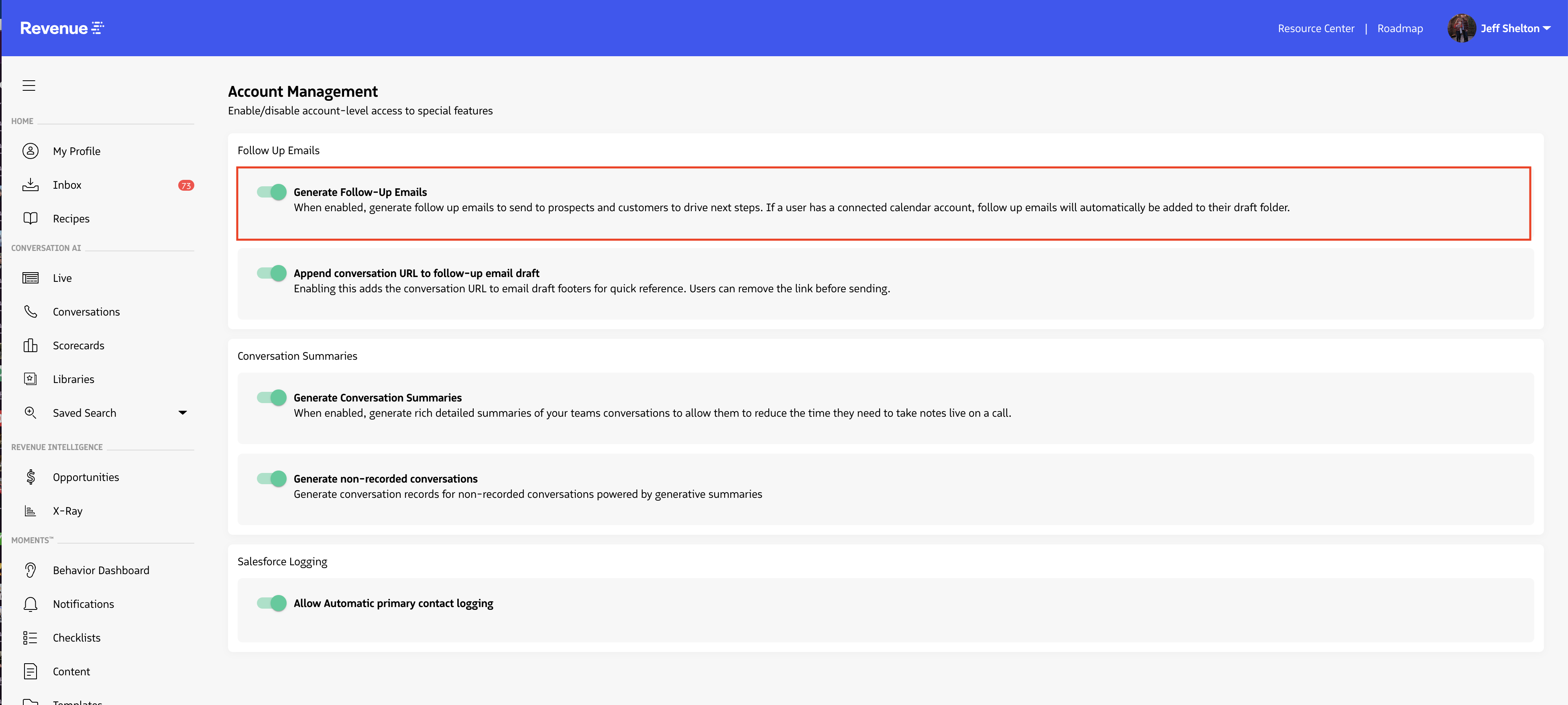
Admins can enable Follow-Up Emails in the Account Management tab of the Revenue application. Under Follow Up Emails, turn on the Generate Follow-Up Emails toggle.
Add conversation URLs to drafts
In the same section, you can choose whether to include a link to the conversation record in each draft email.
- Include URLs: Gives reps quick access to the conversation before they send the email.
- Exclude URLs: Prevents reps from accidentally forwarding internal conversation links to prospects or customers. Conversation links are only accessible by Revenue.io users.
Enable Follow-Up Emails for a user
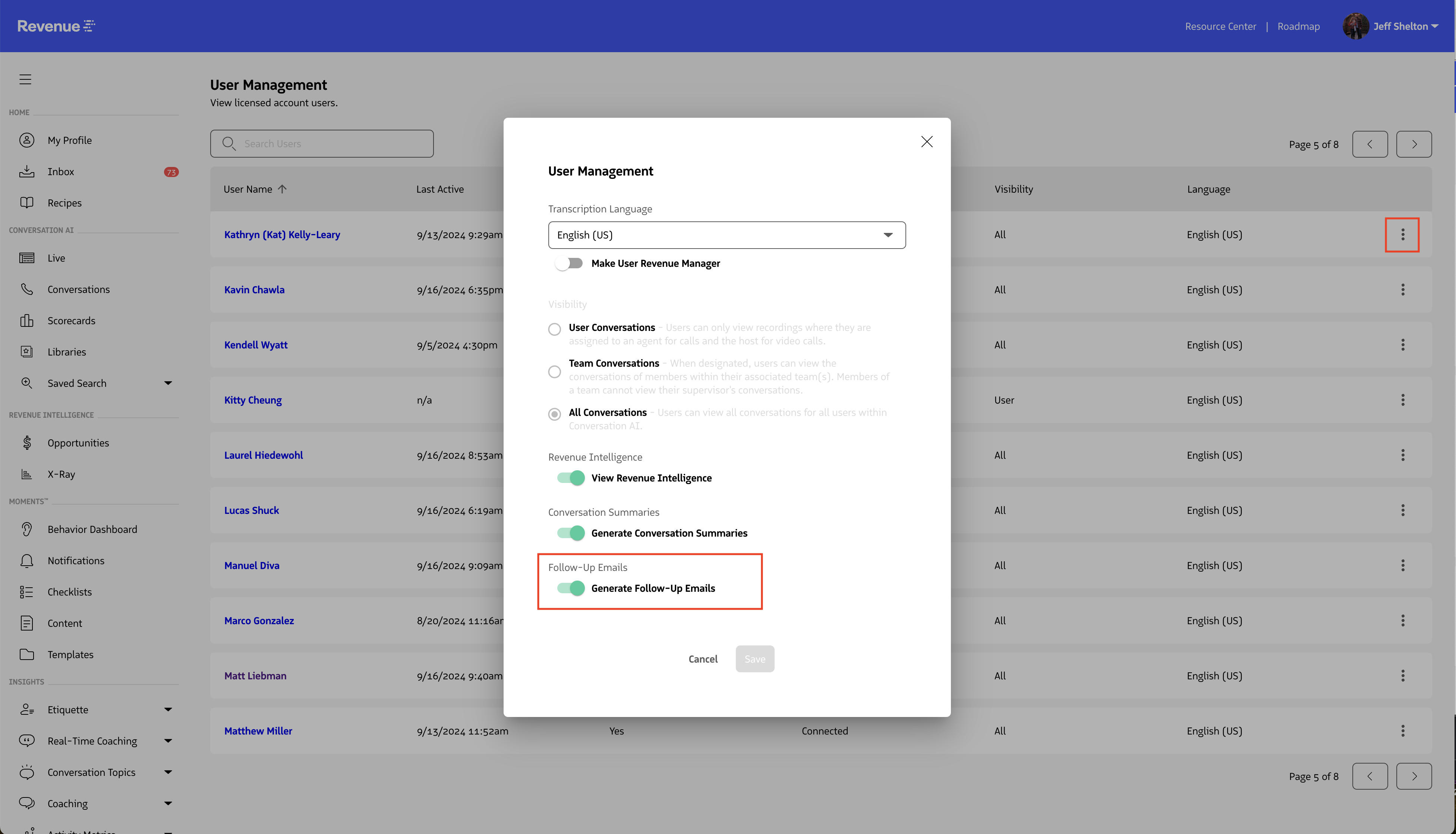
After enabling Follow-Up Emails at the account level, turn it on per user in the Users page.
Select the three-dot menu next to a user, then turn on Generate Follow-Up Emails under the Follow-Up Emails section.
When enabled, the user can view follow-up emails for conversations they have access to, and qualifying conversations will generate a draft in their connected email inbox.