Language support in Conversation AI and Moments™
Revenue.io supports non-English conversations through two settings that work together: Conversation Language and Multi-Language Support. Understanding how they interact is important for getting accurate transcripts and AI outputs.
Product experiences
Language settings apply across all Conversation AI features. Here is what to expect for each.
Conversation AI transcripts
All conversations are transcribed in the language spoken in the conversation, provided the correct Conversation Language is configured or Multi-Language Support is enabled. This applies to:
- Call audio (RingDNA Communications Hub)
- Microsoft Teams
- Google Meet
- Zoom
Moments™ notifications
Moments™ notifications are triggered based on keywords detected in the transcript. Keyword matching and notification text will reflect the language of the transcript. If your team uses non-English keywords, ensure those keywords are configured in the same language your agents speak in conversations.
Conversation Summaries
Conversation Summaries are generated in the user’s selected Conversation Language, when that language was spoken in the conversation.
- Summaries use the exact language defined in the user profile.
- They are logged to Salesforce in the same language, supporting native-language coaching and reporting.
Follow-Up Emails
Follow-Up Emails are generated in the user’s selected Conversation Language, when that language was spoken in the conversation, with structure and section labels localized to that language.
- All sections (e.g., Next Steps, Meeting Summary) are localized to the user’s selected language.
- Emails are logged to the Follow Up Email field on the Conversation record using the same language.
Language settings
Conversation Language
Users can update their preferred conversation language.
Open the Admin Console.
In the Admin Console, click Users, then select the user to open their profile.
Select the desired language from the Conversation Language dropdown.
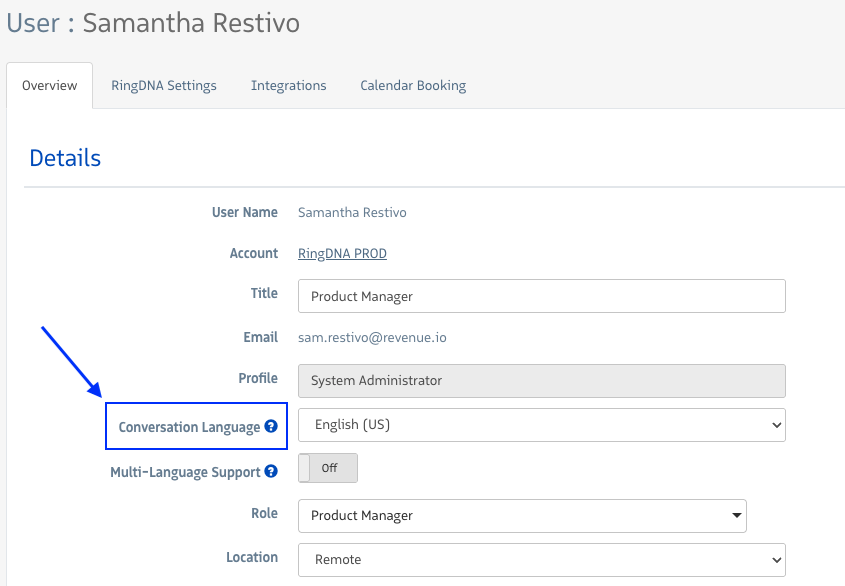
Click Save to apply the change.
You can also enable multi-language transcription for a single user through the user’s profile. We recommend that this setting remains off for all users that speak only one language.
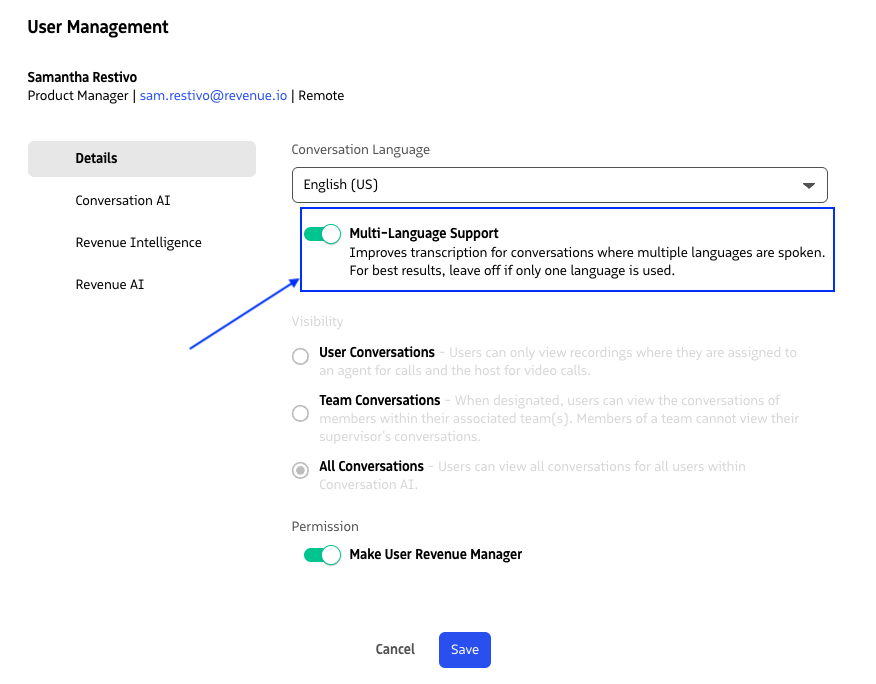
Important: This setting selects a speech recognition model. It does not translate output. If your Conversation Language is set to English but a conversation is conducted in Spanish and Multi-Language Support is OFF, the system will attempt to transcribe Spanish audio using an English model, which will produce inaccurate or garbled results.
Multi-Language Support
This setting controls how we handle the audio input, not what language outputs appear in.
Multi-Language Support OFF (Single-Language Mode): Revenue.io transcribes conversations using the speech recognition model for the configured Conversation Language. This works well when the spoken language always matches that setting. It will fail if the languages don’t match, or if a speaker switches languages mid-conversation.
Multi-Language Support ON: Revenue.io tries to detect the spoken language and can handle language-switching mid-conversation (e.g., an agent starts in English and switches to Spanish). No per-user language configuration is needed for mixed-language teams, but the results may be less consistent.
The two primary use cases for turning Multi-Language Support ON are:
- Mixed-language teams: An agent speaks English and Spanish and has conversations in both languages.
- Code-switching conversations: An agent switches languages mid-conversation. Single-language mode would fail here; multi-language mode handles it gracefully.
Note that Multi-Language Support only makes a difference for languages that have a dedicated multilingual model (marked Full below). For languages that do not have a multilingual model, Multi-Language ON and OFF behave identically. The same single-language model is used either way. For those languages, only Conversation Language matters.
Supported languages
The grids below list all supported languages and what to expect based on how each is configured.
Multi-Language Support explained:
- Full: Language has a dedicated multilingual model. When Multi-Language Support is ON, we use an enhanced multilingual model that auto-detects the spoken language and supports language-switching mid-conversation.
- Single-language only: Language has no multilingual model. Multi-Language Support ON and OFF behave identically for these languages. Set Conversation Language to match the spoken language and leave Multi-Language Support off.